Grok Bot now books hotels for you, and spells out how to fix a stuck computer
2 days ago
Grok Bot can now find and book a hotel for you, and its Troubleshooting page now gives a set order of fixes for a computer that won't reconnect. Also: automatic desktop updates, custom Auto-review rules, Enterprise rule enforcement, per-desktop command settings, hardware security keys, usage limit resets, memory import and quiet meeting Bots.
Links
- docs.x.ai/grok-bot/troubleshootingdocs.x.ai
- docs.x.ai/grok-bot/chat-and-collaborationdocs.x.ai
- docs.x.ai/grok-bot/computer-and-appsdocs.x.ai
- docs.x.ai/grok-bot/settings-and-notificationsdocs.x.ai
- docs.x.ai/grok-bot/deploymentdocs.x.ai
- docs.x.ai/grok-bot/how-grok-bot-worksdocs.x.ai
- docs.x.ai/grok-bot/securitydocs.x.ai
- docs.x.ai/grok-bot/approvals-security-and-privacydocs.x.ai
- docs.x.ai/grok-bot/mobiledocs.x.ai
- docs.x.ai/grok-bot/botsdocs.x.ai
- docs.x.ai/grok-bot/meetingsdocs.x.ai
- docs.x.ai/developers/release-notes.mddocs.x.ai
Ask about this presentation
Chapters
Show transcriptHide transcript
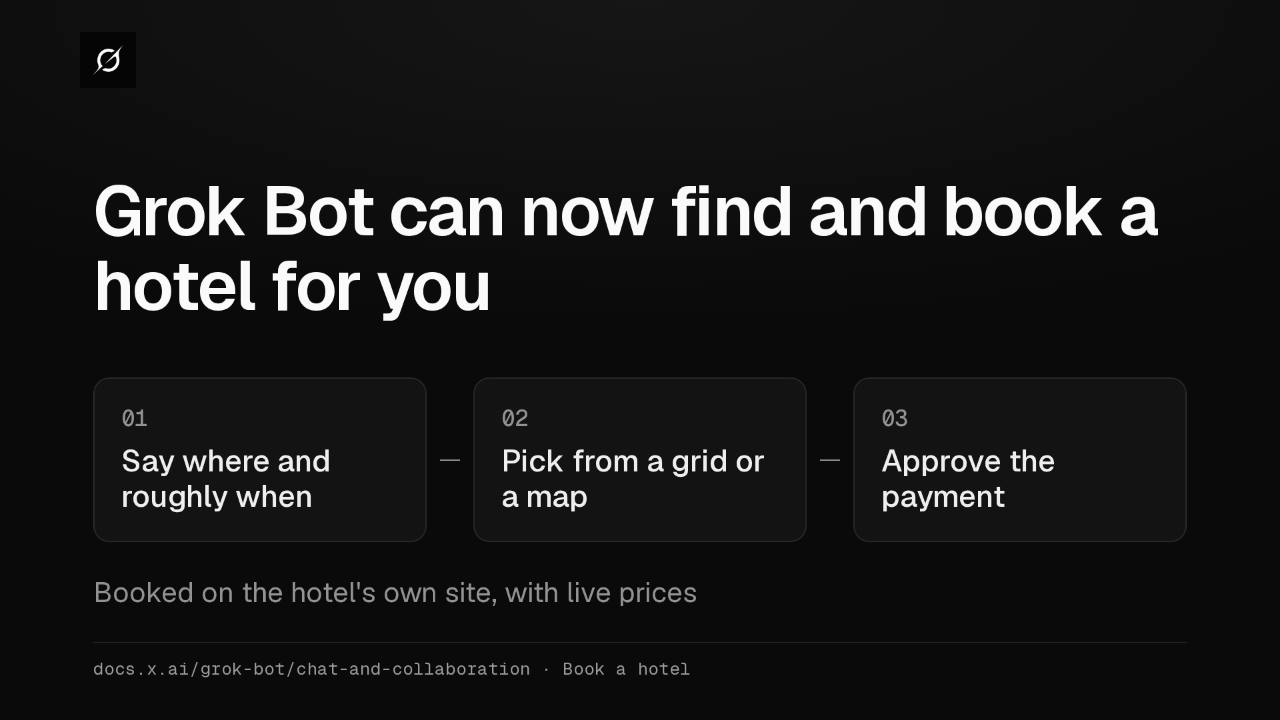
Grok Bot now books hotels. Tell a Bot where and roughly when, and it searches current prices. Pick one from a grid or a map, approve the payment, and it books on the hotel's own site.
Slide text

Grok Bot can now find and book a hotel for you
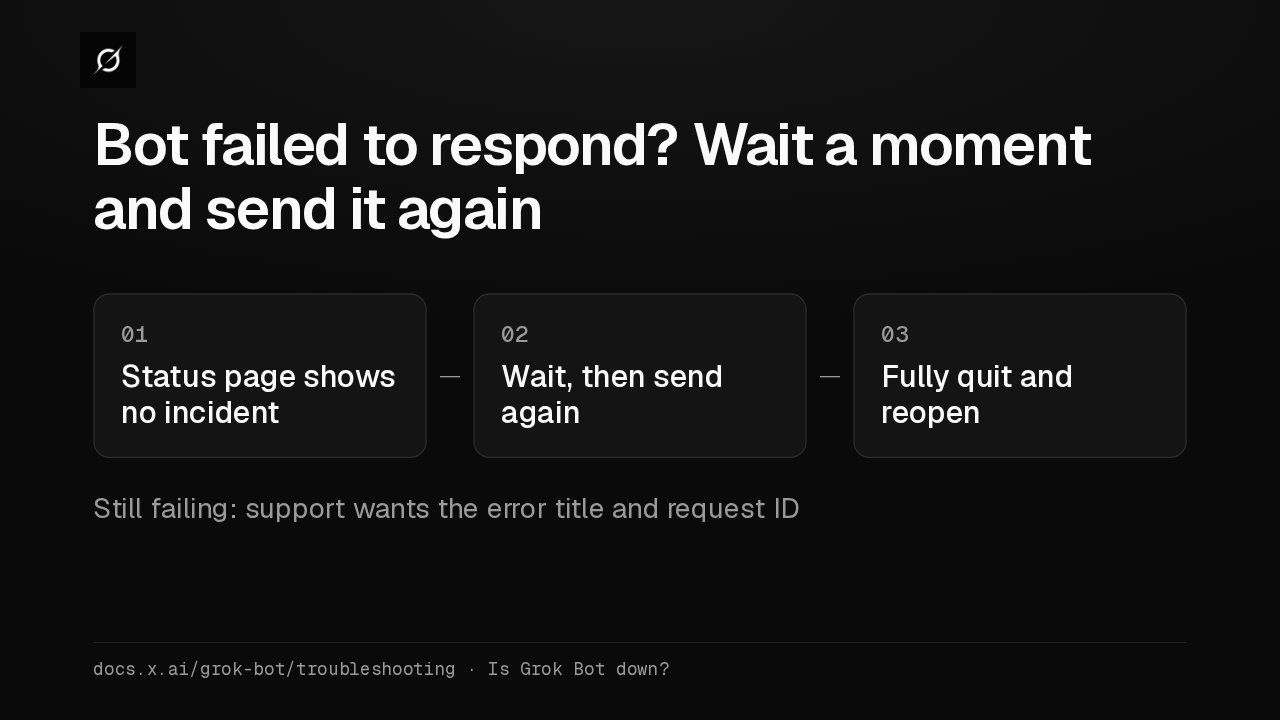
01Say where and roughly when02Pick from a grid or a map03Approve the paymentBooked on the hotel's own site, with live pricesdocs.x.ai/grok-bot/chat-and-collaboration · Book a hotelIf a Bot says it failed to respond, and the status page shows no incident, wait a moment and send it again. Still nothing? Fully quit Grok Bot and reopen it.
Slide text
Bot failed to respond? Wait a moment and send it again
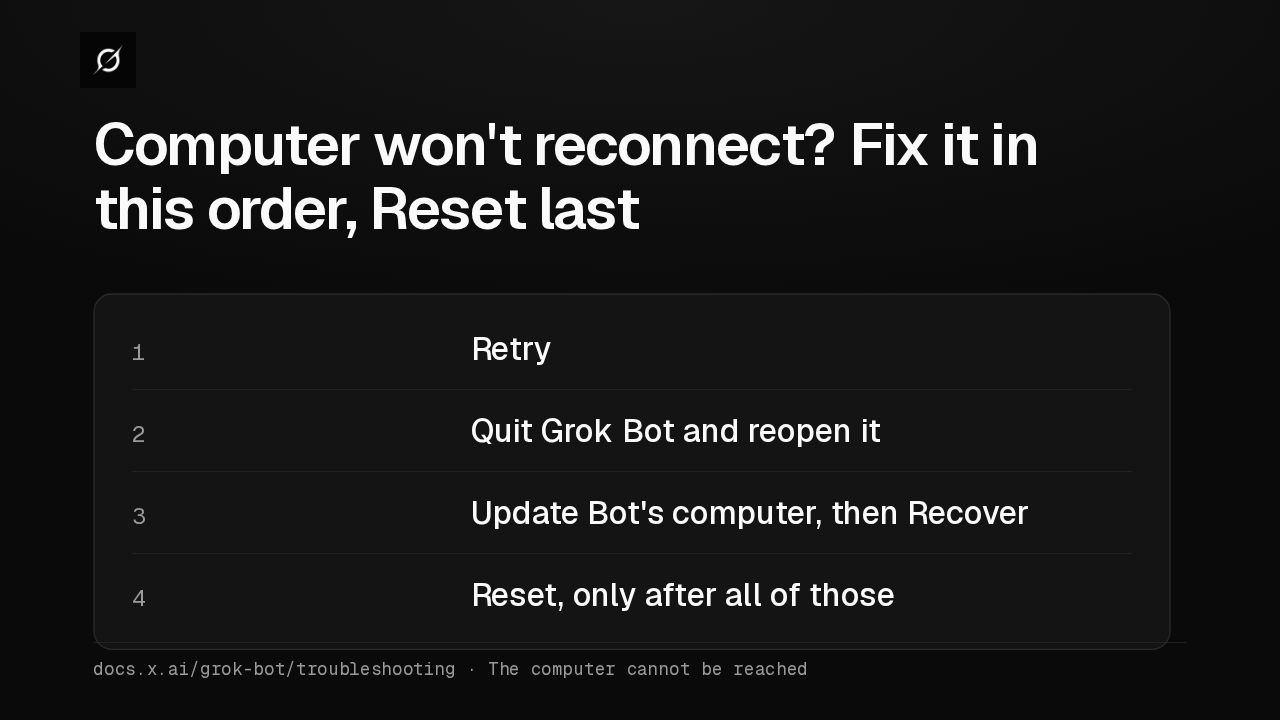
01Status page shows no incident02Wait, then send again03Fully quit and reopenStill failing: support wants the error title and request IDdocs.x.ai/grok-bot/troubleshooting · Is Grok Bot down?When the Bot's computer says Reconnecting, there's a set order: retry, restart the app, update, then Recover. Reset comes last. Your Bots, files and logins stay safe while it reconnects.
Slide text
Computer won't reconnect? Fix it in this order, Reset last
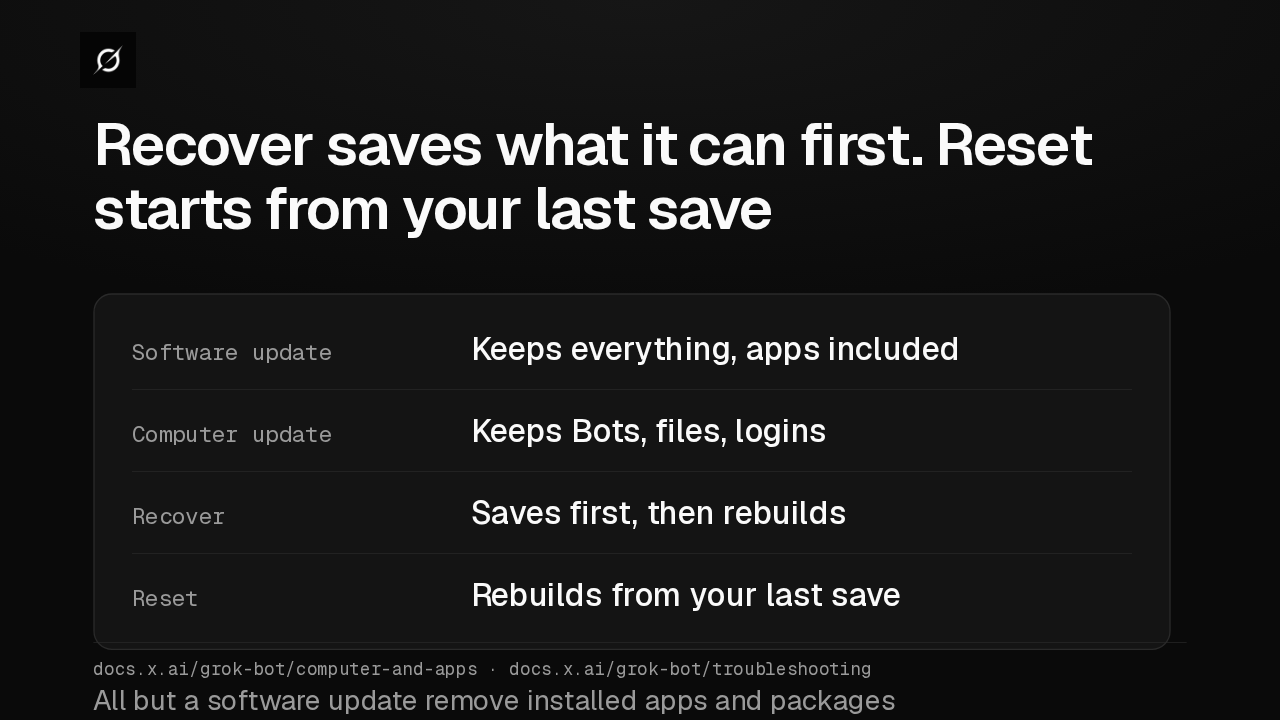
1 Retry2 Quit Grok Bot and reopen it3 Update Bot's computer, then Recover4 Reset, only after all of thosedocs.x.ai/grok-bot/troubleshooting · The computer cannot be reachedEvery fix keeps your Bots, files and logins, but only a software update keeps installed apps. Recover saves what it can first. Reset rebuilds from your last save.
Slide text
Recover saves what it can first. Reset starts from your last save
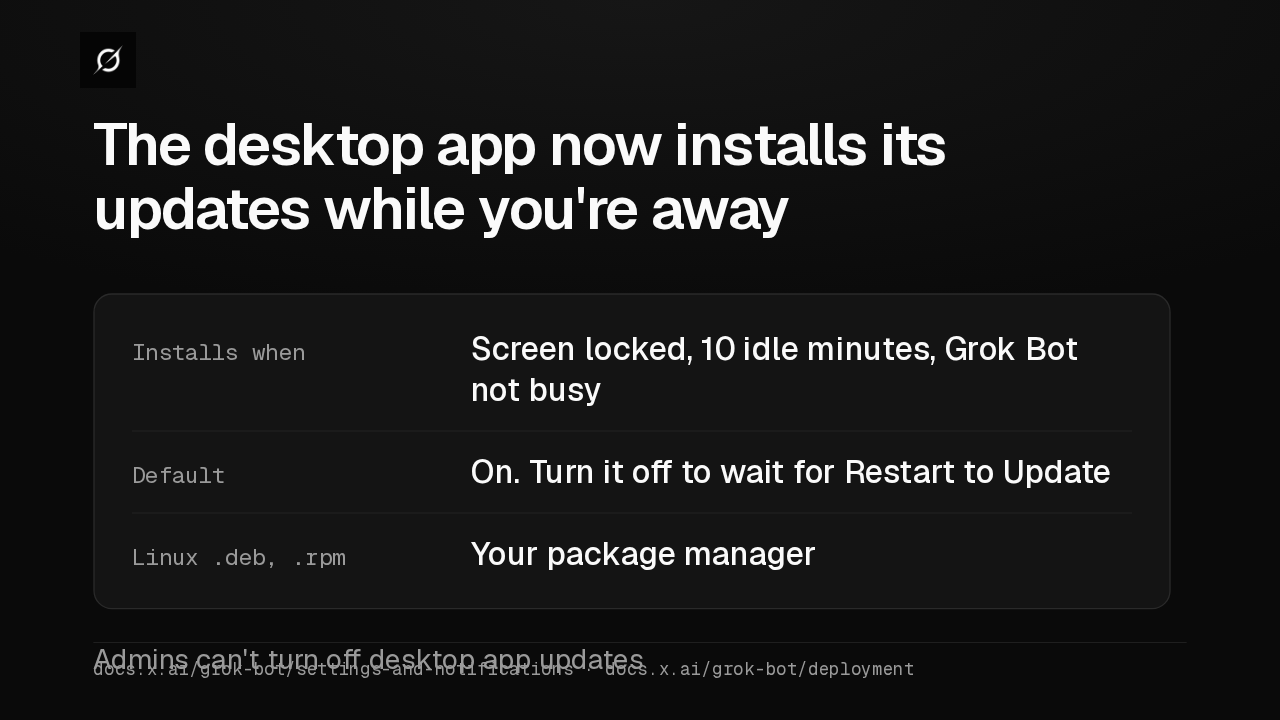
Software update Keeps everything, apps includedComputer update Keeps Bots, files, loginsRecover Saves first, then rebuildsReset Rebuilds from your last saveAll but a software update remove installed apps and packagesdocs.x.ai/grok-bot/computer-and-apps · docs.x.ai/grok-bot/troubleshootingThe desktop app now installs updates while you're away: screen locked, ten idle minutes, Grok Bot not busy. It's on by default, and admins can't switch updates off. Linux packages update through your package manager.
Slide text
The desktop app now installs its updates while you're away
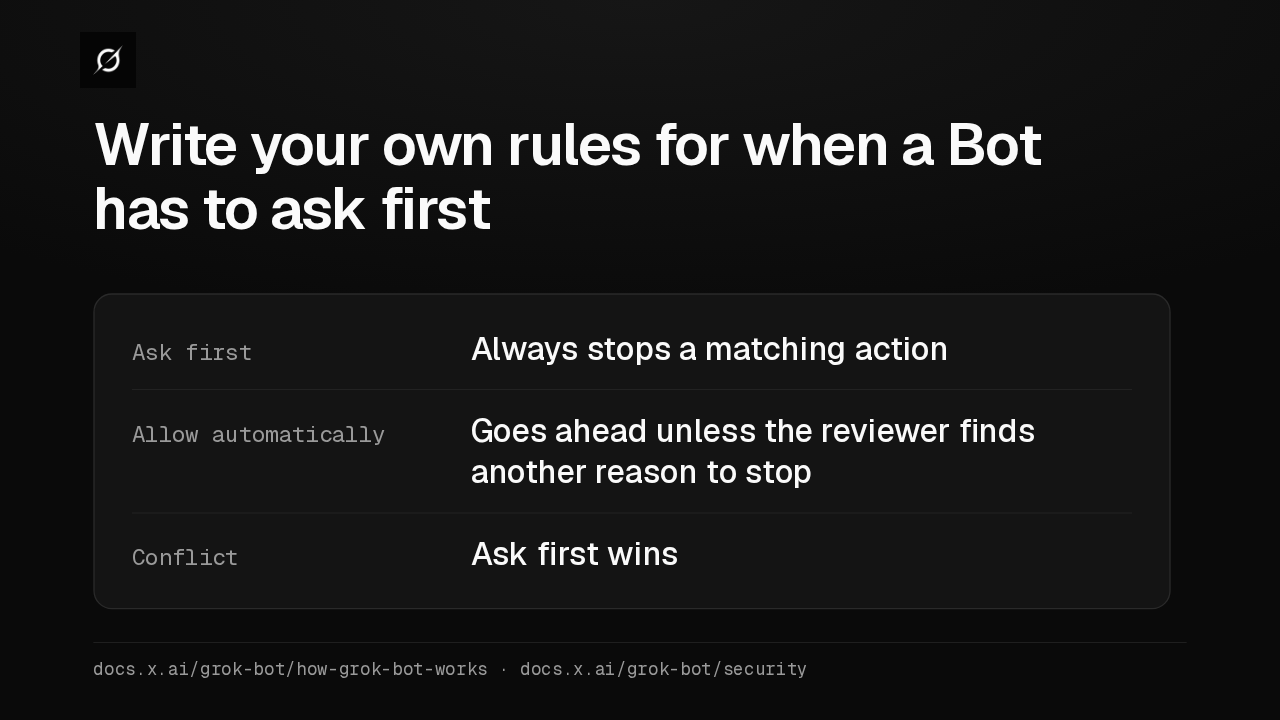
Installs when Screen locked, 10 idle minutes, Grok Bot not busyDefault On. Turn it off to wait for Restart to UpdateLinux .deb, .rpm Your package managerAdmins can't turn off desktop app updatesdocs.x.ai/grok-bot/settings-and-notifications · docs.x.ai/grok-bot/deploymentWrite your own rules in plain words, like send an email, and set each to Ask first or Allow automatically. Ask first always stops a matching action, and wins any conflict.
Slide text
Write your own rules for when a Bot has to ask first
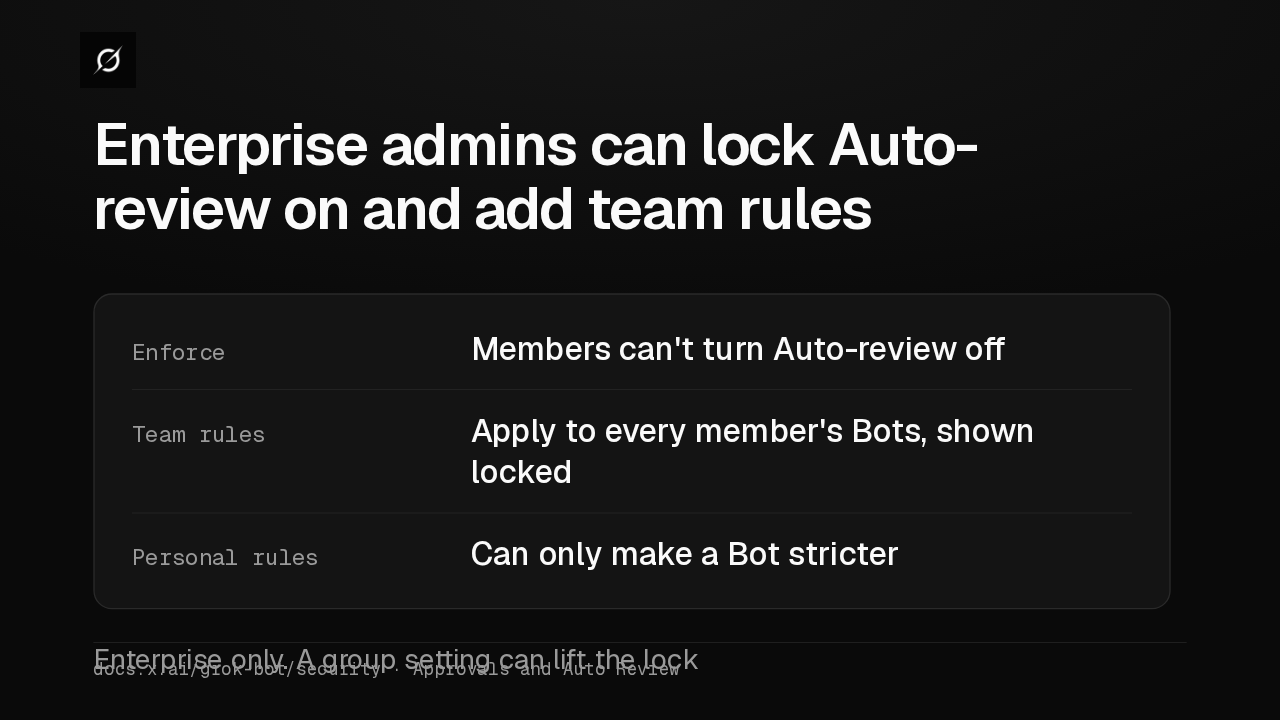
Ask first Always stops a matching actionAllow automatically Goes ahead unless the reviewer finds another reason to stopConflict Ask first winsdocs.x.ai/grok-bot/how-grok-bot-works · docs.x.ai/grok-bot/securityOn Enterprise, admins can lock Auto-review on and add team rules for every member's Bots. Members can still add their own rules, but those only make a Bot stricter.
Slide text
Enterprise admins can lock Auto-review on and add team rules
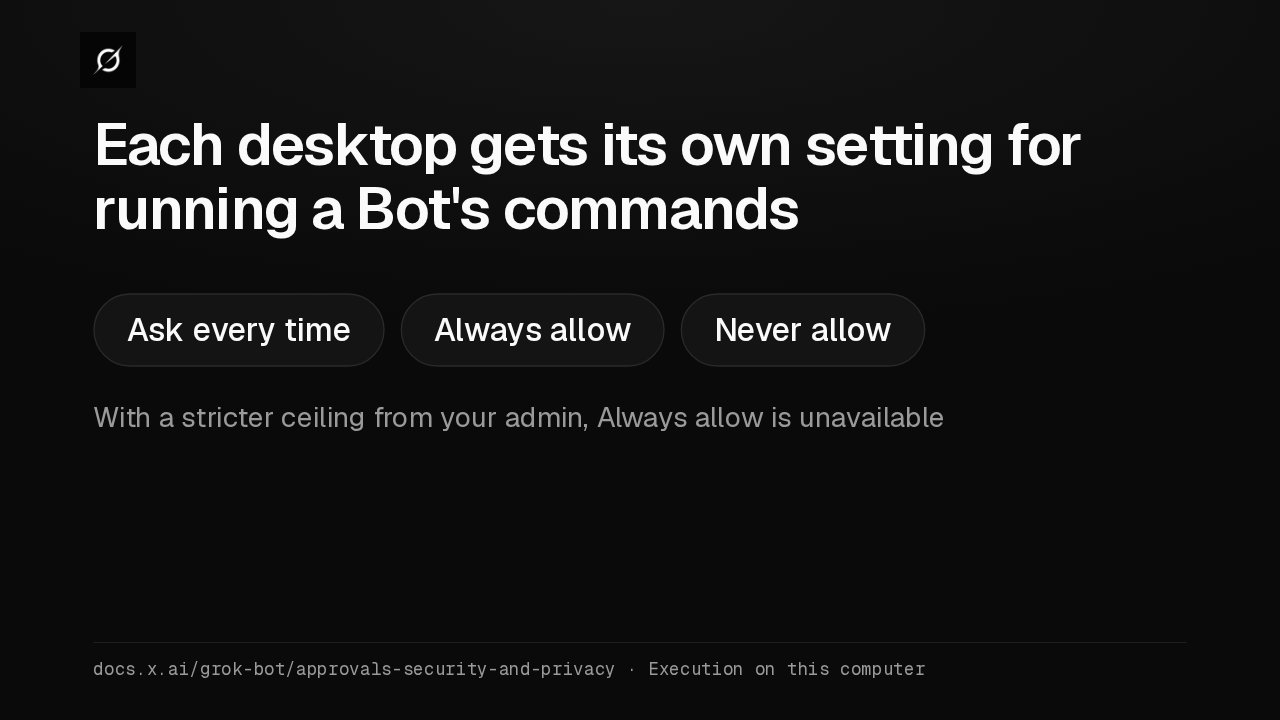
Enforce Members can't turn Auto-review offTeam rules Apply to every member's Bots, shown lockedPersonal rules Can only make a Bot stricterEnterprise only. A group setting can lift the lockdocs.x.ai/grok-bot/security · Approvals and Auto ReviewEach desktop now has its own setting for running a Bot's commands: ask every time, always allow, or never. If your admin set a stricter limit, Always allow isn't offered.
Slide text
Each desktop gets its own setting for running a Bot's commands
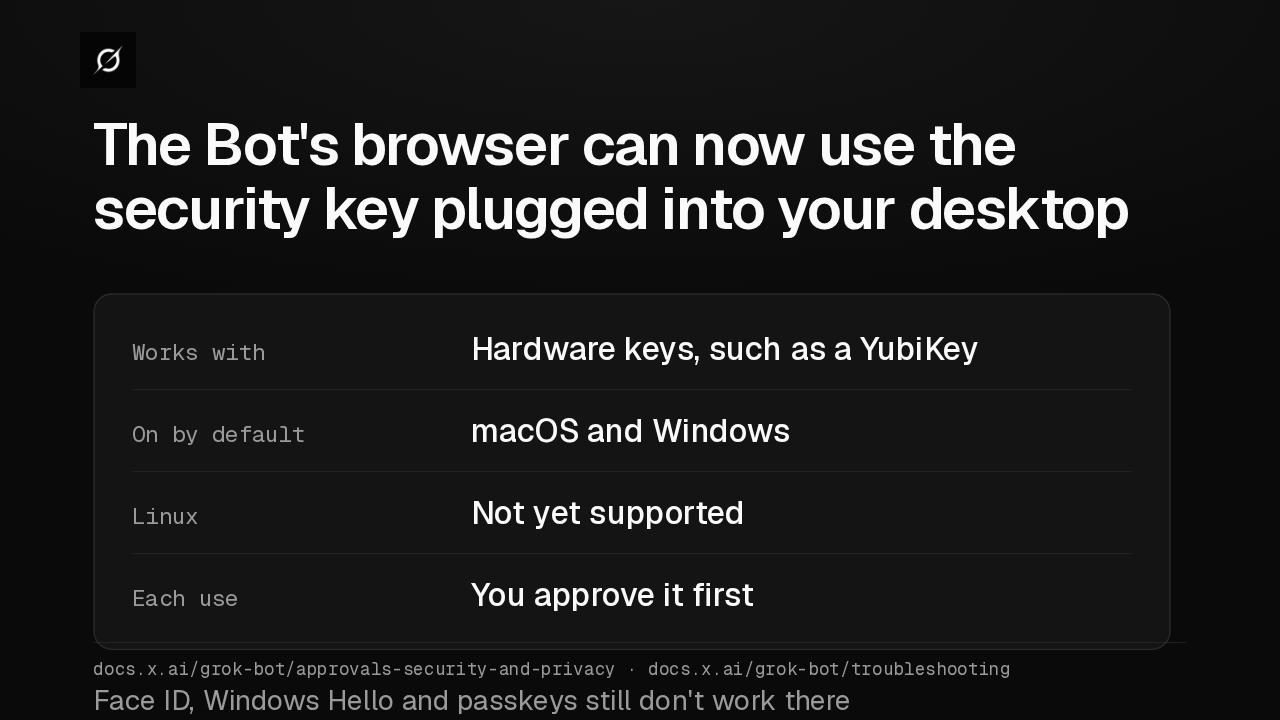
Ask every time Always allow Never allowWith a stricter ceiling from your admin, Always allow is unavailabledocs.x.ai/grok-bot/approvals-security-and-privacy · Execution on this computerThe Bot's browser can now use a hardware security key, like a YubiKey, plugged into your desktop. It's on by default on Mac and Windows, not yet on Linux, and every use asks you first.
Slide text
The Bot's browser can now use the security key plugged into your desktop
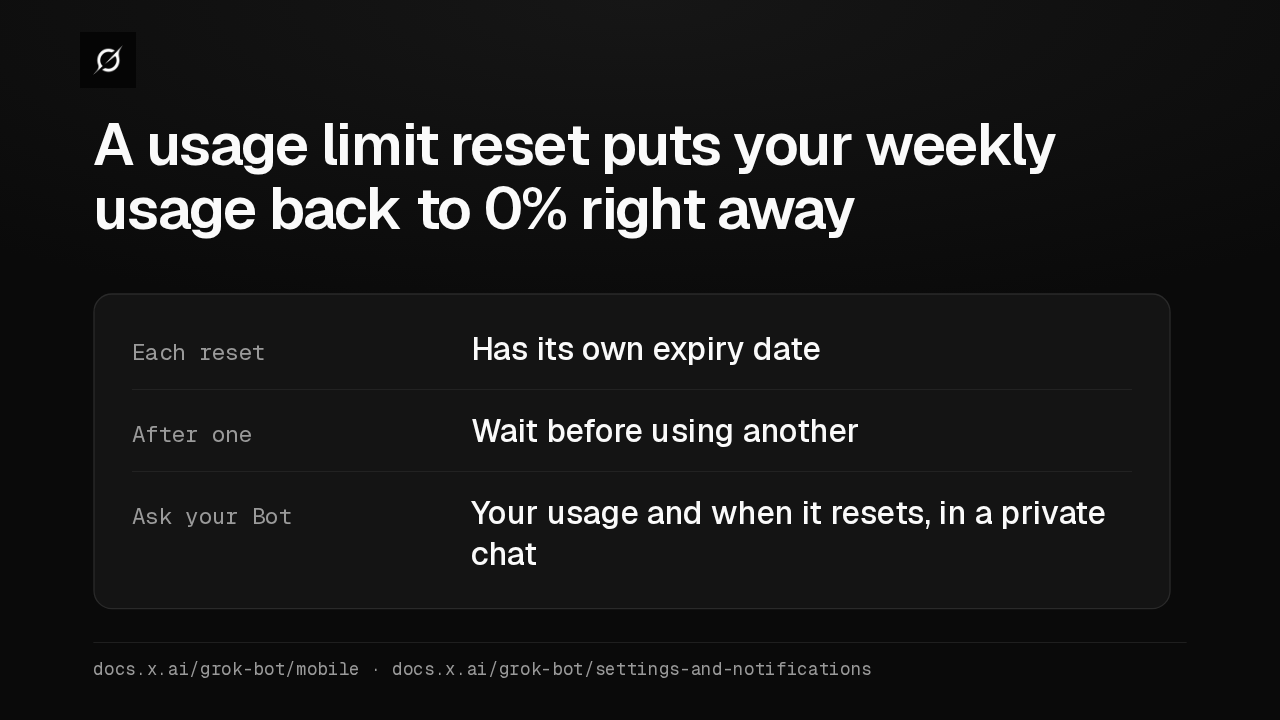
Works with Hardware keys, such as a YubiKeyOn by default macOS and WindowsLinux Not yet supportedEach use You approve it firstFace ID, Windows Hello and passkeys still don't work theredocs.x.ai/grok-bot/approvals-security-and-privacy · docs.x.ai/grok-bot/troubleshootingA usage limit reset takes your weekly usage back to zero right away. Each one expires, and you wait between them. Your Bot can also tell you, in a private chat, what you've used.
Slide text
A usage limit reset puts your weekly usage back to 0% right away
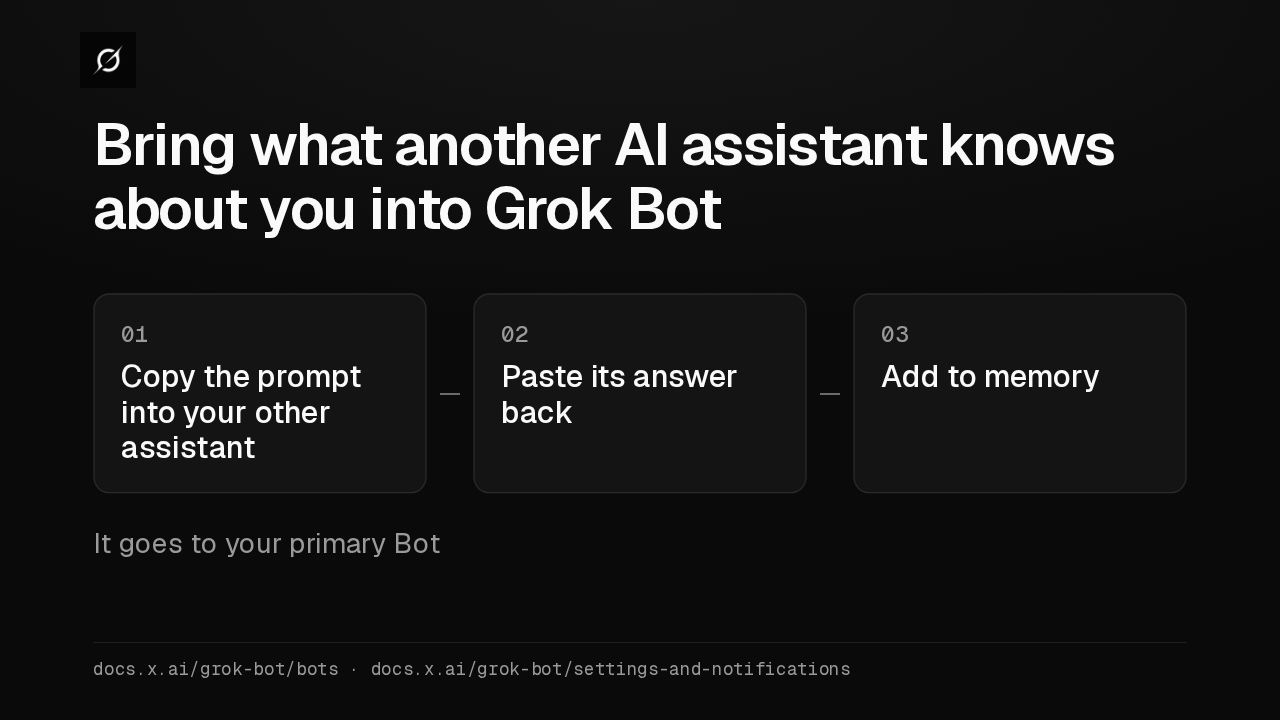
Each reset Has its own expiry dateAfter one Wait before using anotherAsk your Bot Your usage and when it resets, in a private chatdocs.x.ai/grok-bot/mobile · docs.x.ai/grok-bot/settings-and-notificationsMoving from another AI assistant? Import memory gives you a prompt to paste into it. Paste its answer back, choose Add to memory, and your primary Bot picks it up.
Slide text
Bring what another AI assistant knows about you into Grok Bot
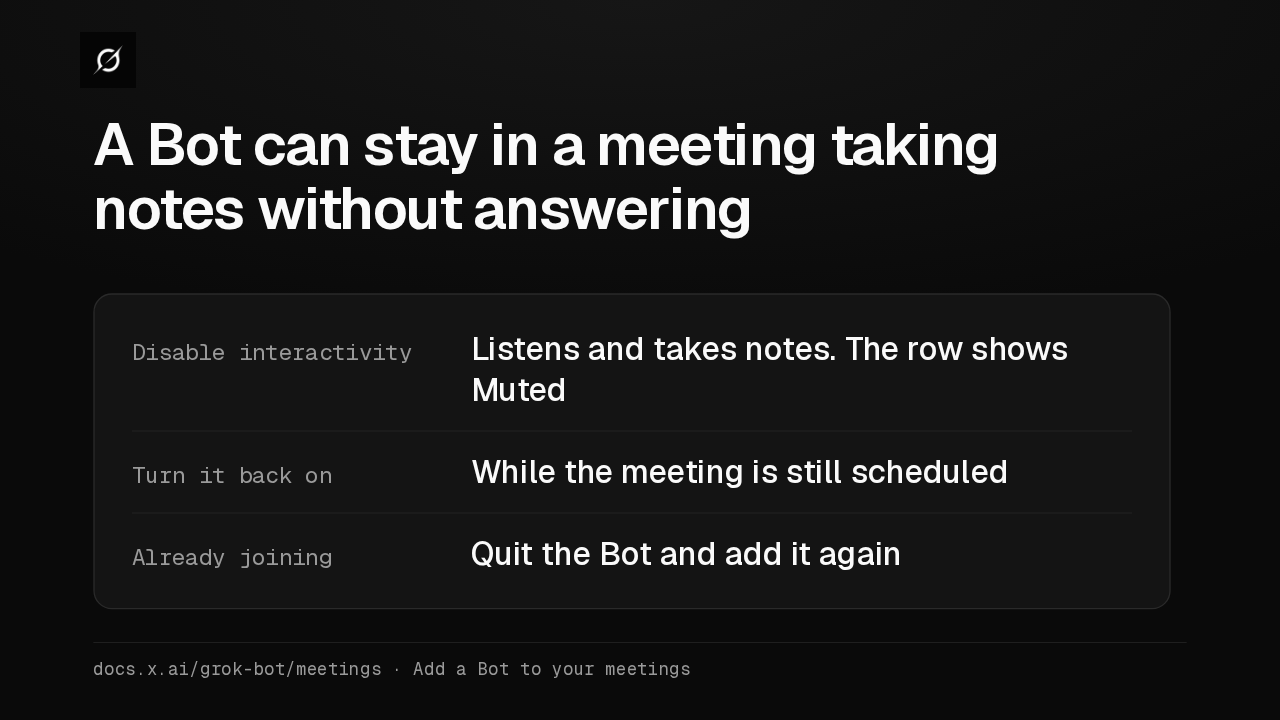
01Copy the prompt into your other assistant02Paste its answer back03Add to memoryIt goes to your primary Botdocs.x.ai/grok-bot/bots · docs.x.ai/grok-bot/settings-and-notificationsDisable interactivity keeps a Bot in your meeting, listening and taking notes, without answering. Once the Bot is joining, turning it back on means quitting it and adding it again.
Slide text
A Bot can stay in a meeting taking notes without answering
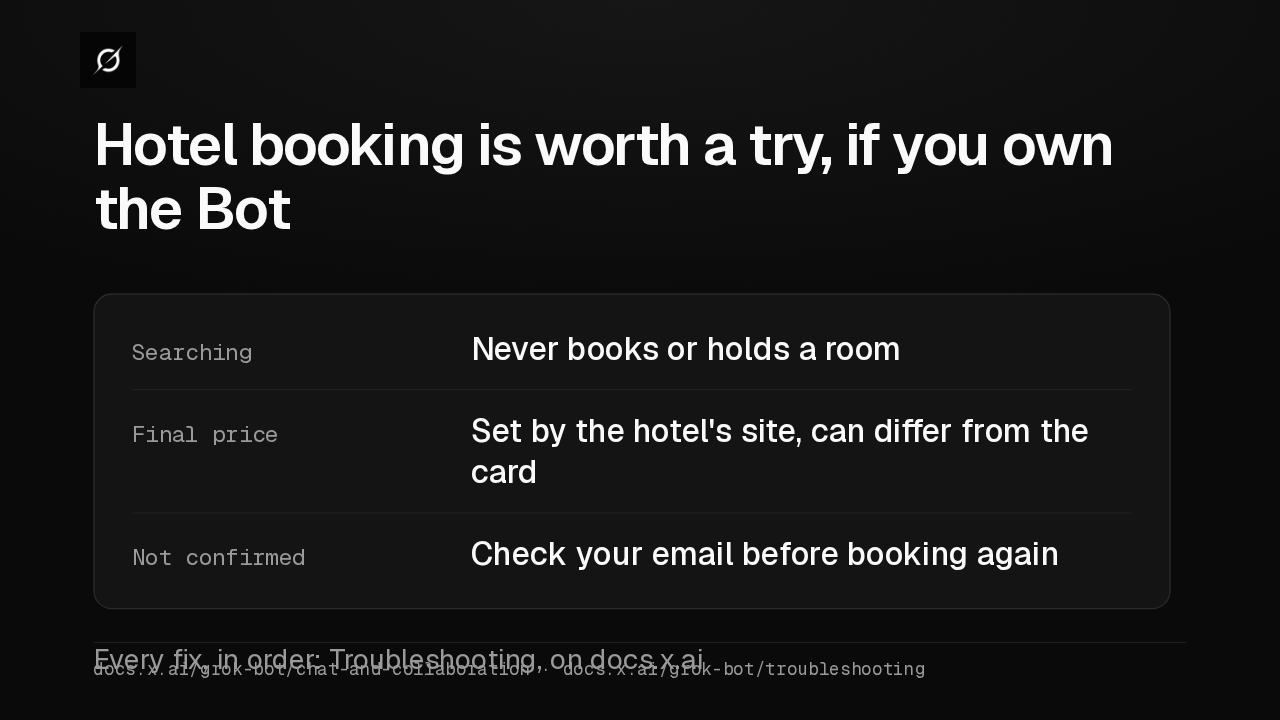
Disable interactivity Listens and takes notes. The row shows MutedTurn it back on While the meeting is still scheduledAlready joining Quit the Bot and add it againdocs.x.ai/grok-bot/meetings · Add a Bot to your meetingsI'd say hotel booking is worth a try, if you own the Bot, since only the owner can search. A search never holds a room, and the hotel's site sets the final price.
Slide text
Hotel booking is worth a try, if you own the Bot
Searching Never books or holds a roomFinal price Set by the hotel's site, can differ from the cardNot confirmed Check your email before booking againEvery fix, in order: Troubleshooting, on docs.x.aidocs.x.ai/grok-bot/chat-and-collaboration · docs.x.ai/grok-bot/troubleshooting
Up next
 0:49
Grok Bot apps now have share links that open them ready to add
@grok-bot
1 week ago
 0:50
Grok Bot now joins your Zoom and Google Meet calls on Super plans too
@grok-bot
1 week ago
 2:09
Grok Bot now lets your whole team share one Bot in Slack and Microsoft Teams
@grok-bot
1 week ago
 1:52
Grok Bot's Vault lets Bots sign in and pay without seeing your passwords
@grok-bot
2 weeks ago
 1:06
Grok Bot now acts only as you, and keeps your passwords out of the model
@grok-bot
2 weeks ago
 2:29
Grok Bot now signs in with Okta FastPass on its own computers
@grok-bot
2 weeks ago
 2:19
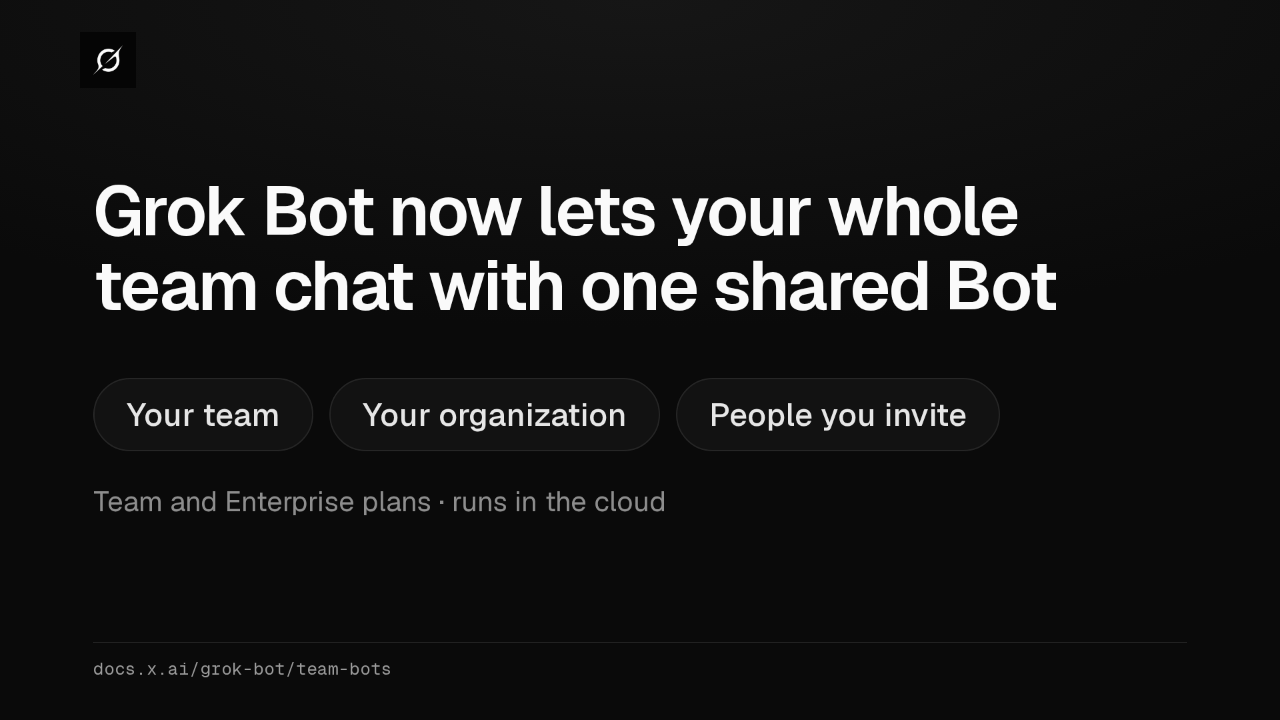
Grok Bot now shares one Bot with your whole team, in Slack and Teams
@grok-bot
2 weeks ago
 1:59
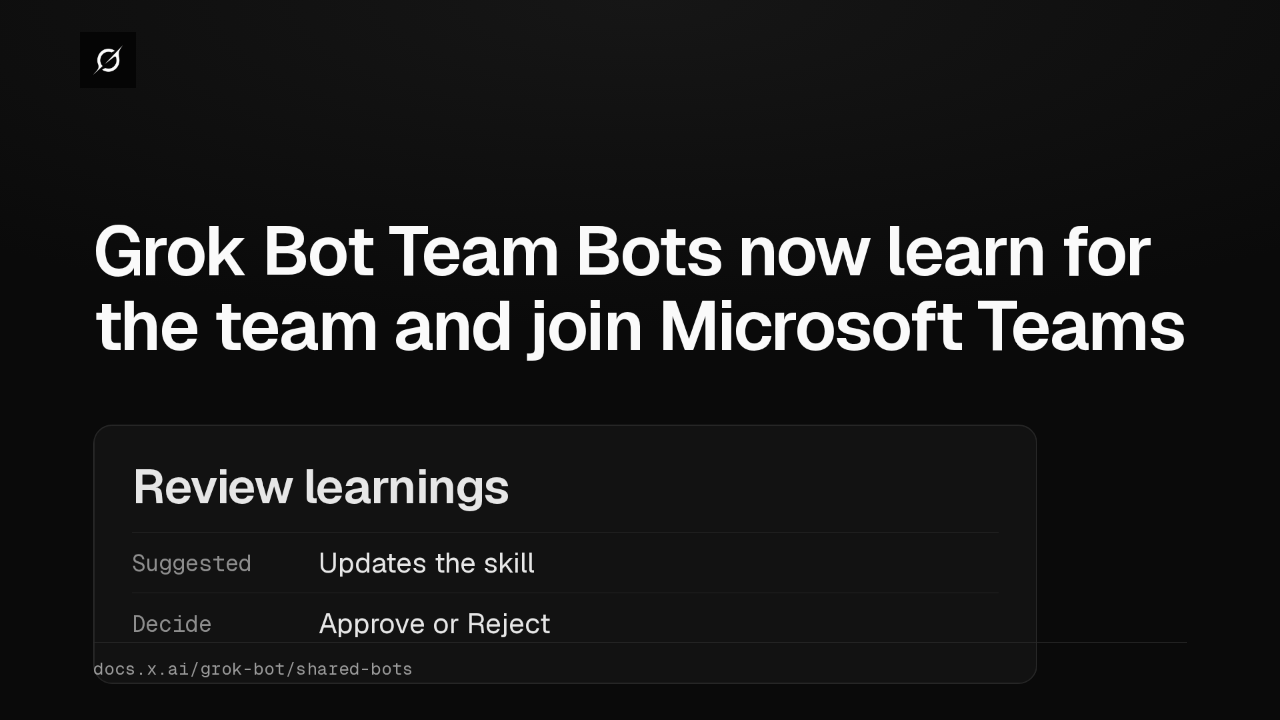
Grok Bot Team Bots now learn for the team and join Microsoft Teams
@grok-bot
2 weeks ago
 1:56
Grok Bot buys your conference pass from memory and asks before it emails finance
@grok-bot
2 weeks ago
 1:04
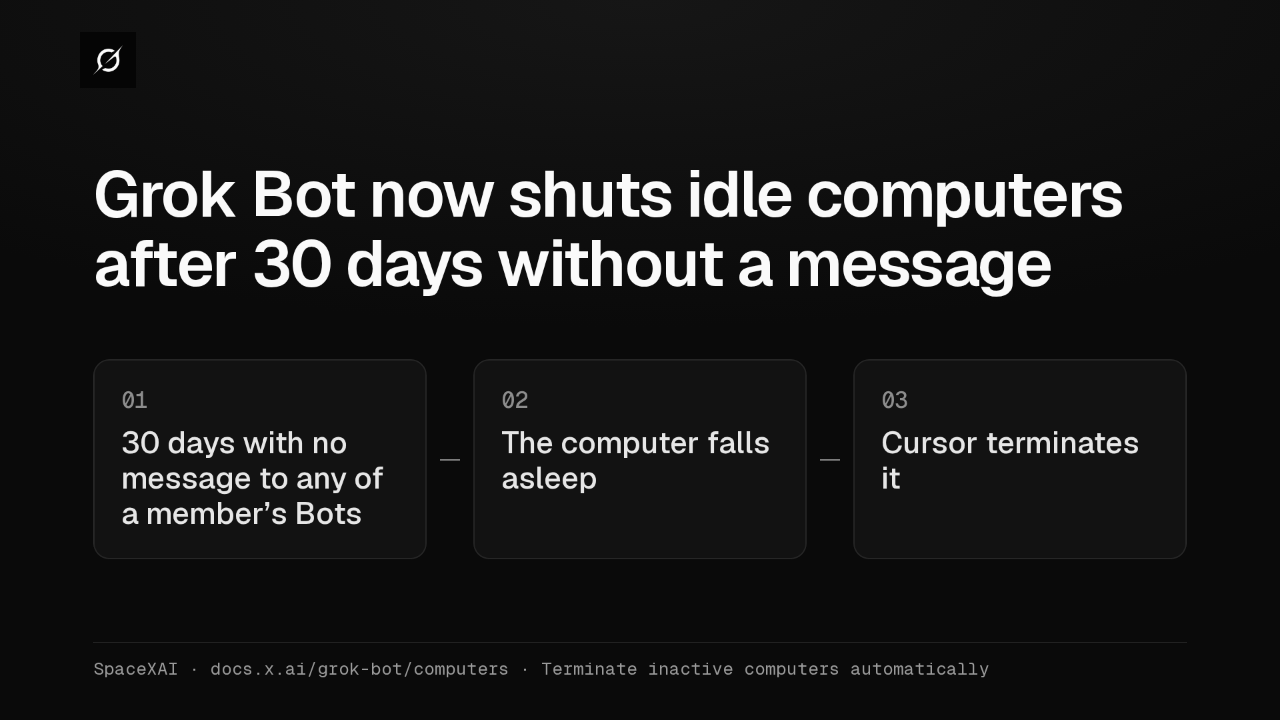
Grok Bot now shuts idle computers after 30 days without a message
@grok-bot
3 weeks ago
 2:17
Grok Bot inference hooks let your security server block a prompt before the model sees it
@grok-bot
1 month ago
 1:58
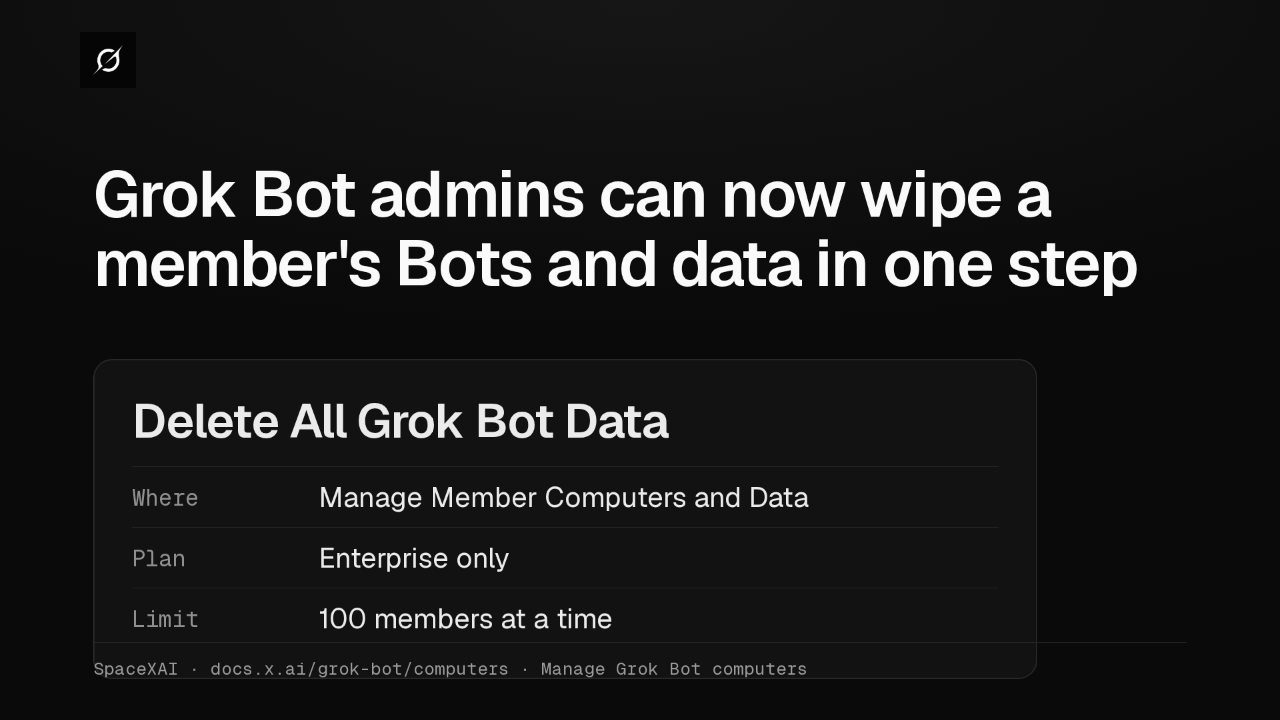
Grok Bot admins can now wipe a member's Bots and data in one step
@grok-bot
1 month ago