Grok Bot buys your conference pass from memory and asks before it emails finance
2 days ago
Grok Bot walks one request from start to finish: an expenses Bot pulls last year's pass from memory, finds the receipt in Gmail, signs in from Vault on its shared cloud computer, and stops for an Ask first rule before it emails finance. Enterprise admins also get Data Retention settings that delete idle Bots, computers and old messages. https://docs.x.ai/grok-bot/how-grok-bot-works https://docs.x.ai/grok-bot/teams-and-enterprises https://docs.x.ai/grok-bot/computers
Ask about this presentation
Chapters
Show transcriptHide transcript
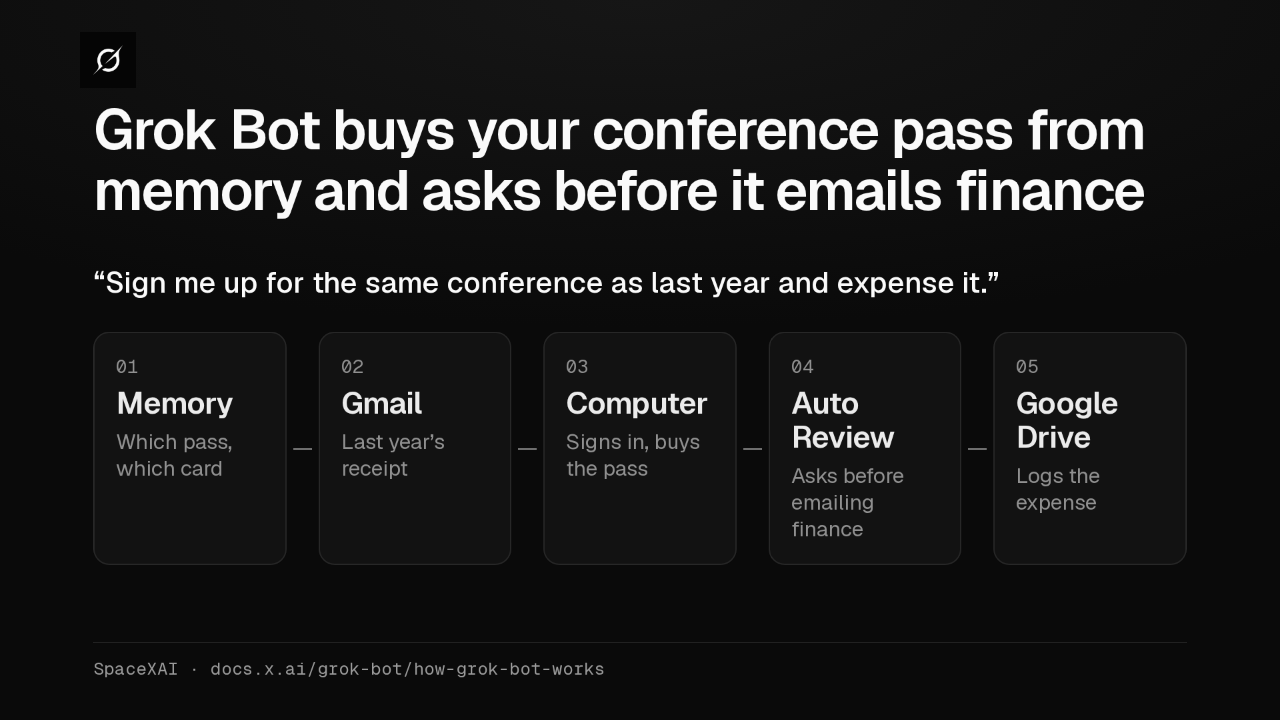
Ask your Grok Bot expenses Bot to sign you up for last year's conference and expense it. It checks memory, finds the receipt in Gmail, buys the pass, asks you once, and logs it.
Slide text

Grok Bot buys your conference pass from memory and asks before it emails finance
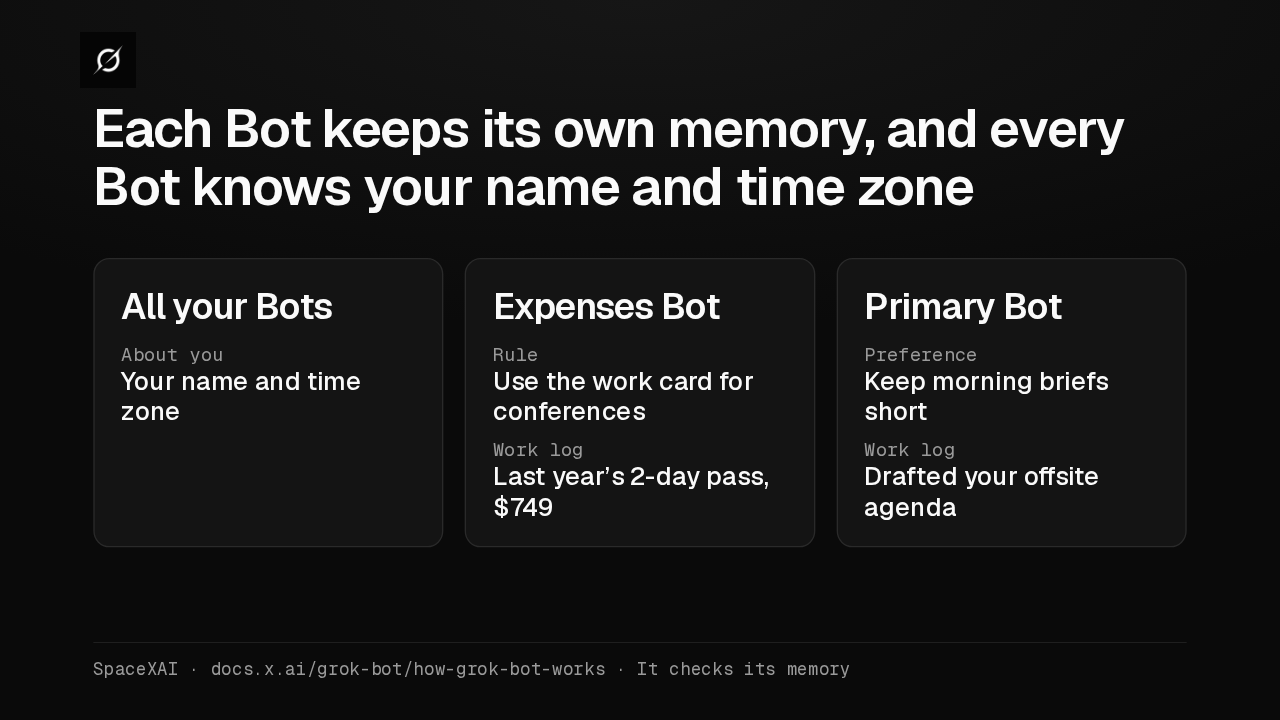
“Sign me up for the same conference as last year and expense it.”01 Memory Which pass, which card02 Gmail Last year’s receipt03 Computer Signs in, buys the pass04 Auto Review Asks before emailing finance05 Google Drive Logs the expenseSpaceXAI · docs.x.ai/grok-bot/how-grok-bot-worksYour message didn't name the pass or the card. The Bot's work log has last year's pass, and its rules pick the work card. Tell any Bot your time zone, and every Bot knows it.
Slide text
Each Bot keeps its own memory, and every Bot knows your name and time zone
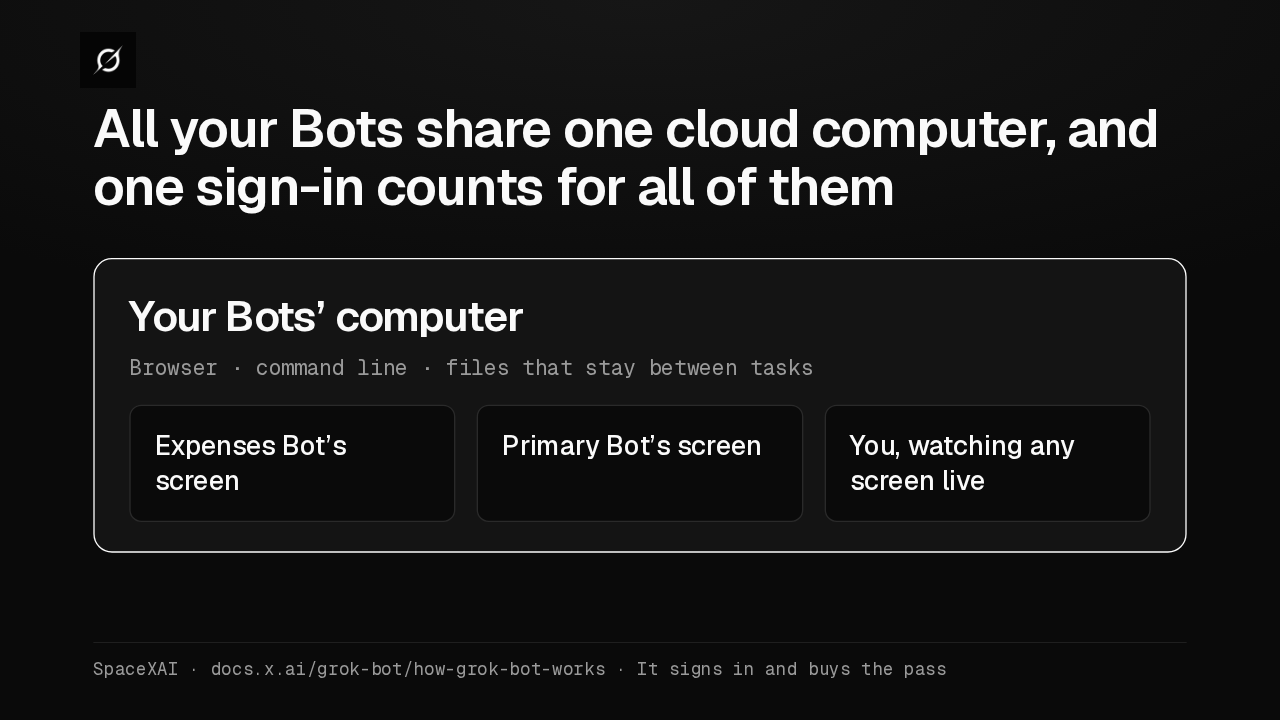
All your BotsAbout youYour name and time zoneExpenses BotRuleUse the work card for conferencesWork logLast year’s 2-day pass, $749Primary BotPreferenceKeep morning briefs shortWork logDrafted your offsite agendaSpaceXAI · docs.x.ai/grok-bot/how-grok-bot-works · It checks its memoryThe conference site has no app, so the Bot opens it on its cloud computer. Each Bot gets its own screen there, and when one Bot signs in, your other Bots are signed in too.
Slide text
All your Bots share one cloud computer, and one sign-in counts for all of them
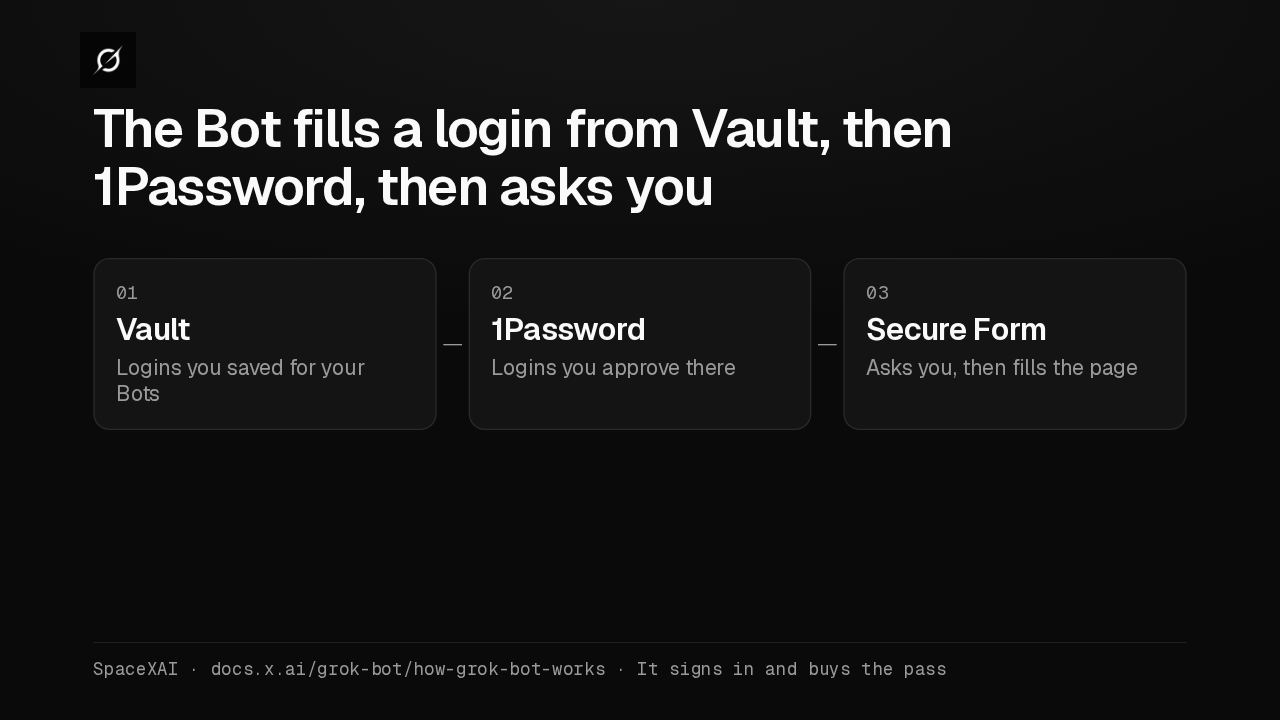
Your Bots’ computerBrowser · command line · files that stay between tasksExpenses Bot’s screenPrimary Bot’s screenYou, watching any screen liveSpaceXAI · docs.x.ai/grok-bot/how-grok-bot-works · It signs in and buys the passFor a password, the Bot tries Vault, then 1Password, then sends you a Secure Form. Whichever it uses, the login goes straight into the page, and the Bot never sees it.
Slide text
The Bot fills a login from Vault, then 1Password, then asks you
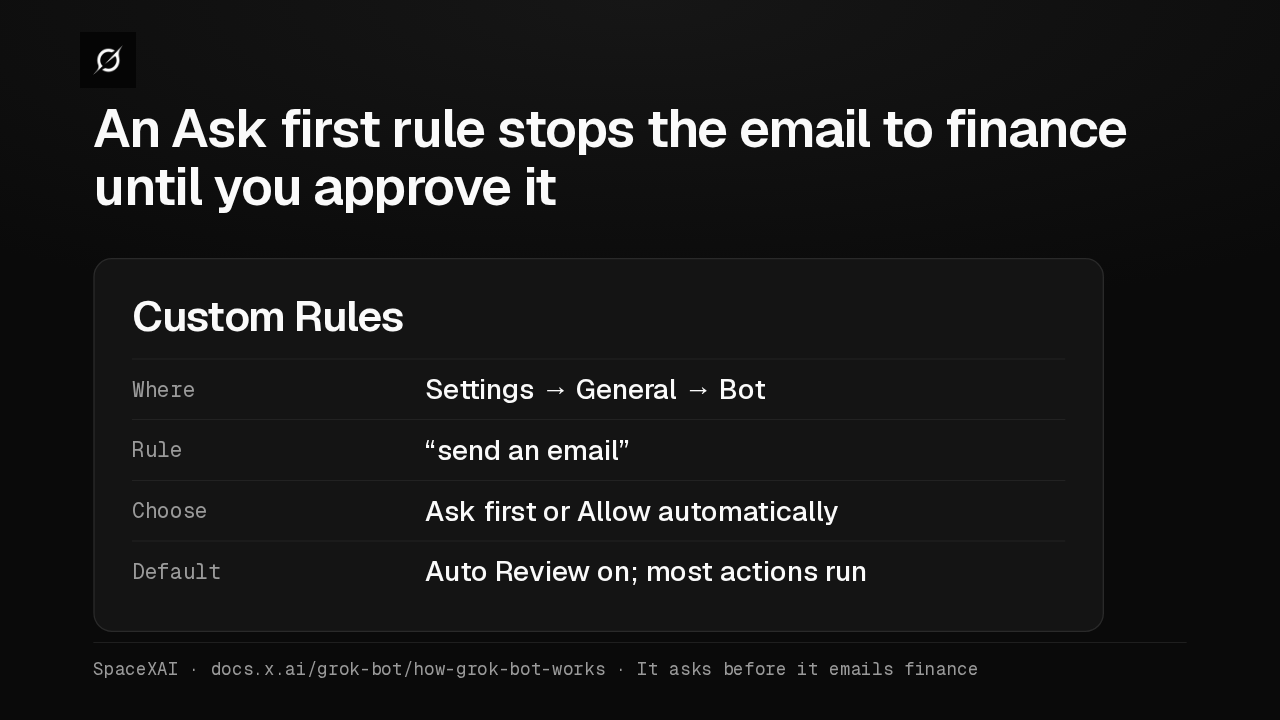
01 Vault Logins you saved for your Bots02 1Password Logins you approve there03 Secure Form Asks you, then fills the pageSpaceXAI · docs.x.ai/grok-bot/how-grok-bot-works · It signs in and buys the passAuto Review checks each action first, and most run on their own. Write your own rule in plain words, like send an email, and an Ask first rule always stops it for your approval.
Slide text
An Ask first rule stops the email to finance until you approve it
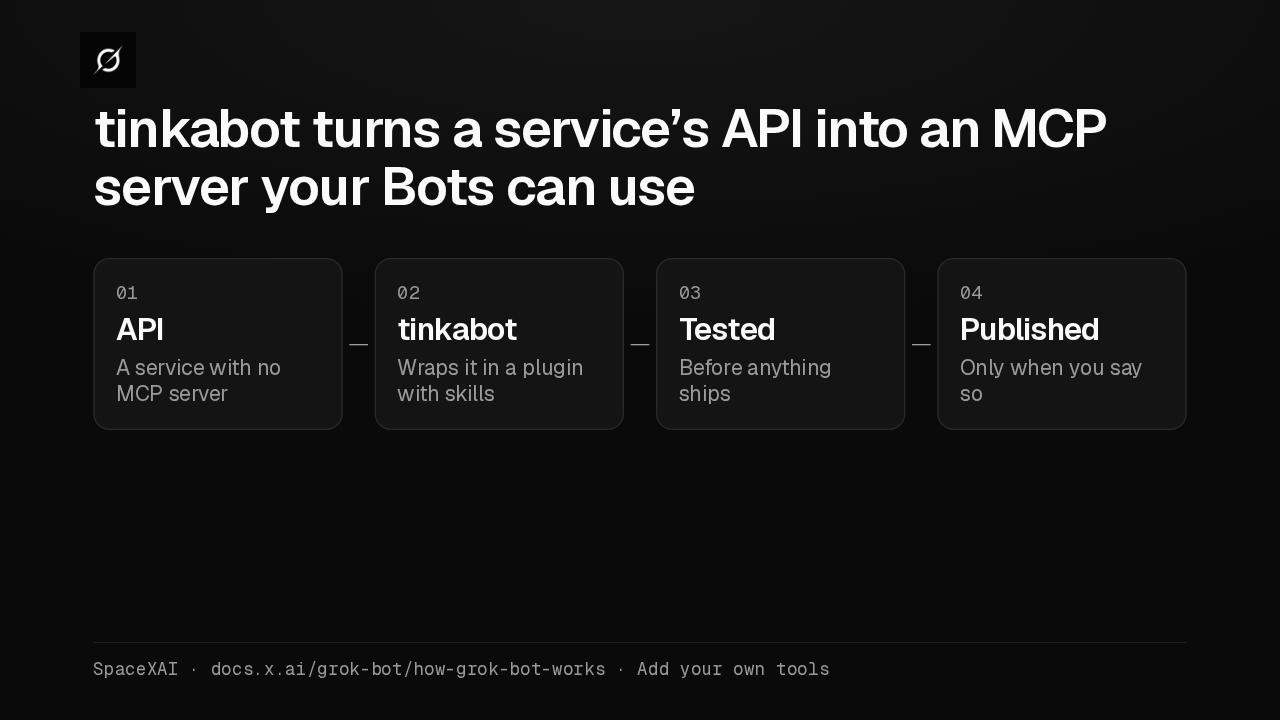
Custom RulesWhere Settings → General → BotRule “send an email”Choose Ask first or Allow automaticallyDefault Auto Review on; most actions runSpaceXAI · docs.x.ai/grok-bot/how-grok-bot-works · It asks before it emails financeFor an app outside the catalog, ask a Bot to connect its MCP server. If the service only has an API, tinkabot builds the server, tests it, and publishes it only when you say so.
Slide text
tinkabot turns a service’s API into an MCP server your Bots can use
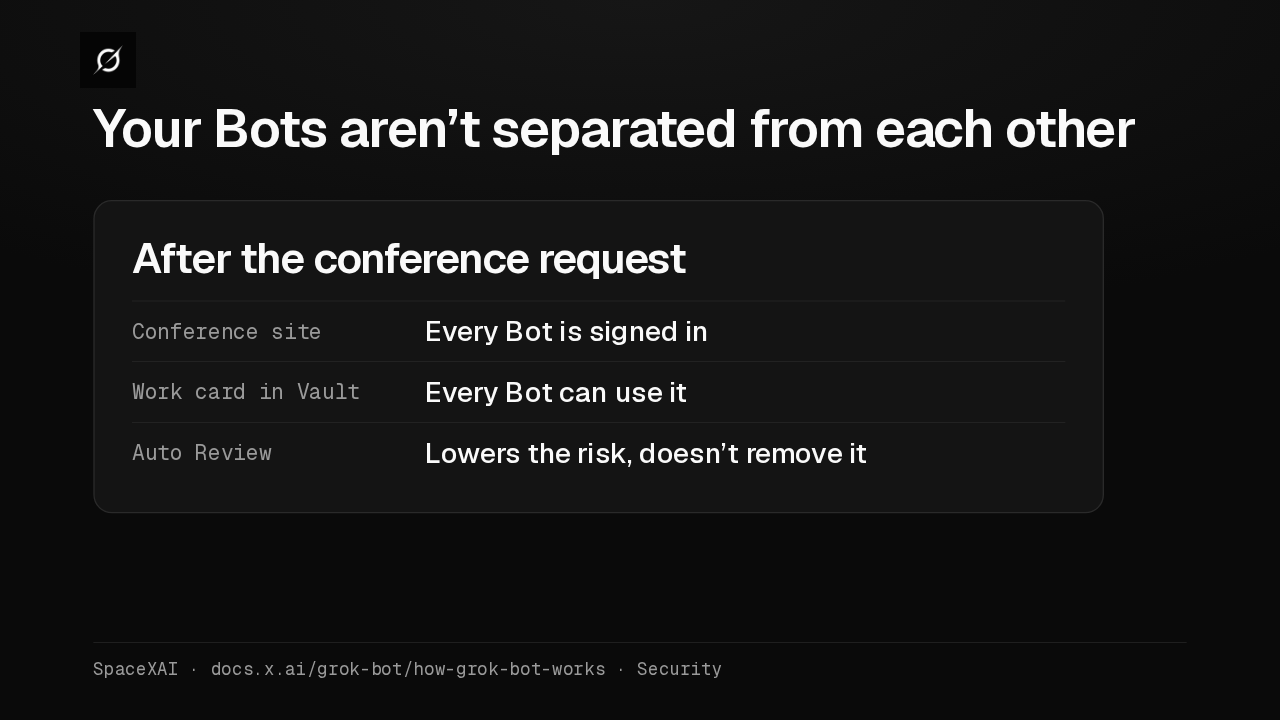
01 API A service with no MCP server02 tinkabot Wraps it in a plugin with skills03 Tested Before anything ships04 Published Only when you say soSpaceXAI · docs.x.ai/grok-bot/how-grok-bot-works · Add your own toolsYour Bots share the computer's files and sign-ins. After this request, every Bot is signed in to the conference site and can use the work card. Keep Ask first rules on anything you can't undo.
Slide text
Your Bots aren’t separated from each other
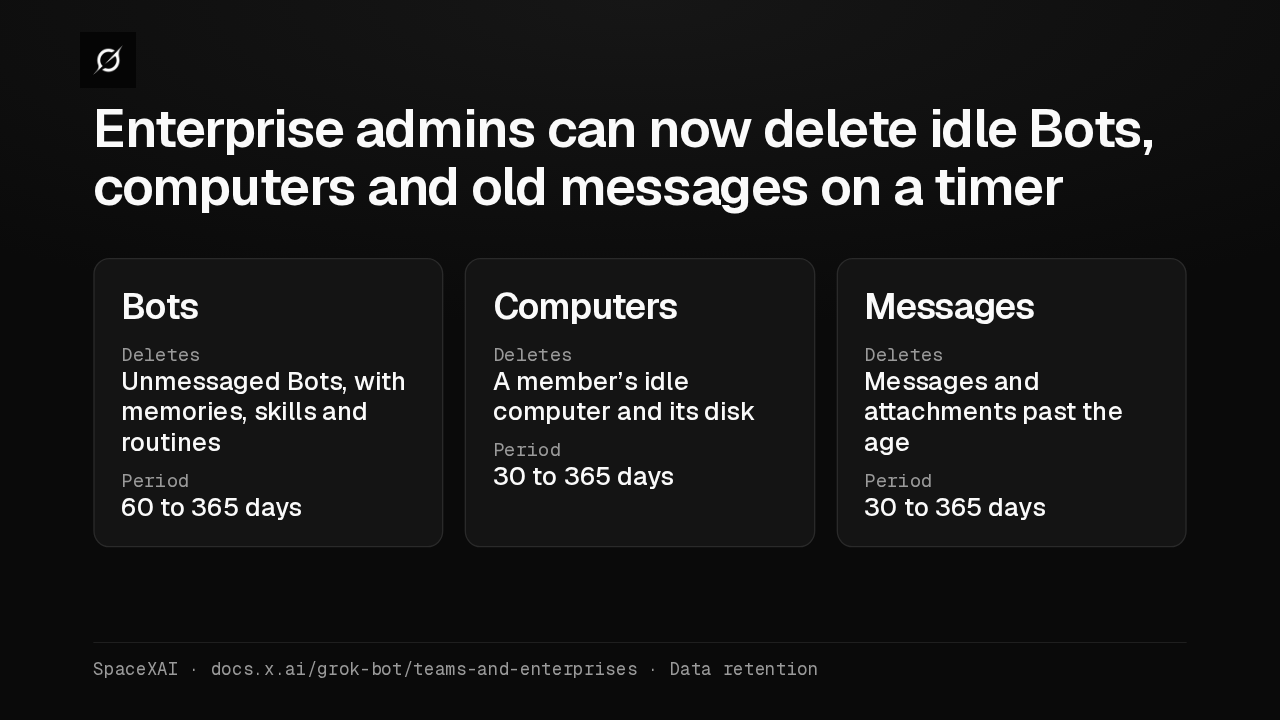
After the conference requestConference site Every Bot is signed inWork card in Vault Every Bot can use itAuto Review Lowers the risk, doesn’t remove itSpaceXAI · docs.x.ai/grok-bot/how-grok-bot-works · SecurityEnterprise admins get three Data Retention settings, all off by default. They delete idle Bots, idle computers with their disks, and old messages. Bot owners get 30 days' warning by email, and deleted data can't be recovered.
Slide text
Enterprise admins can now delete idle Bots, computers and old messages on a timer
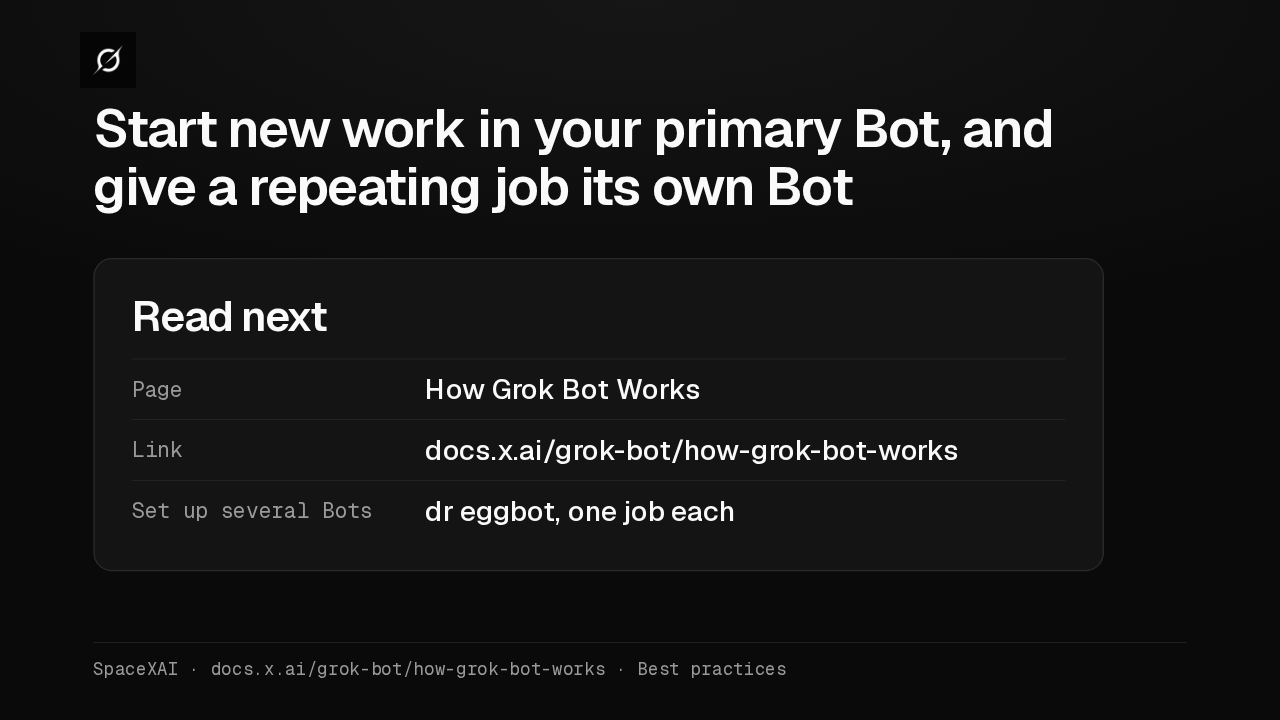
BotsDeletesUnmessaged Bots, with memories, skills and routinesPeriod60 to 365 daysComputersDeletesA member’s idle computer and its diskPeriod30 to 365 daysMessagesDeletesMessages and attachments past the agePeriod30 to 365 daysSpaceXAI · docs.x.ai/grok-bot/teams-and-enterprises · Data retentionYour primary Bot coordinates the others, and a Bot with one job builds memory for it. I'd start there, and add Ask first rules for sending, publishing and deleting before saving a card.
Slide text
Start new work in your primary Bot, and give a repeating job its own Bot
Read nextPage How Grok Bot WorksLink docs.x.ai/grok-bot/how-grok-bot-worksSet up several Bots dr eggbot, one job eachSpaceXAI · docs.x.ai/grok-bot/how-grok-bot-works · Best practices
Up next
 1:04
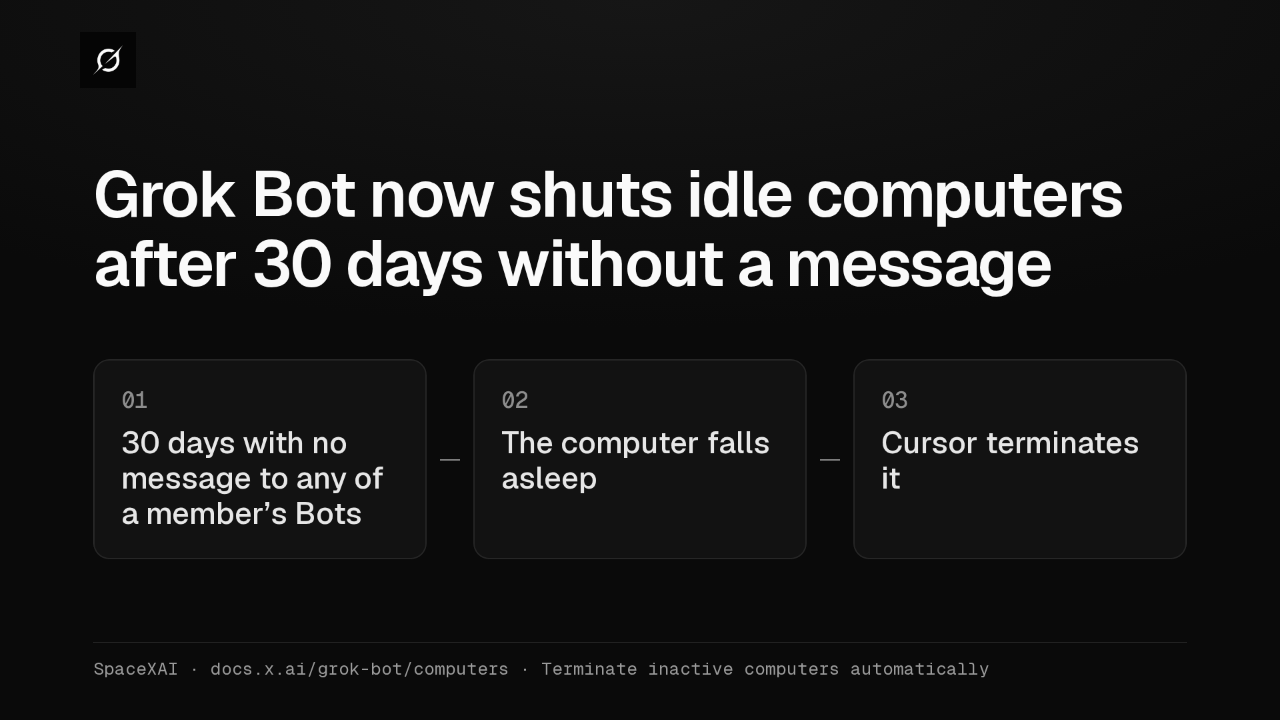
Grok Bot now shuts idle computers after 30 days without a message
@grok-bot
5 days ago
 2:17
Grok Bot inference hooks let your security server block a prompt before the model sees it
@grok-bot
2 weeks ago
 1:58
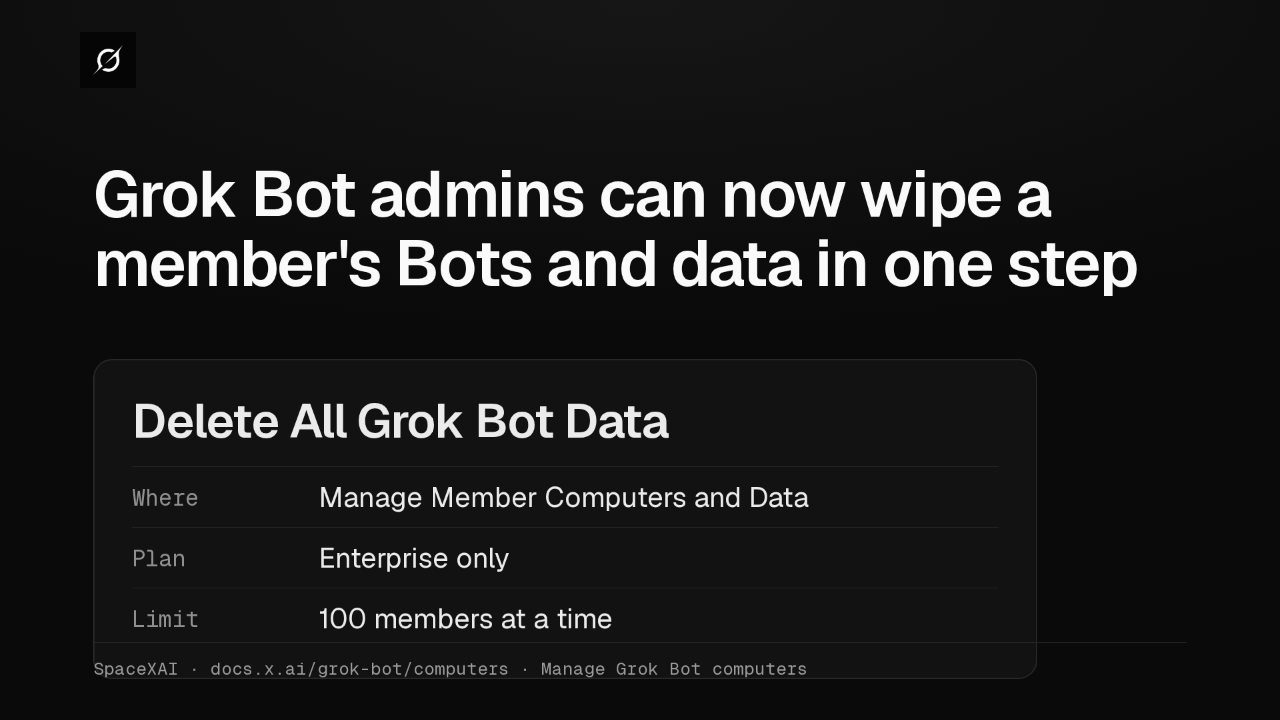
Grok Bot admins can now wipe a member's Bots and data in one step
@grok-bot
3 weeks ago
 1:47
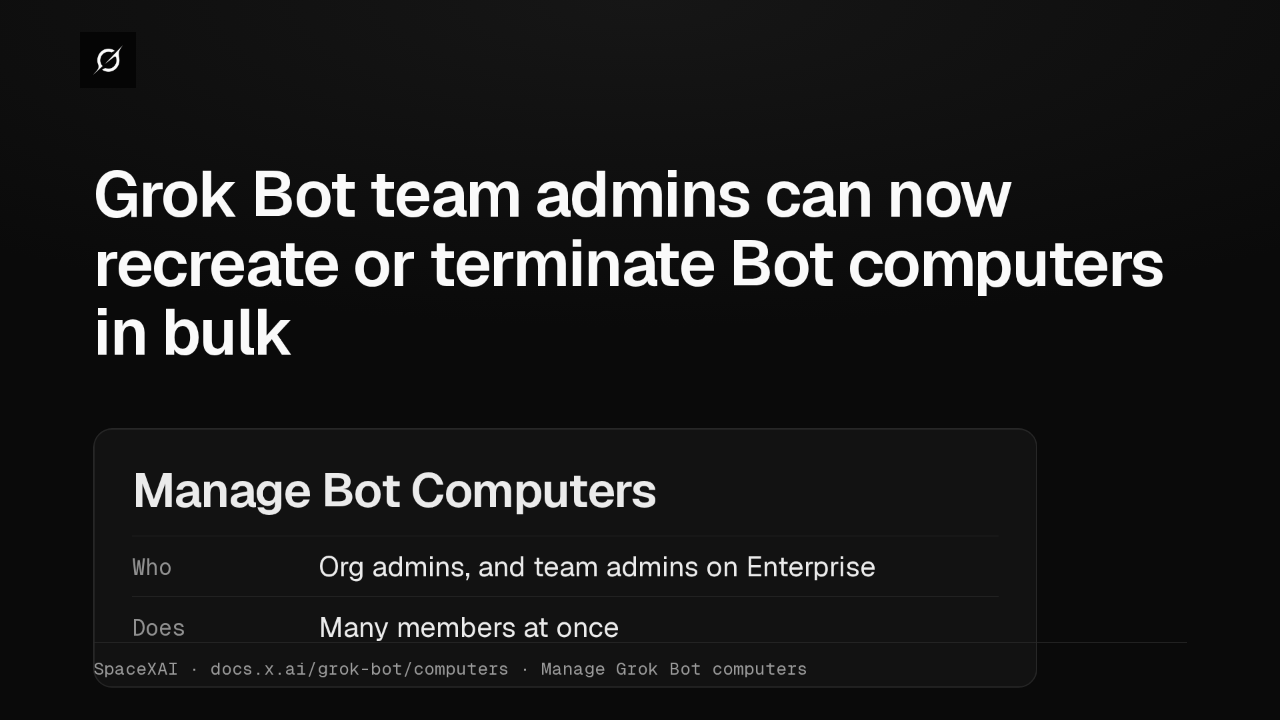
Grok Bot lets Enterprise team admins recreate or terminate Bot computers in bulk
@grok-bot
3 weeks ago
 2:52
Grok Bot now deploys to your whole organization with Jamf, Intune and Ansible
@grok-bot
3 weeks ago
 1:19
Grok Bot plugins now install from Connect apps
@grok-bot
4 weeks ago
 1:43
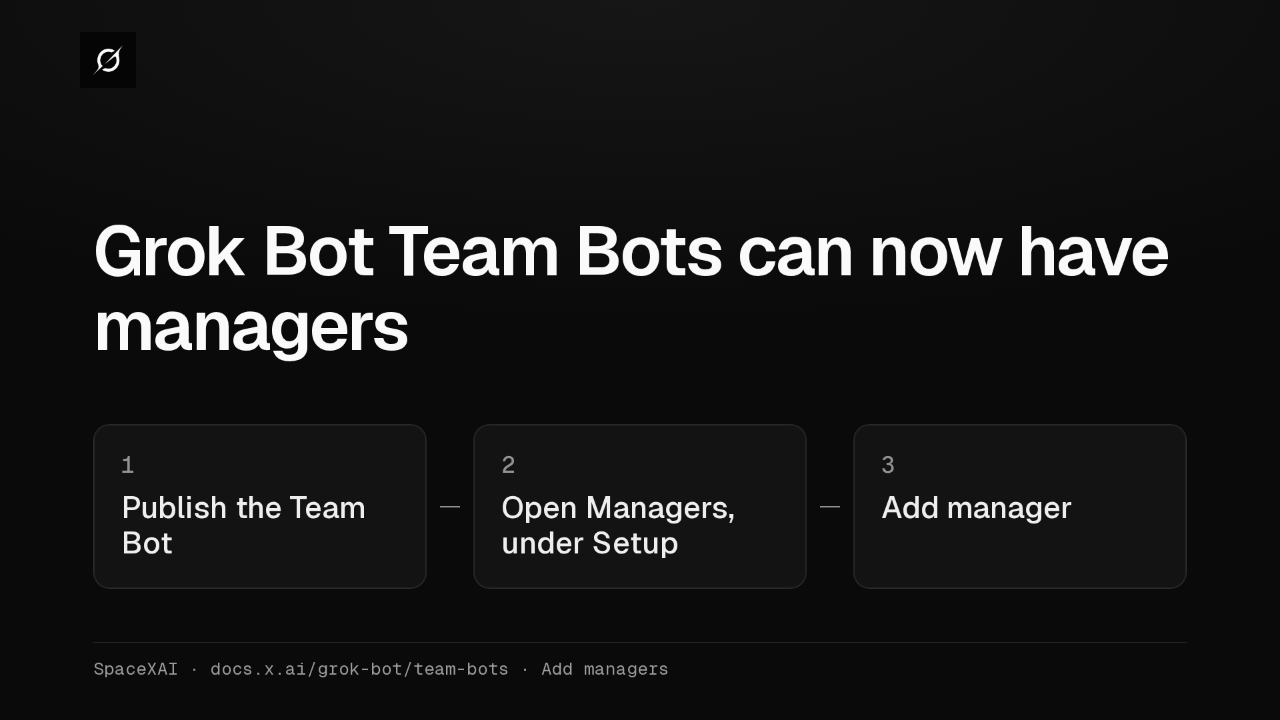
Grok Bot Team Bots get managers, and Bots can read X
@grok-bot
1 month ago
 2:38
Grok Bot now takes tasks when you tag @bot on X
@grok-bot
1 month ago
 2:47
Grok Bot gives you AI teammates that work on a persistent cloud computer
@grok-bot
1 month ago