Grok Bot admins can now wipe a member's Bots and data in one step

1 hour ago

Grok Bot admins on Enterprise can now delete all of a member's Grok Bot data in one step, or run it from the Organization API. Also new: allowlists turn off web search, Slack approval and plugin permission for Team Bots, editable email and Slack drafts, and notifications that follow you to the desktop. https://docs.x.ai/grok-bot/computers https://docs.x.ai/grok-bot/security-faq https://docs.x.ai/grok-bot/team-bots https://docs.x.ai/grok-bot/chat-and-collaboration https://docs.x.ai/grok-bot/settings-and-notifications https://docs.x.ai/developers/release-notes.md

Ask

Ask about this presentation

Answers are generated from this presentation.

Chapters

  1. 0:00Delete All Grok Bot Data
  2. 0:12What it deletes
  3. 0:28Members start fresh
  4. 0:40Organization API
  5. 0:54Allowlist and web search
  6. 1:07Slack app approval
  7. 1:21Plugin permission
  8. 1:32Editable drafts
  9. 1:44Desktop notifications
Show transcript

Delete All Grok Bot Data

Grok

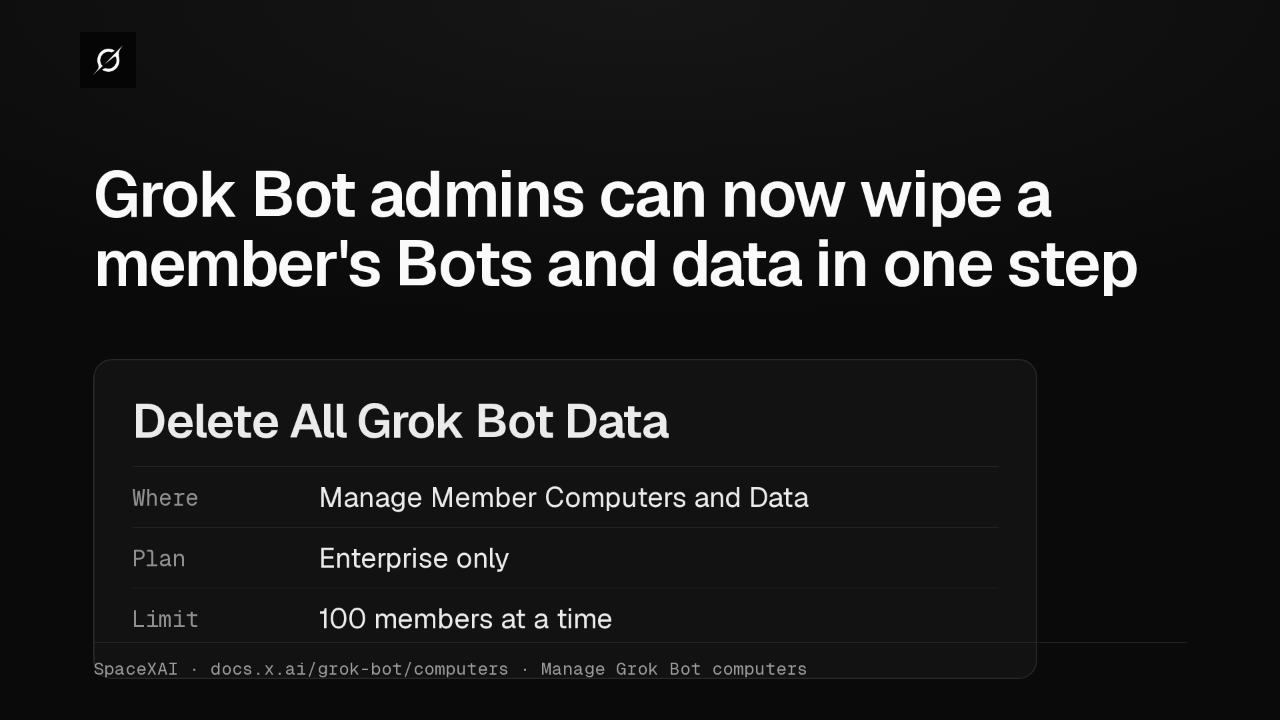
Grok Bot admins can now wipe a member's Bots and data in one step

Delete All Grok Bot Data
WhereManage Member Computers and Data
PlanEnterprise only
Limit100 members at a time
SpaceXAI · docs.x.ai/grok-bot/computers · Manage Grok Bot computers

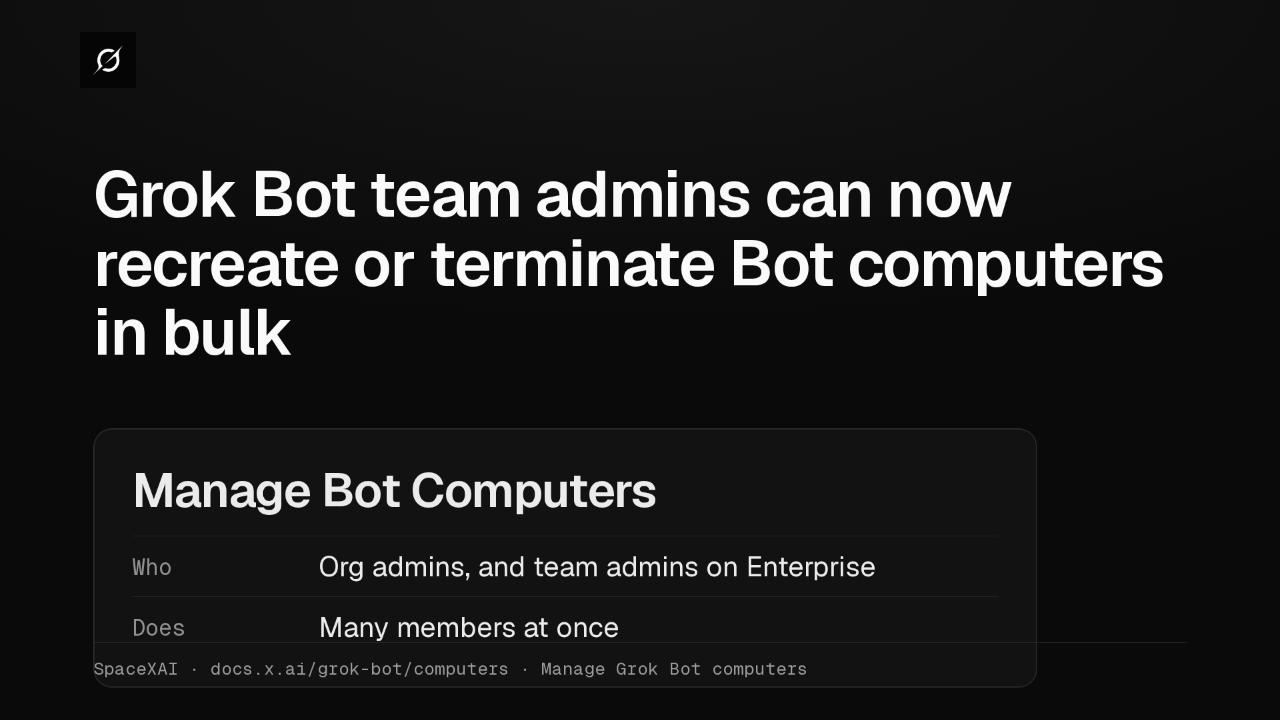
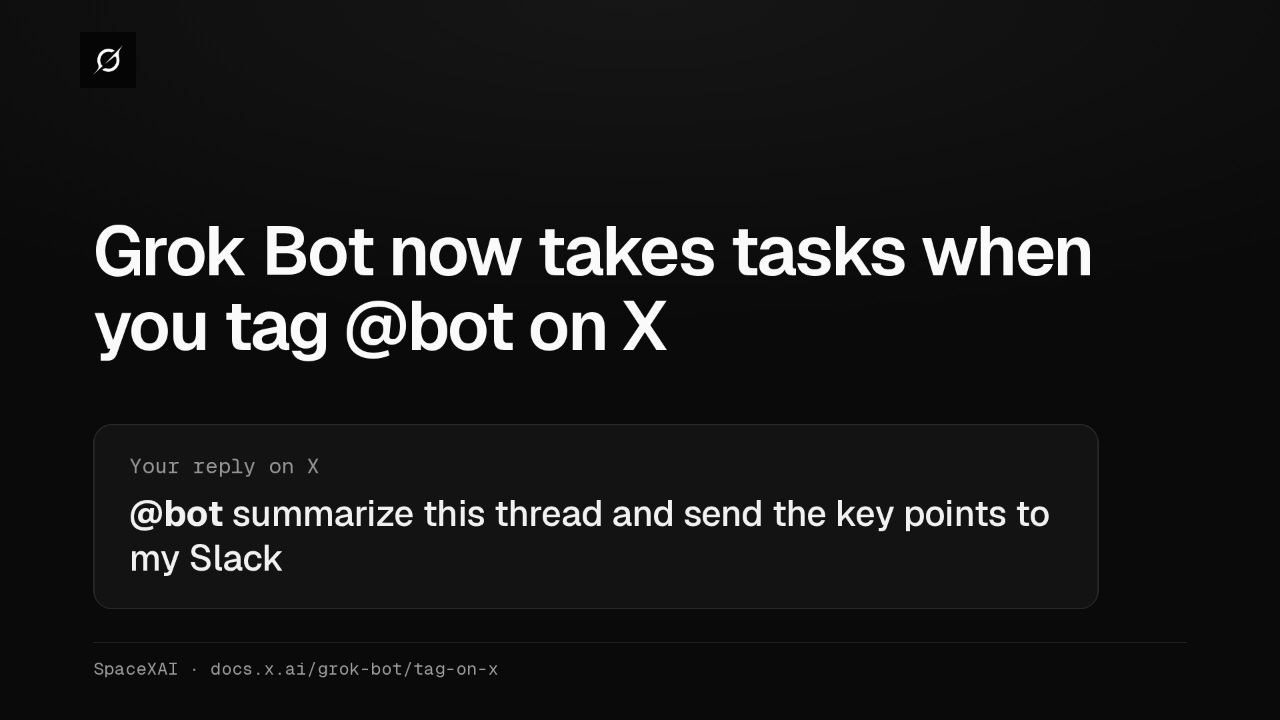
Grok Bot admins can now delete all of a member's Grok Bot data in one step. On Enterprise, Delete All Grok Bot Data handles up to 100 members at a time.

What it deletes

Grok

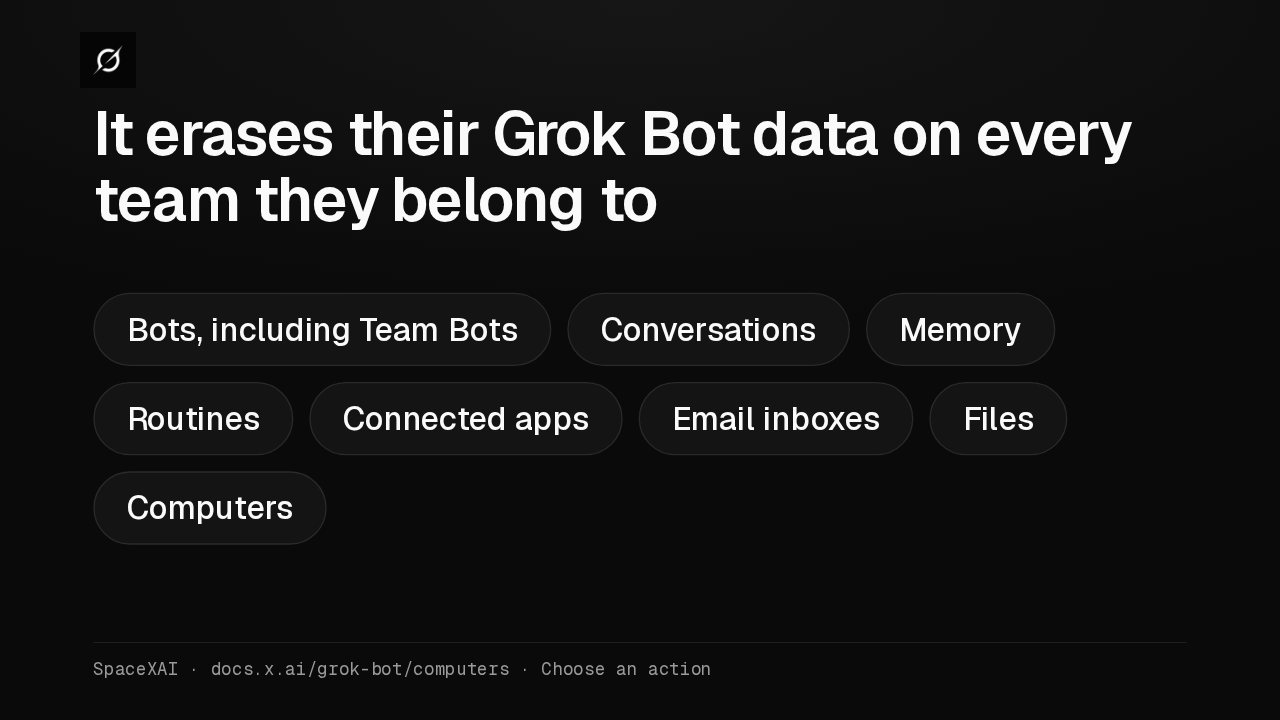
It erases their Grok Bot data on every team they belong to

Bots, including Team BotsConversationsMemoryRoutinesConnected appsEmail inboxesFilesComputers
SpaceXAI · docs.x.ai/grok-bot/computers · Choose an action

The wipe reaches every team the member belongs to. It removes their Bots, including Team Bots their teammates work with, plus conversations, memory, routines, connected apps, email inboxes, files and computers.

Members start fresh

Grok

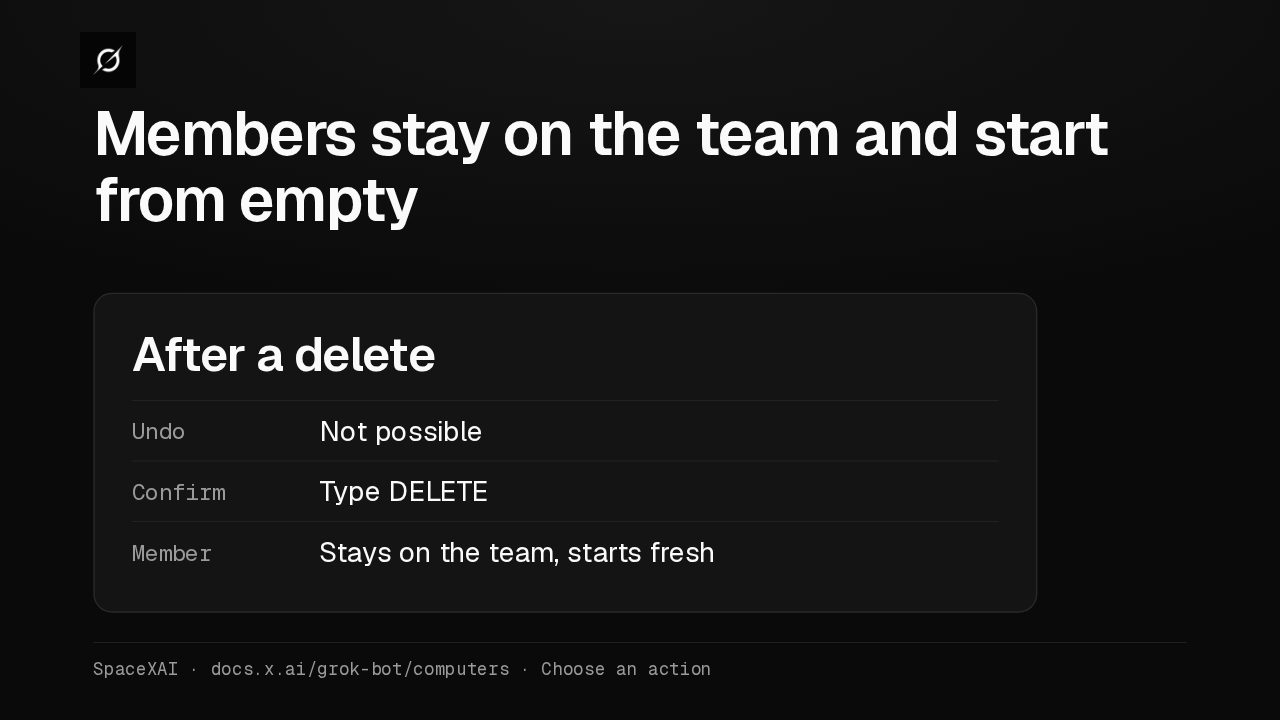
Members stay on the team and start from empty

After a delete
UndoNot possible
ConfirmType DELETE
MemberStays on the team, starts fresh
SpaceXAI · docs.x.ai/grok-bot/computers · Choose an action

A delete can't be undone, and both delete actions make you type the word delete to confirm. The member stays on the team, and starts fresh the next time they use Grok Bot.

Organization API

Grok

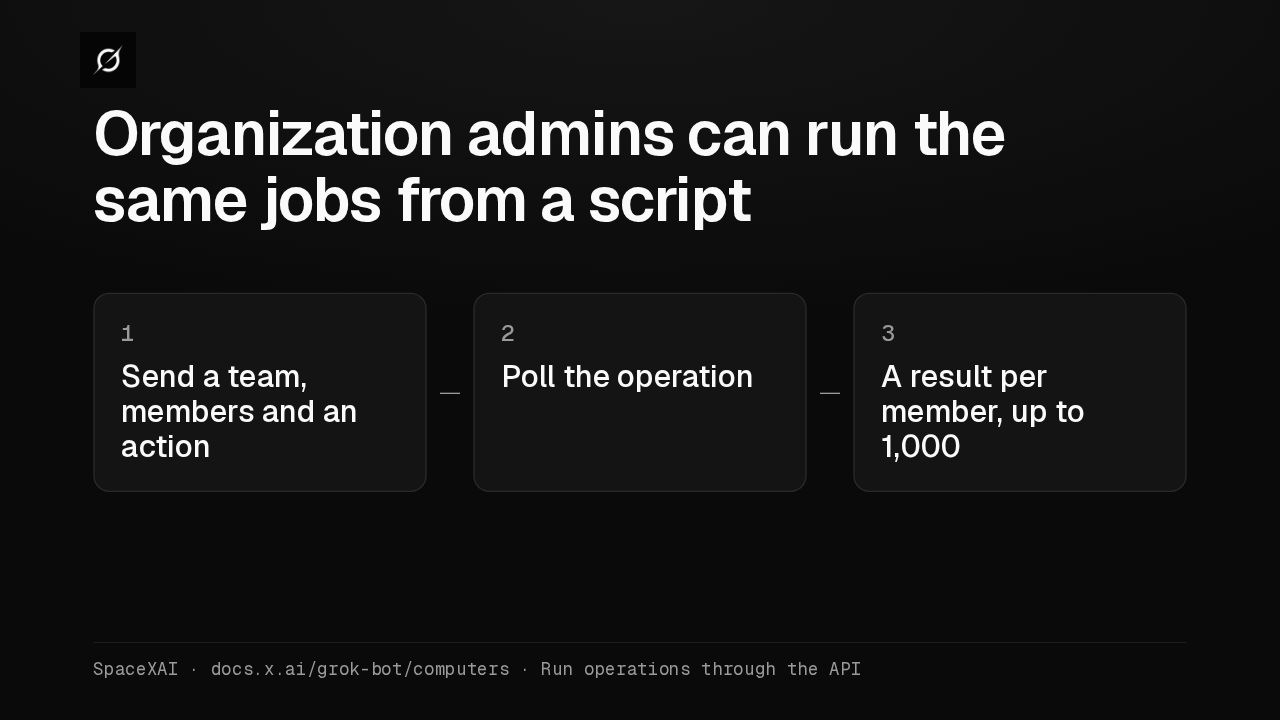
Organization admins can run the same jobs from a script

1Send a team, members and an action
2Poll the operation
3A result per member, up to 1,000
SpaceXAI · docs.x.ai/grok-bot/computers · Run operations through the API

Organization admins can now recreate, terminate or delete members' computers, or wipe all their data, with the Organization API. The API and the dashboard share one running operation per team.

Allowlist and web search

Grok

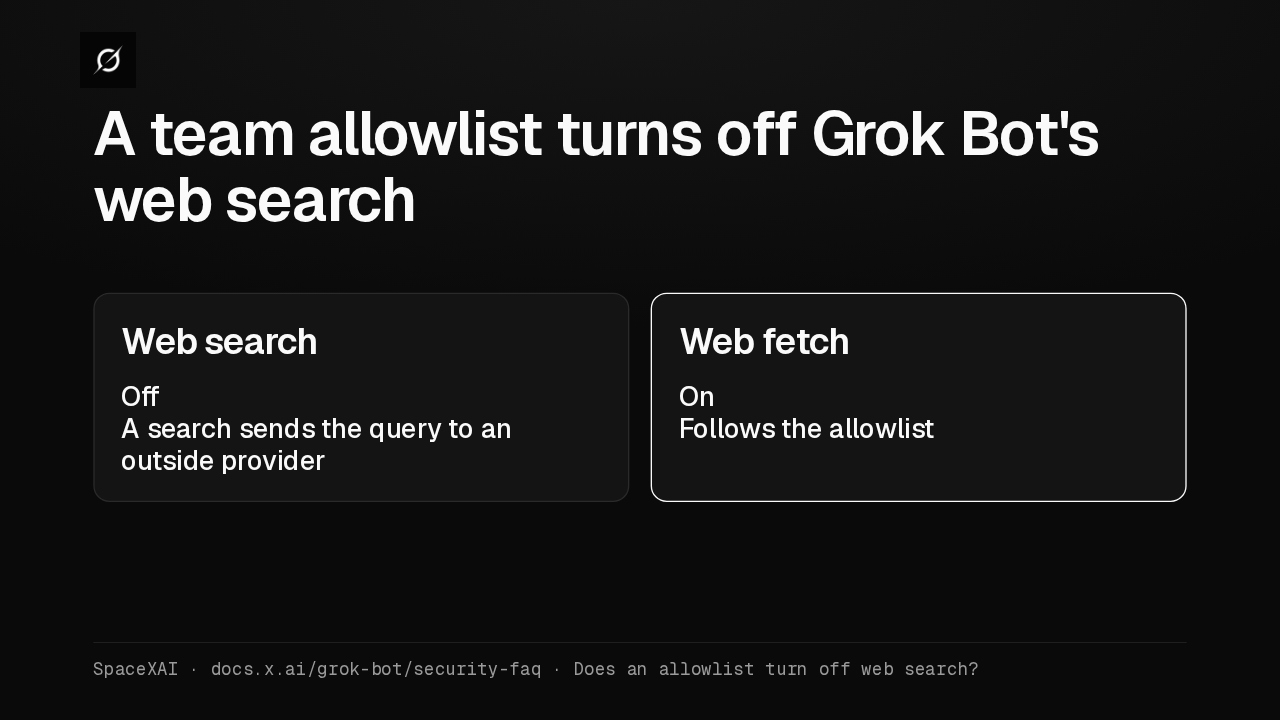
A team allowlist turns off Grok Bot's web search

Web search
Off
A search sends the query to an outside provider
Web fetch
On
Follows the allowlist
SpaceXAI · docs.x.ai/grok-bot/security-faq · Does an allowlist turn off web search?

When your team's network policy is an allowlist, Grok Bot's web search is off, because every search sends the query to an outside provider. Web fetch stays on, and follows the allowlist.

Slack app approval

Grok

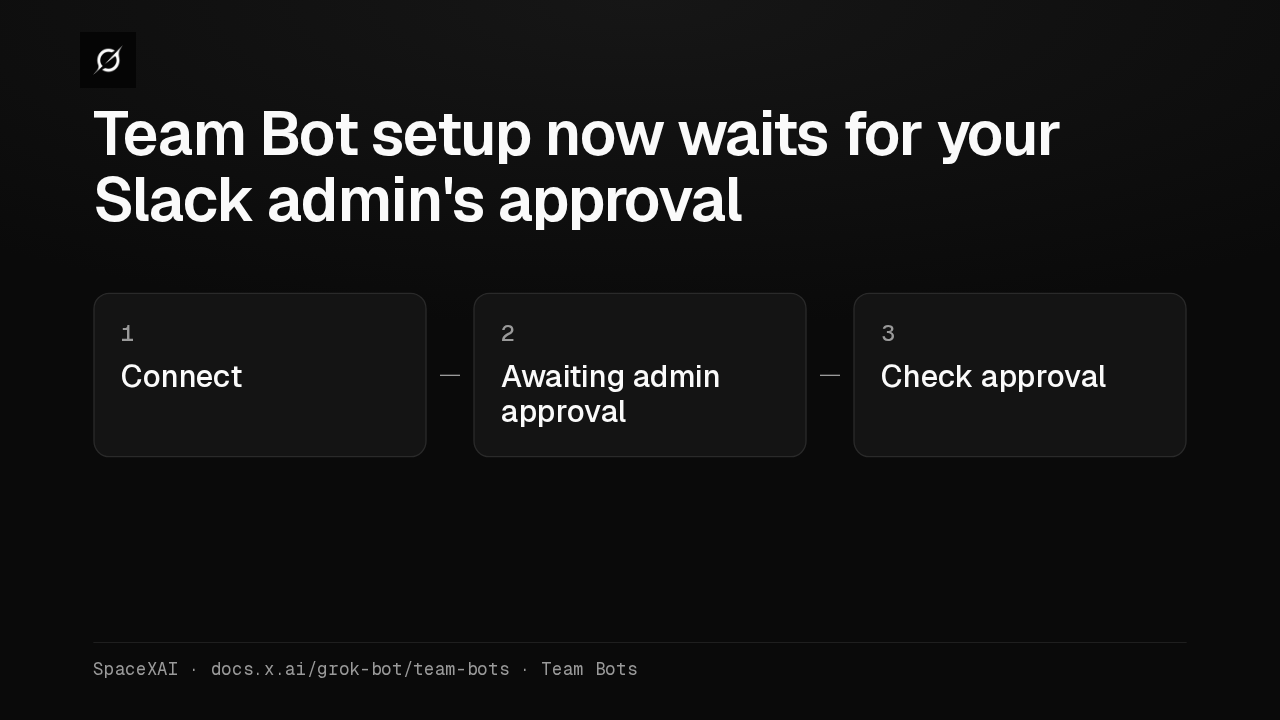
Team Bot setup now waits for your Slack admin's approval

1Connect
2Awaiting admin approval
3Check approval
SpaceXAI · docs.x.ai/grok-bot/team-bots · Team Bots

If your Slack workspace requires approval for new apps, Connect now opens Slack's request page. Setup shows Awaiting admin approval, with options to check, resubmit or cancel. After a denial, Connect starts a new request.

Plugin permission

Grok

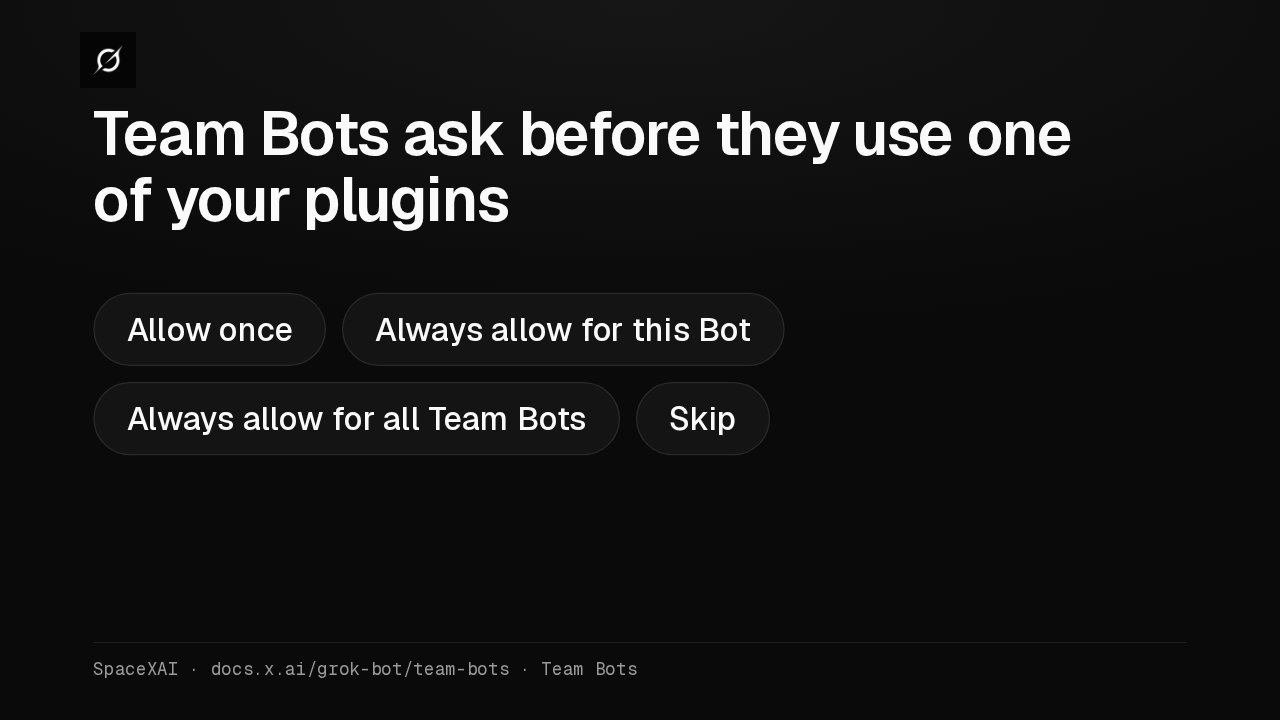
Team Bots ask before they use one of your plugins

Allow onceAlways allow for this BotAlways allow for all Team BotsSkip
SpaceXAI · docs.x.ai/grok-bot/team-bots · Team Bots

When a Team Bot wants one of your plugins, it names the plugin and the account it will use. You allow it once, always for this Bot, always for every Team Bot, or skip it.

Editable drafts

Grok

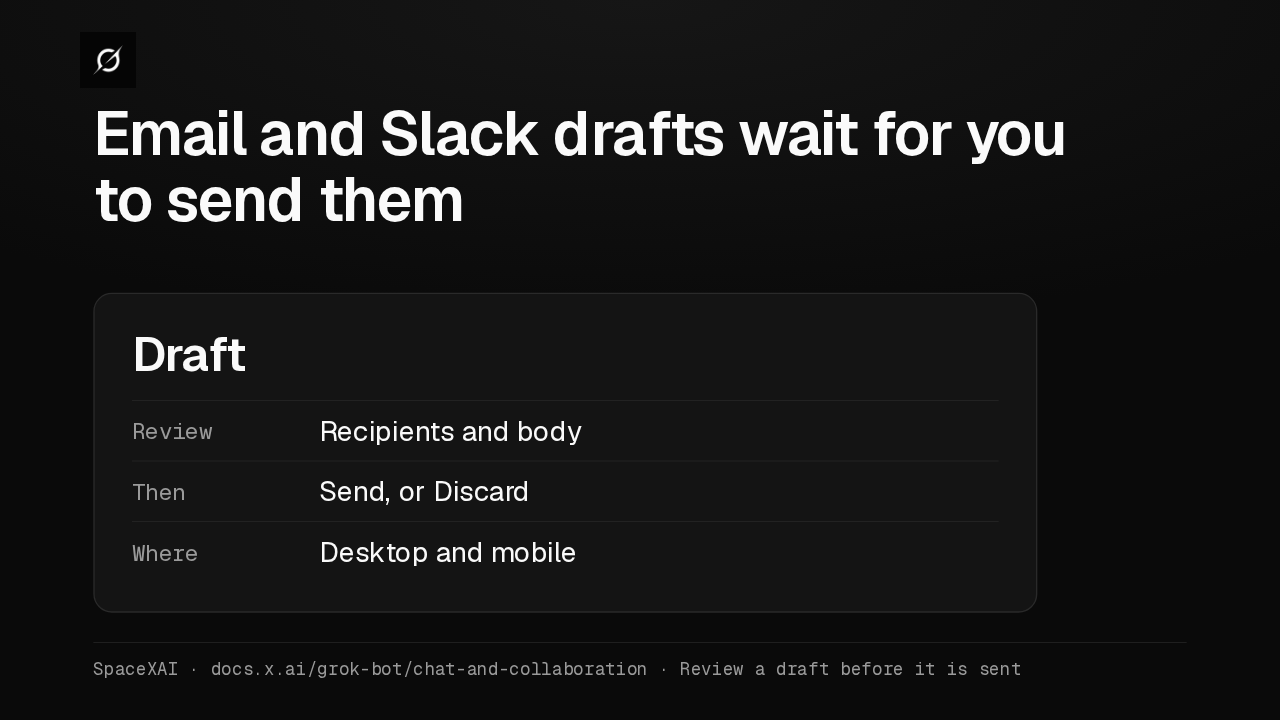
Email and Slack drafts wait for you to send them

Draft
ReviewRecipients and body
ThenSend, or Discard
WhereDesktop and mobile
SpaceXAI · docs.x.ai/grok-bot/chat-and-collaboration · Review a draft before it is sent

When a Bot prepares an email or Slack message for you, the conversation can now show an editable draft. Check the recipients and body, then send it or discard it, on desktop or phone.

Desktop notifications

Grok

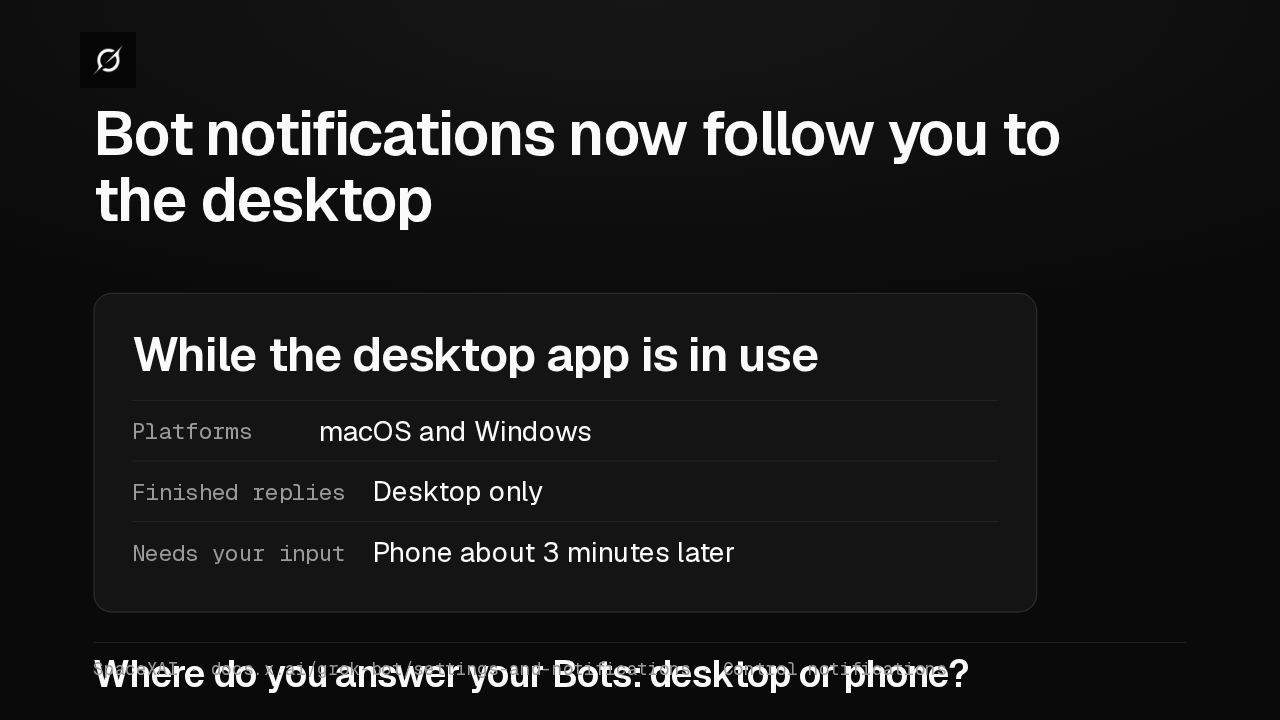
Bot notifications now follow you to the desktop

While the desktop app is in use
PlatformsmacOS and Windows
Finished repliesDesktop only
Needs your inputPhone about 3 minutes later
Where do you answer your Bots: desktop or phone?
SpaceXAI · docs.x.ai/grok-bot/settings-and-notifications · Control notifications

While you use the desktop app on macOS or Windows, your Bots now notify the desktop instead of your phone. If a Bot needs input, your phone is notified about three minutes later. Where do you answer yours?