Grok Bot now deploys to your whole organization with Jamf, Intune and Ansible
1 month ago
Grok Bot can now be deployed across an organization with the device management tools IT already runs: Jamf Pro, Kandji, Intune, Configuration Manager, Ansible, Puppet and Chef. Also new: an Organization API for members' computers, Invite Team, routing a Bot's web traffic through your desktop, Allow Sudo and Agent Email switches, Take over on mobile, and pinning and hiding Bots. https://docs.x.ai/grok-bot/deployment https://docs.x.ai/grok-bot/teams-and-enterprises https://docs.x.ai/grok-bot/computers https://docs.x.ai/grok-bot/settings-and-notifications https://docs.x.ai/developers/release-notes.md
Ask about this presentation
Chapters
Show transcriptHide transcript
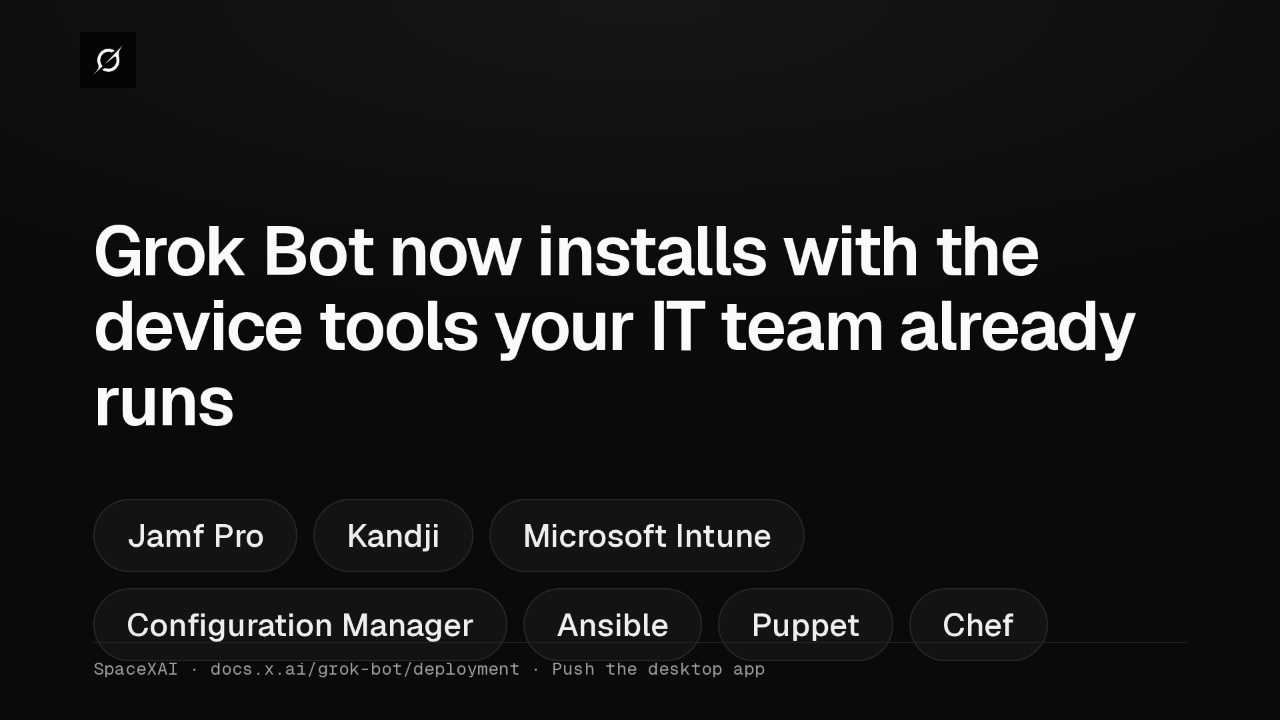
Admins can now push the Grok Bot desktop app to members' devices. Jamf Pro, Kandji or Intune on a Mac, Intune on Windows, and Ansible, Puppet or Chef on Linux.
Slide text

Grok Bot now installs with the device tools your IT team already runs
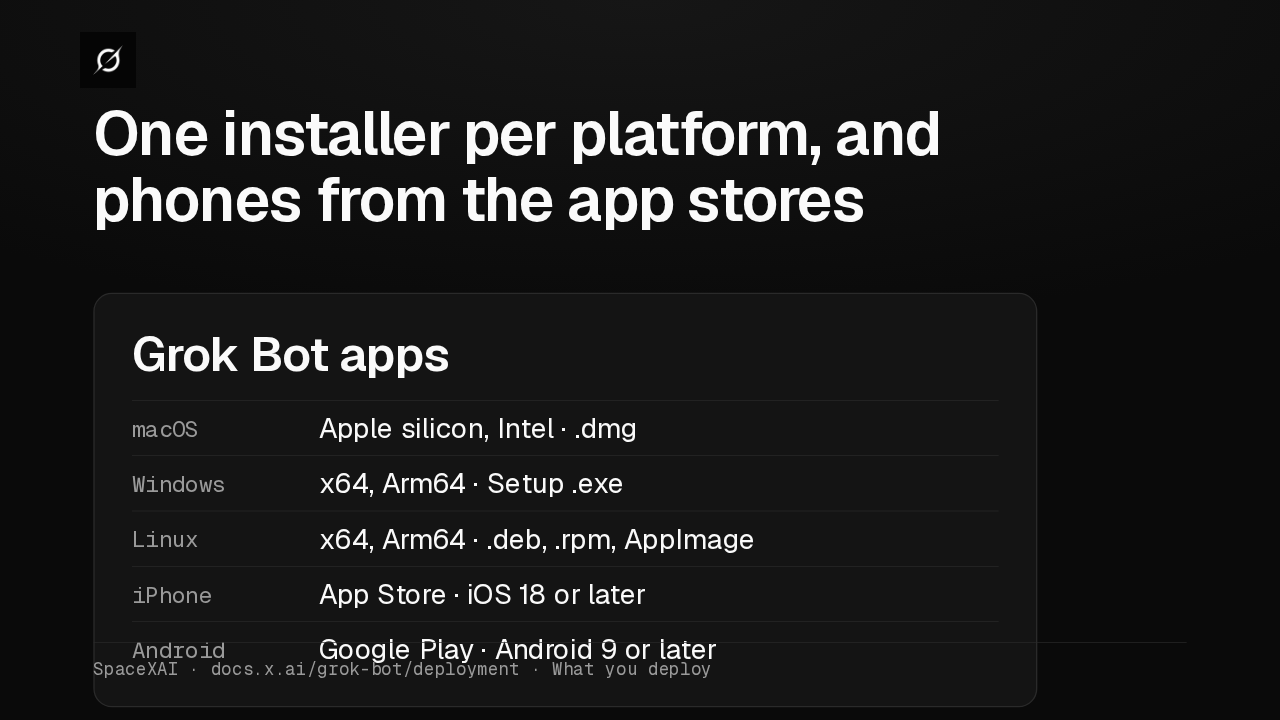
Jamf Pro Kandji Microsoft Intune Configuration Manager Ansible Puppet ChefSpaceXAI · docs.x.ai/grok-bot/deployment · Push the desktop appMac gets a disk image, Windows a Setup installer, and Linux deb, RPM or AppImage. There is no MSI or PKG, so wrap the installer in your tool's own package format.
Slide text
One installer per platform, and phones from the app stores
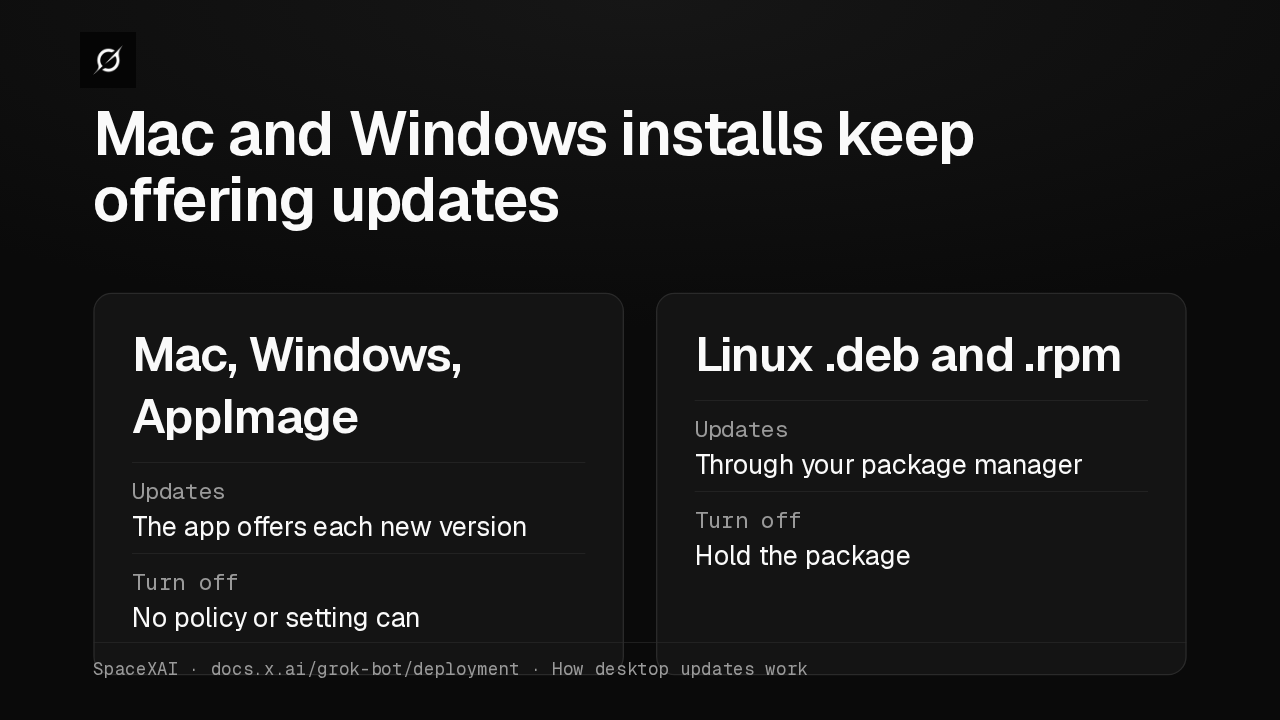
Grok Bot appsmacOS Apple silicon, Intel · .dmgWindows x64, Arm64 · Setup .exeLinux x64, Arm64 · .deb, .rpm, AppImageiPhone App Store · iOS 18 or laterAndroid Google Play · Android 9 or laterSpaceXAI · docs.x.ai/grok-bot/deployment · What you deployOn Mac, Windows and AppImage, no policy or setting turns off desktop updates. Linux deb and RPM installs never update themselves, so your package manager decides when they move.
Slide text
Mac and Windows installs keep offering updates
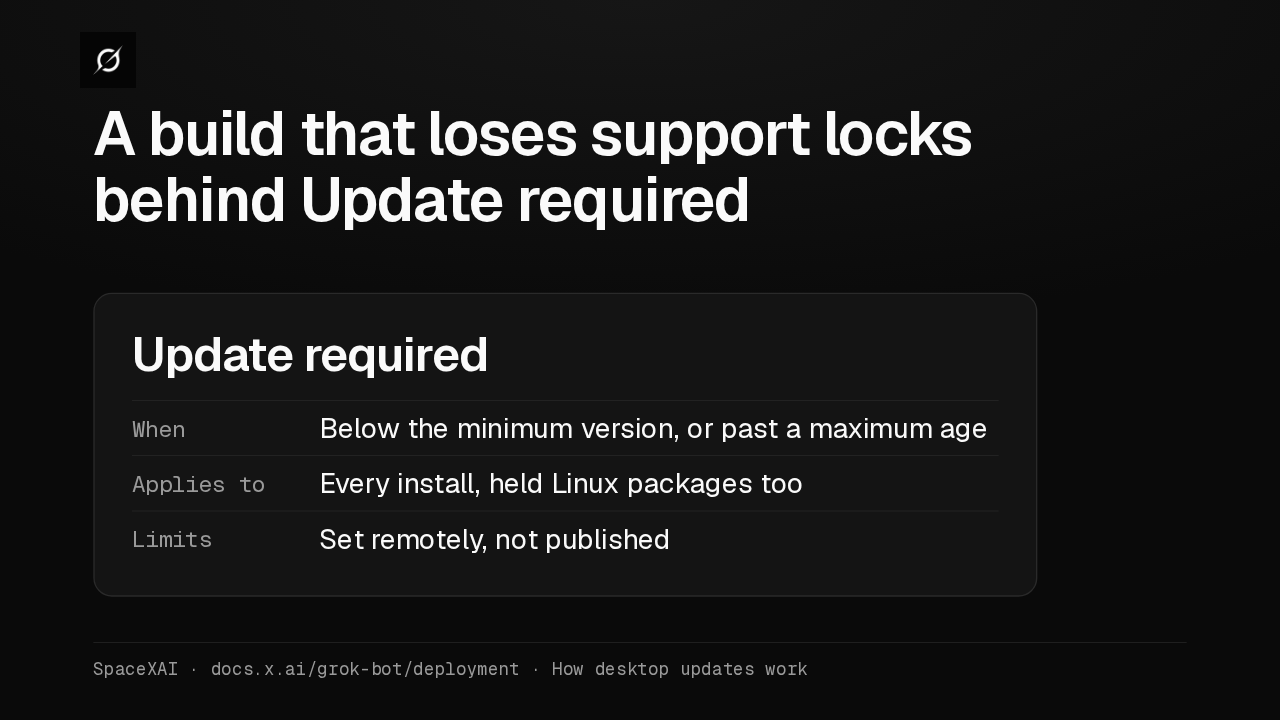
Mac, Windows, AppImageUpdates The app offers each new versionTurn off No policy or setting canLinux .deb and .rpmUpdates Through your package managerTurn off Hold the packageSpaceXAI · docs.x.ai/grok-bot/deployment · How desktop updates workA pinned build doesn't last forever. Once it loses support, Update required covers the whole window, even on a held Linux package. Both cutoffs are unpublished, so plan regular updates.
Slide text
A build that loses support locks behind Update required
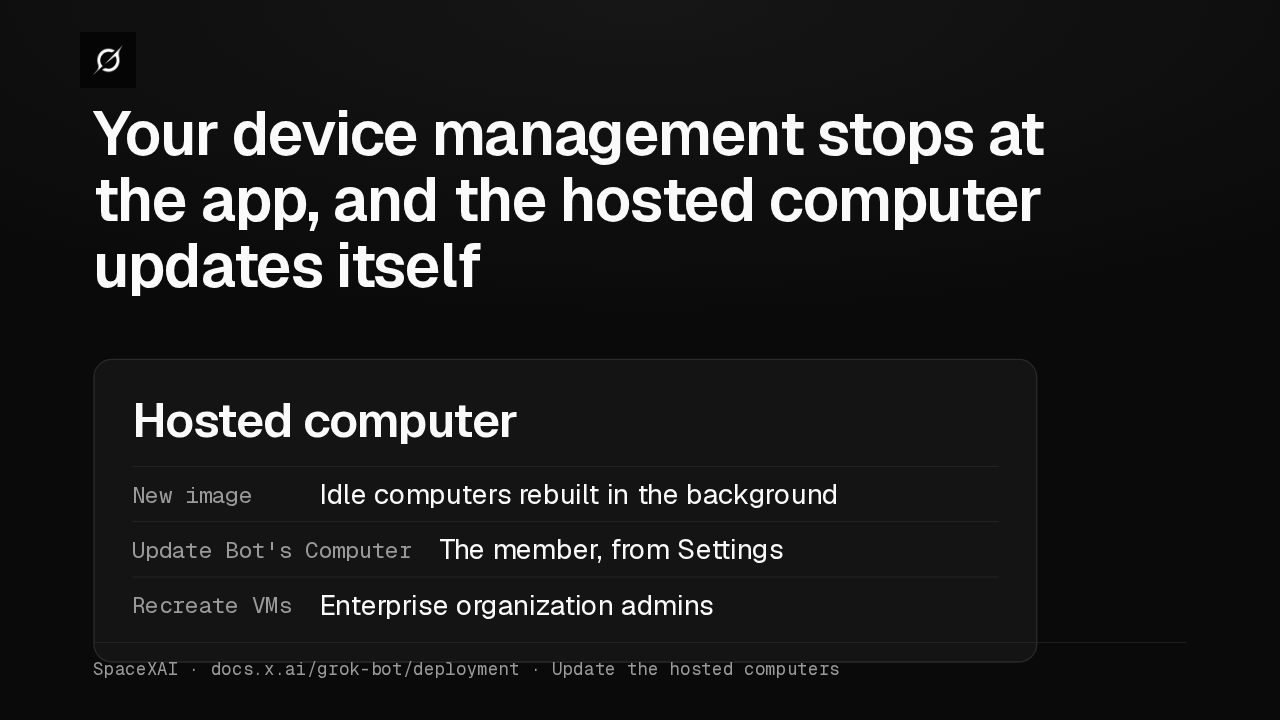
Update requiredWhen Below the minimum version, or past a maximum ageApplies to Every install, held Linux packages tooLimits Set remotely, not publishedSpaceXAI · docs.x.ai/grok-bot/deployment · How desktop updates workEach member's hosted computer runs Linux in the cloud, outside your device management, and its image can't be pinned. Idle computers move to new images in the background.
Slide text
Your device management stops at the app, and the hosted computer updates itself
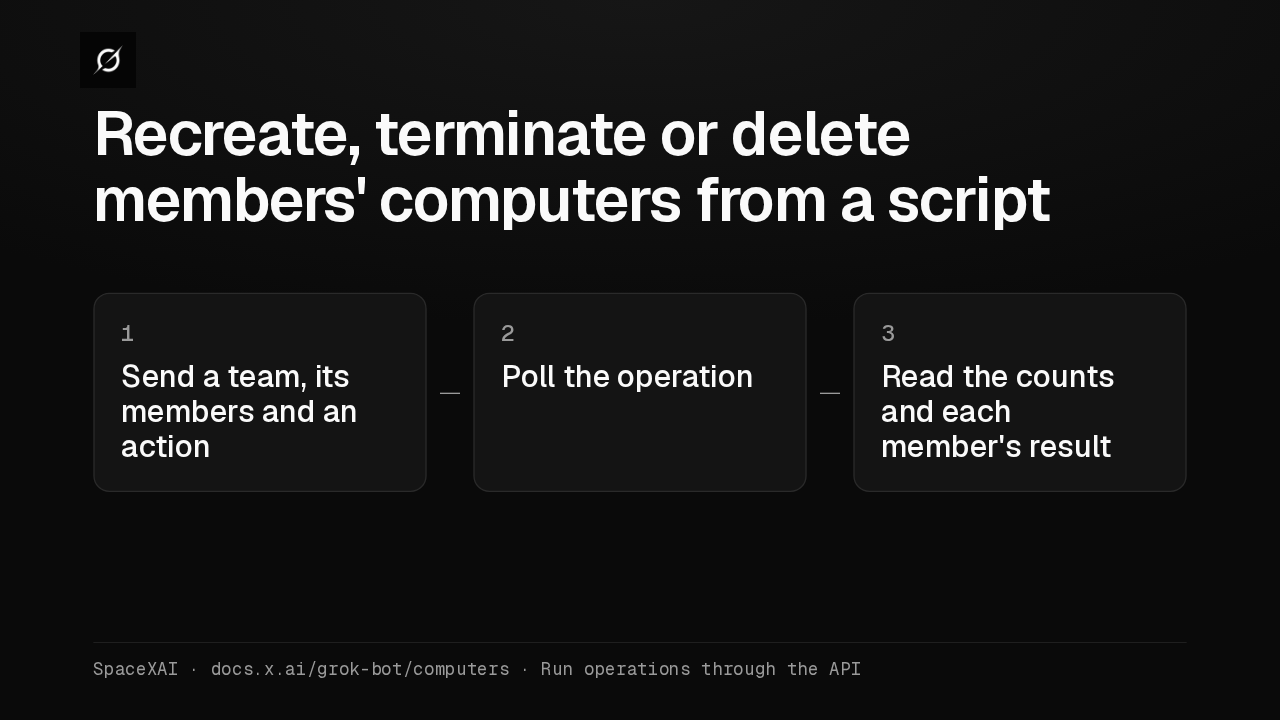
Hosted computerNew image Idle computers rebuilt in the backgroundUpdate Bot's Computer The member, from SettingsRecreate VMs Enterprise organization adminsSpaceXAI · docs.x.ai/grok-bot/deployment · Update the hosted computersOrganization admins can now recreate, terminate or delete members' computers through the Organization API. Each team runs one operation at a time, from the API or the dashboard.
Slide text
Recreate, terminate or delete members' computers from a script
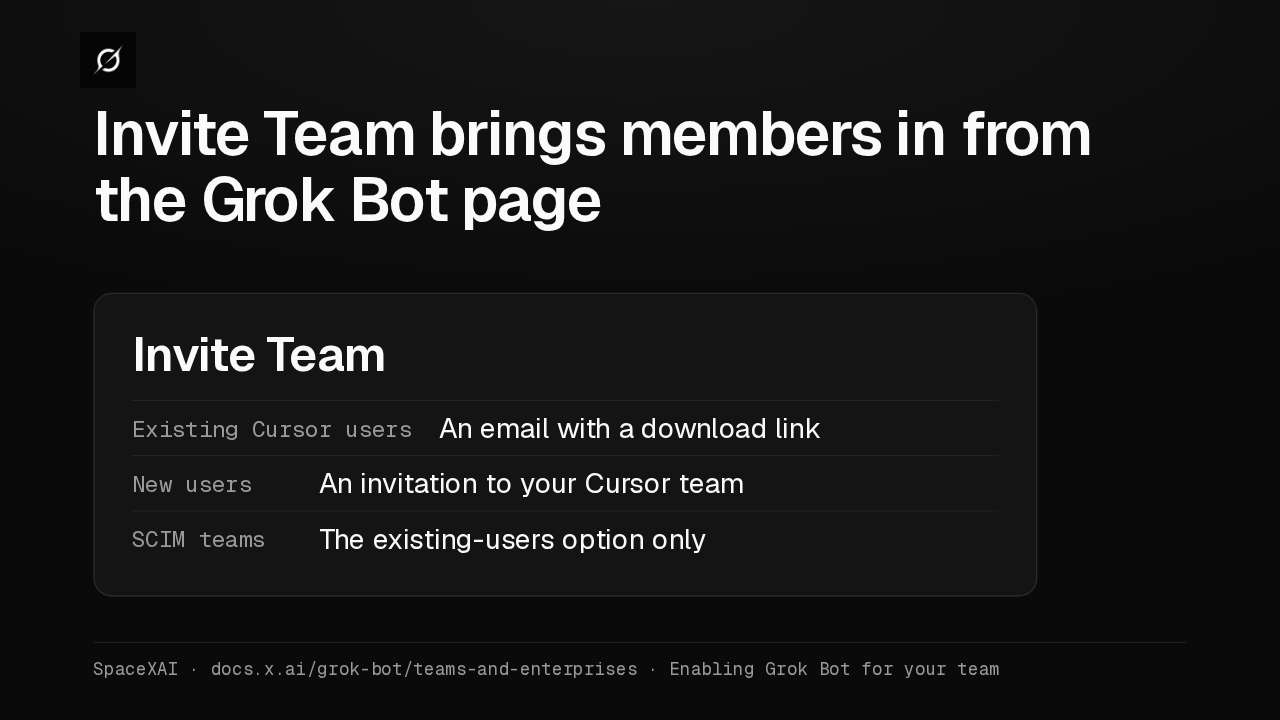
1 Send a team, its members and an action2 Poll the operation3 Read the counts and each member's resultSpaceXAI · docs.x.ai/grok-bot/computers · Run operations through the APIAdmins on Teams and Enterprise get Invite Team. Existing Cursor users get a download link by email, new users get a Cursor team invitation, and SCIM teams get only the first option.
Slide text
Invite Team brings members in from the Grok Bot page
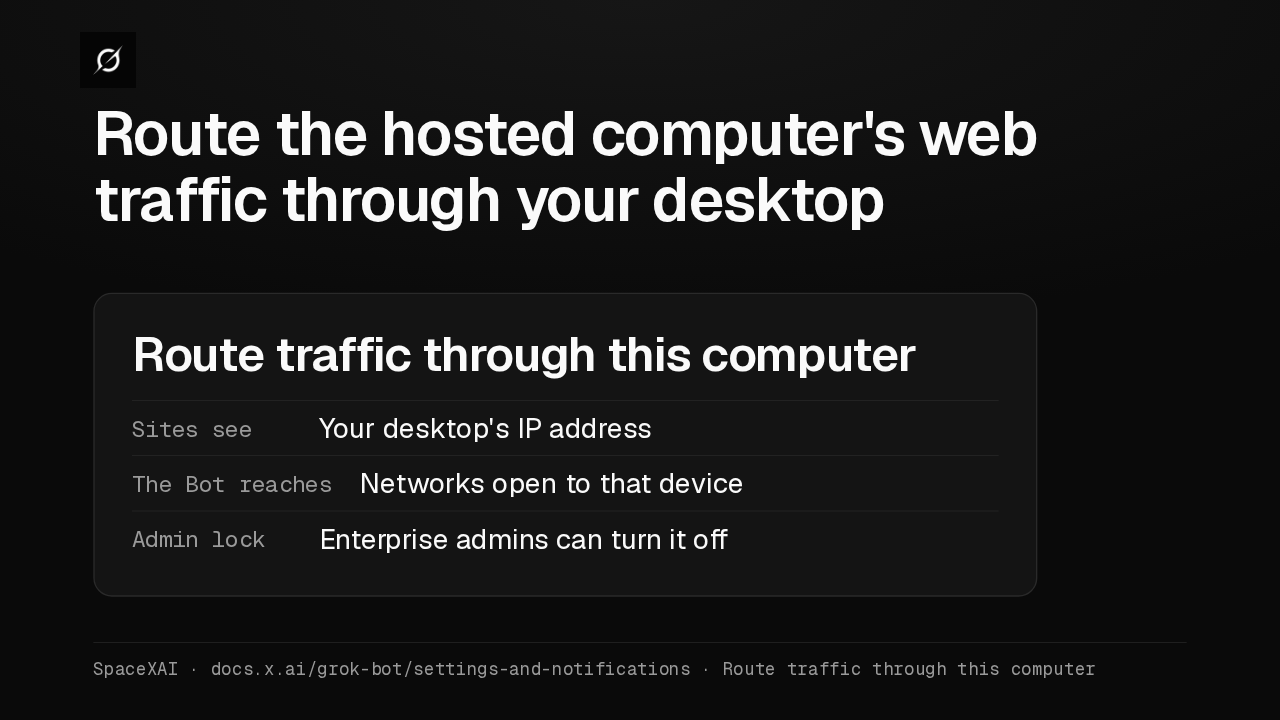
Invite TeamExisting Cursor users An email with a download linkNew users An invitation to your Cursor teamSCIM teams The existing-users option onlySpaceXAI · docs.x.ai/grok-bot/teams-and-enterprises · Enabling Grok Bot for your teamRoute traffic through this computer sends the hosted computer's web traffic out through your desktop, so sites see your desktop's address. If an Enterprise admin blocks it, active routes stop within five minutes.
Slide text
Route the hosted computer's web traffic through your desktop
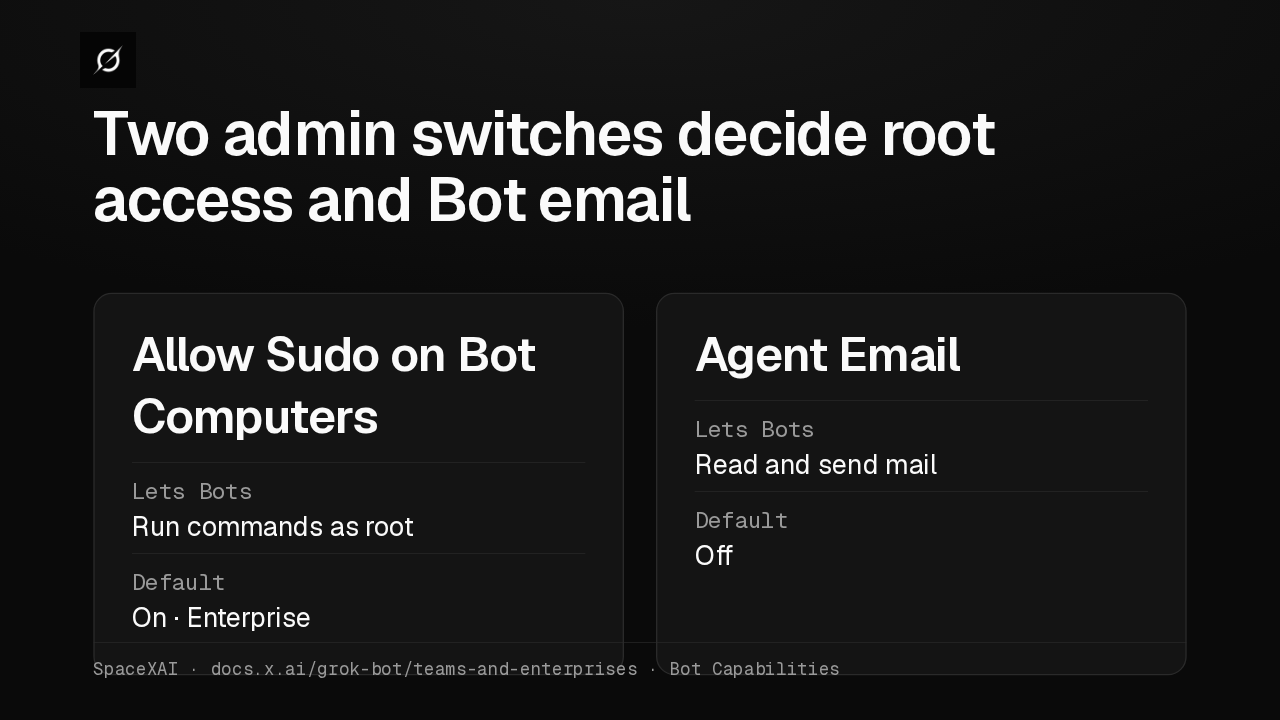
Route traffic through this computerSites see Your desktop's IP addressThe Bot reaches Networks open to that deviceAdmin lock Enterprise admins can turn it offSpaceXAI · docs.x.ai/grok-bot/settings-and-notifications · Route traffic through this computerAllow Sudo on Bot Computers lets Bots run commands as root. On Enterprise it starts on, and a change needs a restart. Agent Email gives members a mail address for their Bots, and starts off.
Slide text
Two admin switches decide root access and Bot email
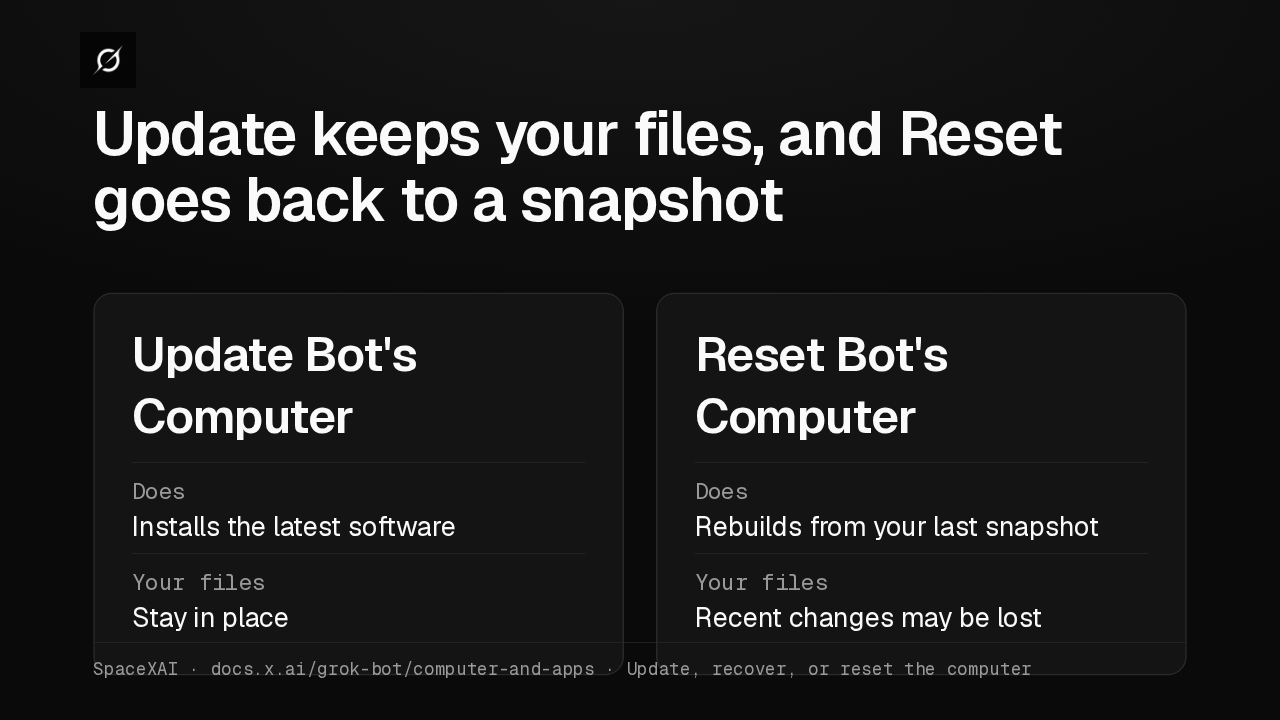
Allow Sudo on Bot ComputersLets Bots Run commands as rootDefault On · EnterpriseAgent EmailLets Bots Read and send mailDefault OffSpaceXAI · docs.x.ai/grok-bot/teams-and-enterprises · Bot CapabilitiesAn unreachable computer now offers Recover computer right in the error. In Settings, Update Bot's Computer keeps your files, while Reset rolls back to your last snapshot and may lose recent changes.
Slide text
Update keeps your files, and Reset goes back to a snapshot
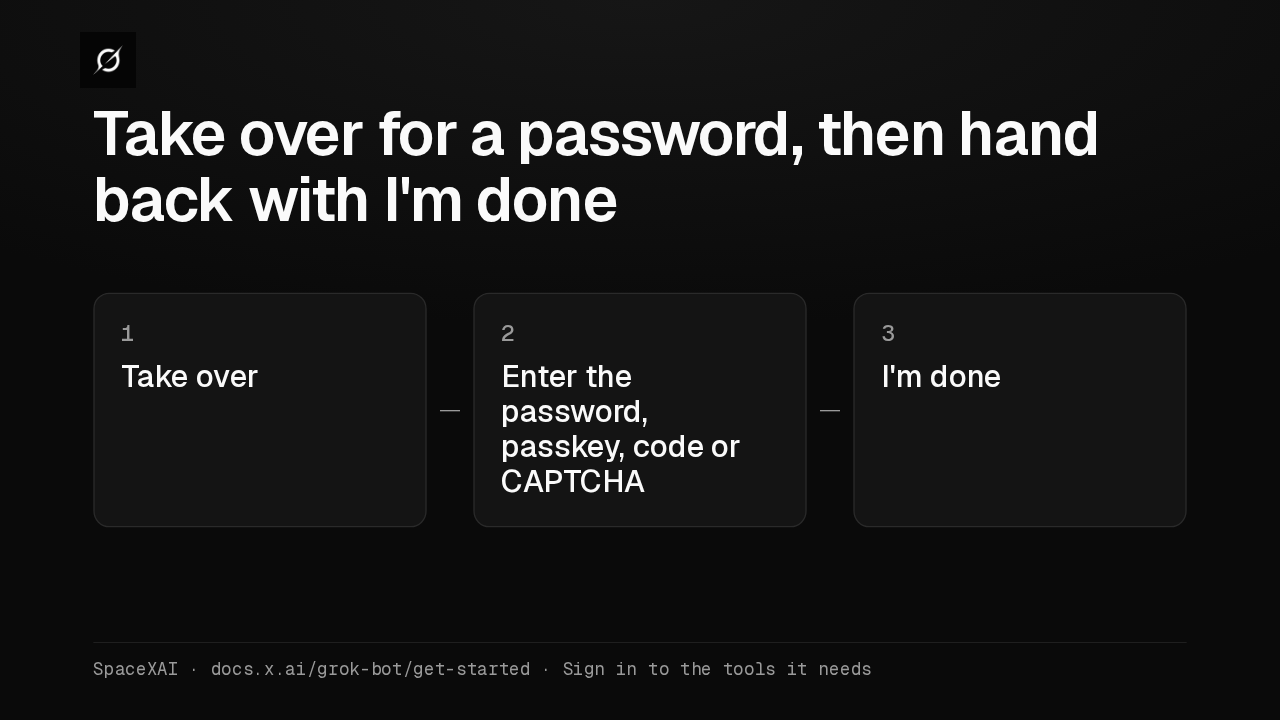
Update Bot's ComputerDoes Installs the latest softwareYour files Stay in placeReset Bot's ComputerDoes Rebuilds from your last snapshotYour files Recent changes may be lostSpaceXAI · docs.x.ai/grok-bot/computer-and-apps · Update, recover, or reset the computerWhen a Bot reaches a login, choose Take over. Enter the password, passkey, two-factor code or CAPTCHA yourself, then choose I'm done. The iPhone and Android apps can take over too.
Slide text
Take over for a password, then hand back with I'm done
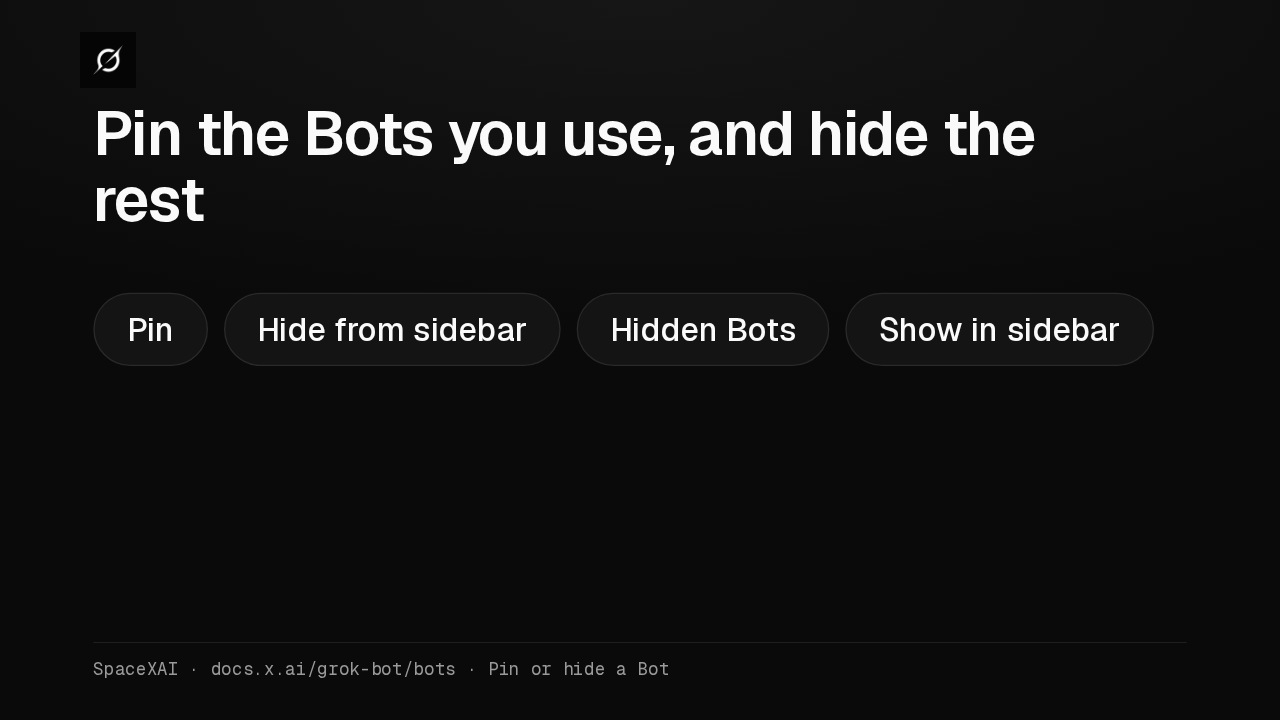
1 Take over2 Enter the password, passkey, code or CAPTCHA3 I'm doneSpaceXAI · docs.x.ai/grok-bot/get-started · Sign in to the tools it needsPin keeps active Bots at the top of the sidebar, and Hide from sidebar tucks one away without deleting its work. Hidden Bots, at the bottom of the sidebar, brings it back.
Slide text
Pin the Bots you use, and hide the rest
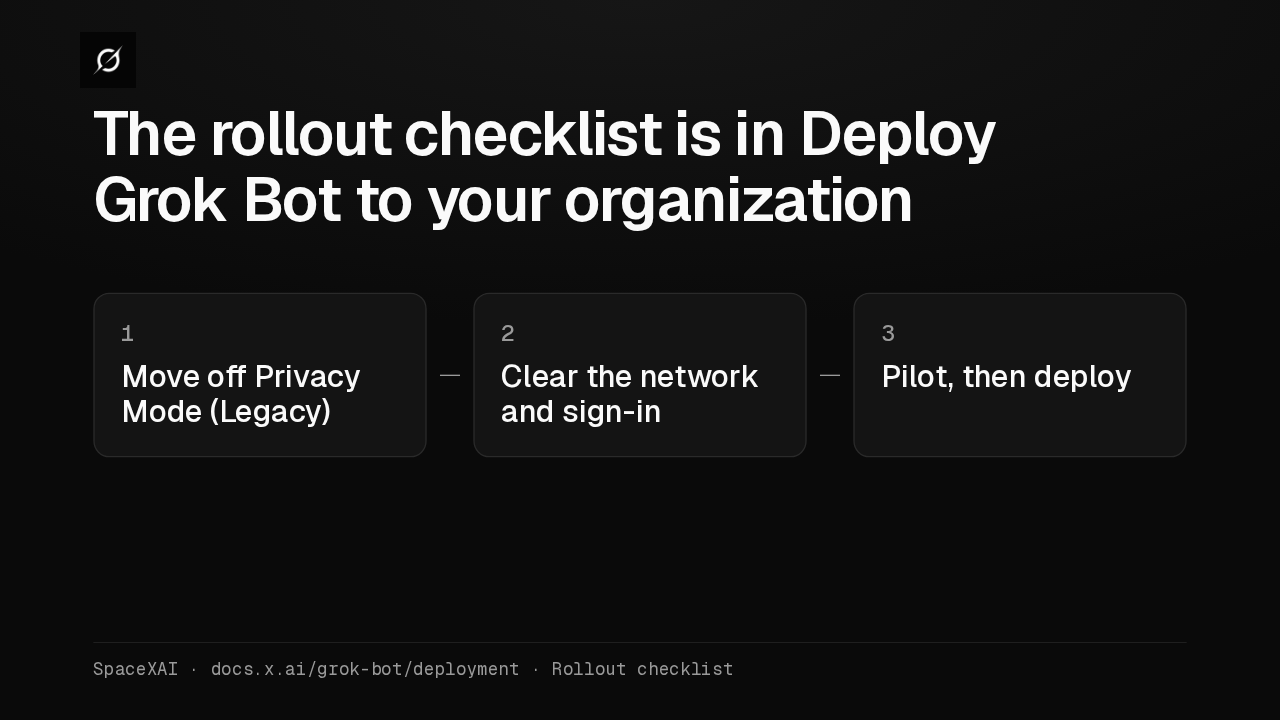
Pin Hide from sidebar Hidden Bots Show in sidebarSpaceXAI · docs.x.ai/grok-bot/bots · Pin or hide a BotPrivacy Mode Legacy blocks Grok Bot entirely, so the rollout checklist in Deploy Grok Bot to your organization starts there. Then come network, sign-in, a pilot on a few devices, and the full deploy.
Slide text
The rollout checklist is in Deploy Grok Bot to your organization
1 Move off Privacy Mode (Legacy)2 Clear the network and sign-in3 Pilot, then deploySpaceXAI · docs.x.ai/grok-bot/deployment · Rollout checklist
Up next
 1:52
Grok Bot's Vault lets Bots sign in and pay without seeing your passwords
@grok-bot
1 day ago
 1:06
Grok Bot now acts only as you, and keeps your passwords out of the model
@grok-bot
1 day ago
 2:29
Grok Bot now signs in with Okta FastPass on its own computers
@grok-bot
2 days ago
 2:19
Grok Bot now shares one Bot with your whole team, in Slack and Teams
@grok-bot
2 days ago
 1:59
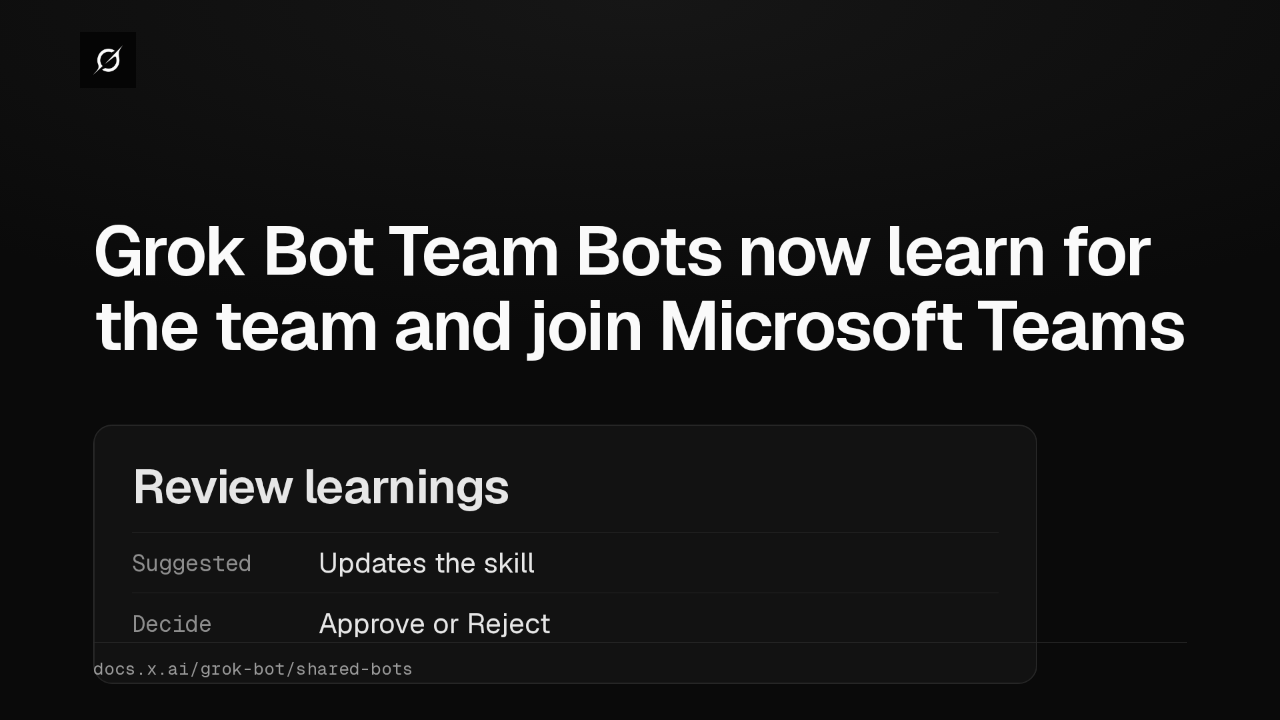
Grok Bot Team Bots now learn for the team and join Microsoft Teams
@grok-bot
3 days ago
 1:56
Grok Bot buys your conference pass from memory and asks before it emails finance
@grok-bot
1 week ago
 1:04
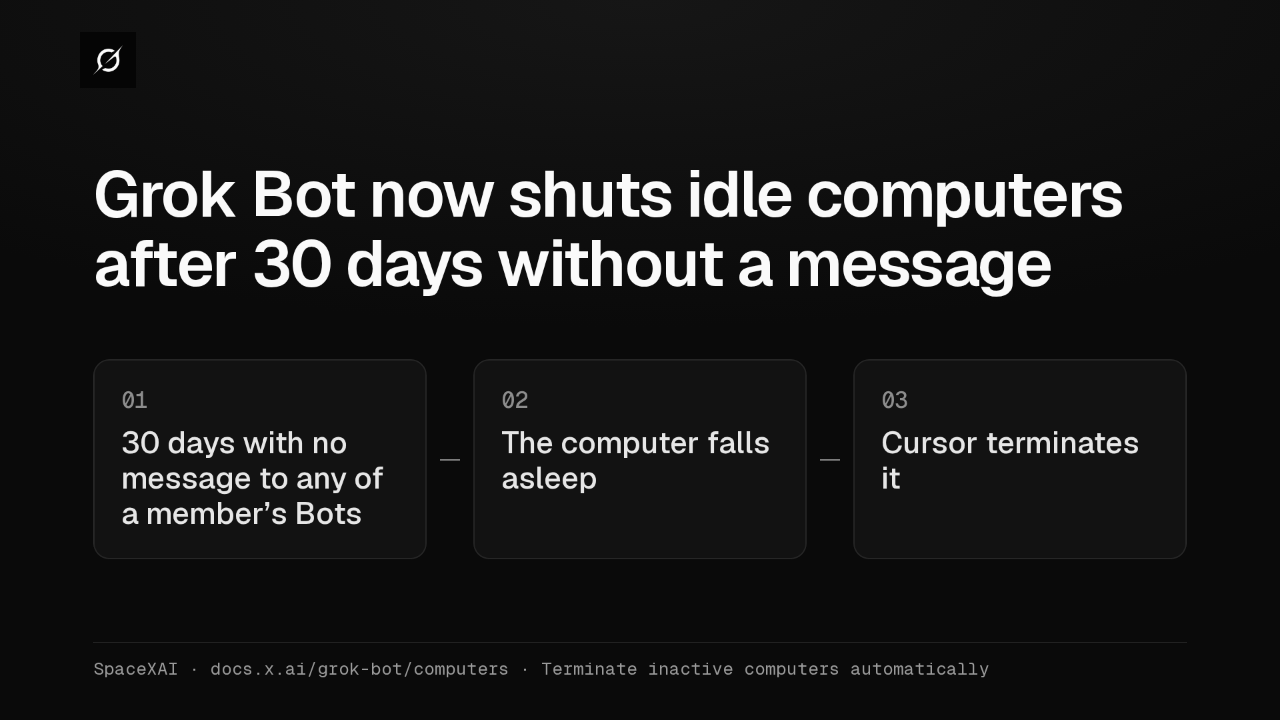
Grok Bot now shuts idle computers after 30 days without a message
@grok-bot
1 week ago
 2:17
Grok Bot inference hooks let your security server block a prompt before the model sees it
@grok-bot
3 weeks ago
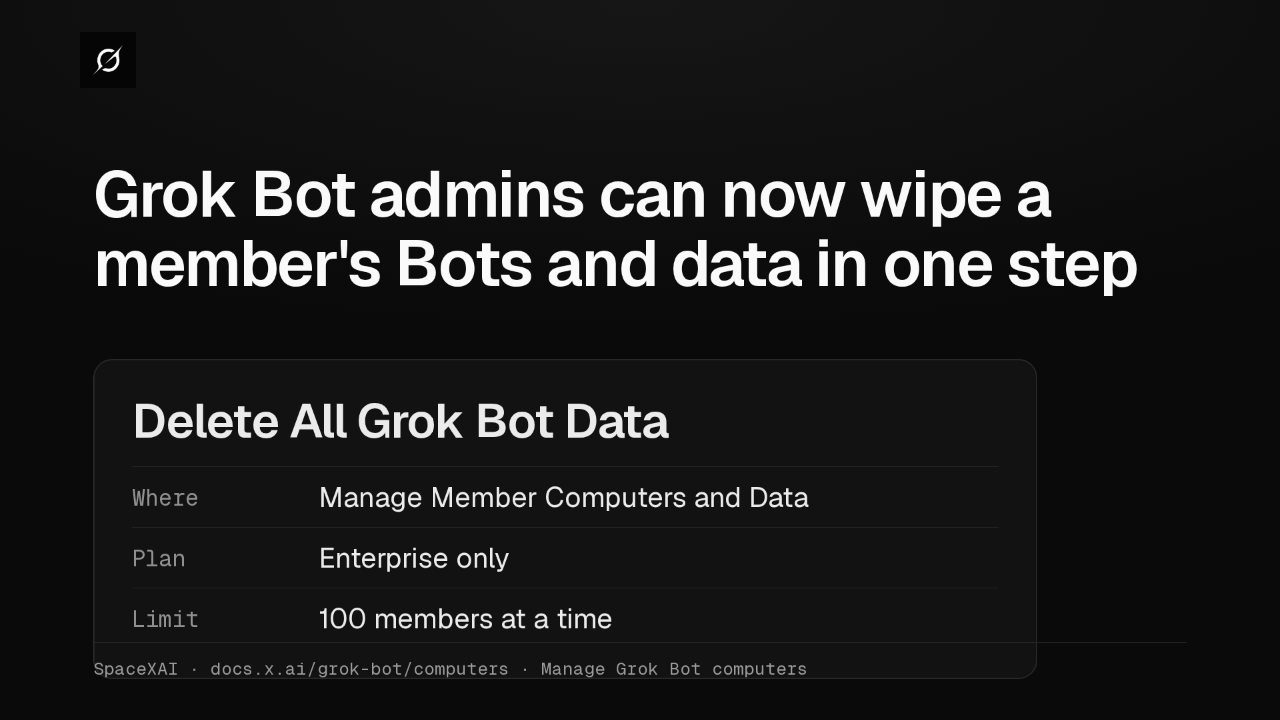 1:58
Grok Bot admins can now wipe a member's Bots and data in one step
@grok-bot
3 weeks ago
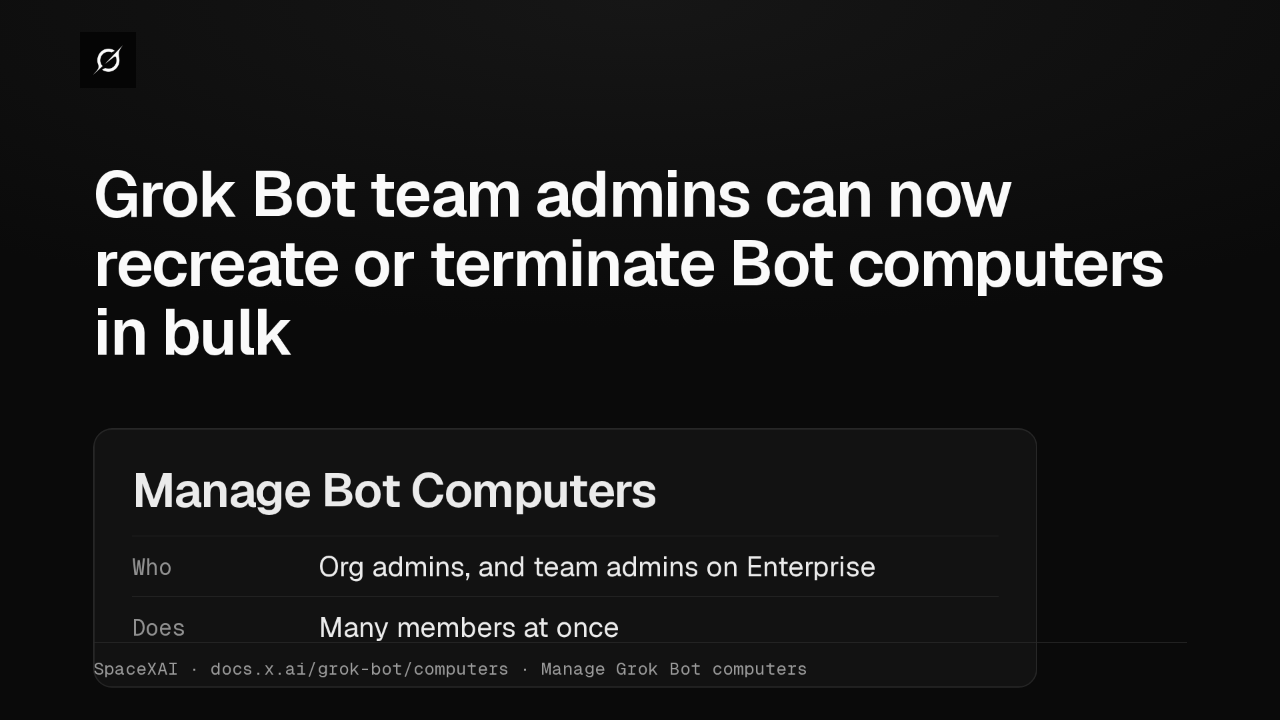 1:47
Grok Bot lets Enterprise team admins recreate or terminate Bot computers in bulk
@grok-bot
1 month ago
 1:19
Grok Bot plugins now install from Connect apps
@grok-bot
1 month ago
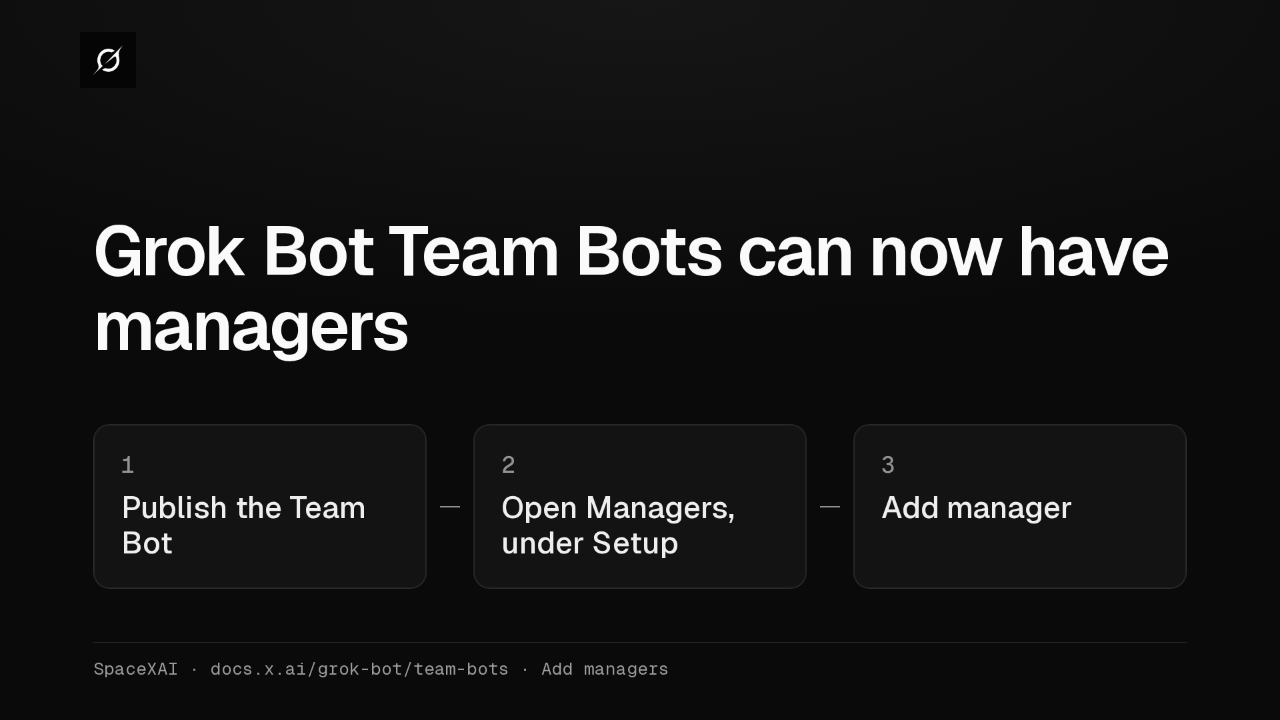 1:43
Grok Bot Team Bots get managers, and Bots can read X
@grok-bot
1 month ago