Grok Bot lets Enterprise team admins recreate or terminate Bot computers in bulk

2 hours ago

Grok Bot team admins on Enterprise can now recreate or terminate their members' Bot computers in bulk, restart them after a settings change, and terminate computers left unused for 30 days. A new switch also turns off Messaging Between Bots. https://docs.x.ai/grok-bot/computers https://docs.x.ai/grok-bot/security-faq https://docs.x.ai/grok-bot/chat-and-collaboration https://docs.x.ai/developers/release-notes.md

Ask

Ask about this presentation

Answers are generated from this presentation.

Chapters

  1. 0:00Manage Bot Computers
  2. 0:16Recreate or terminate
  3. 0:30What members lose
  4. 0:46Restart after a settings change
  5. 1:02Terminate inactive computers
  6. 1:18Access stays
  7. 1:34Messaging Between Bots
Show transcript

Manage Bot Computers

Grok

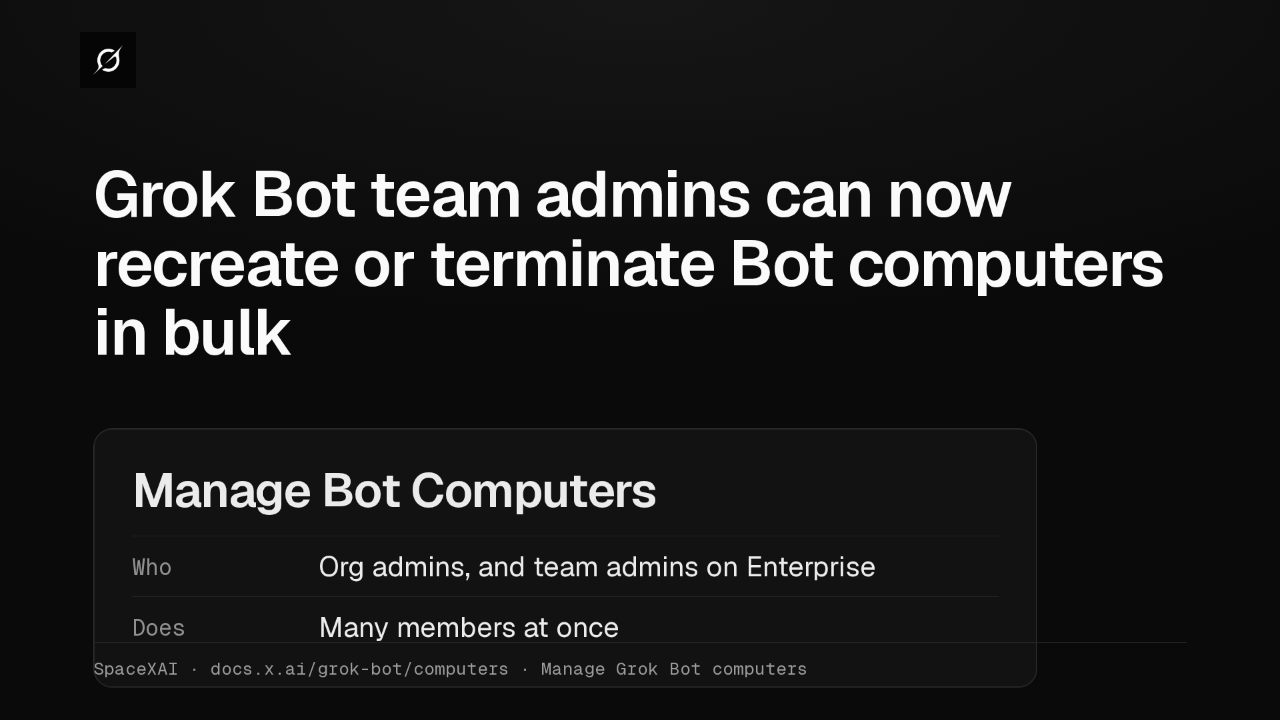
Grok Bot team admins can now recreate or terminate Bot computers in bulk

Manage Bot Computers
WhoOrg admins, and team admins on Enterprise
DoesMany members at once
SpaceXAI · docs.x.ai/grok-bot/computers · Manage Grok Bot computers

Team admins on an Enterprise team can now manage their members' Grok Bot computers, alongside organization admins. Manage Bot Computers, on the Grok Bot dashboard page, recreates or terminates computers for many members at once.

Recreate or terminate

Grok

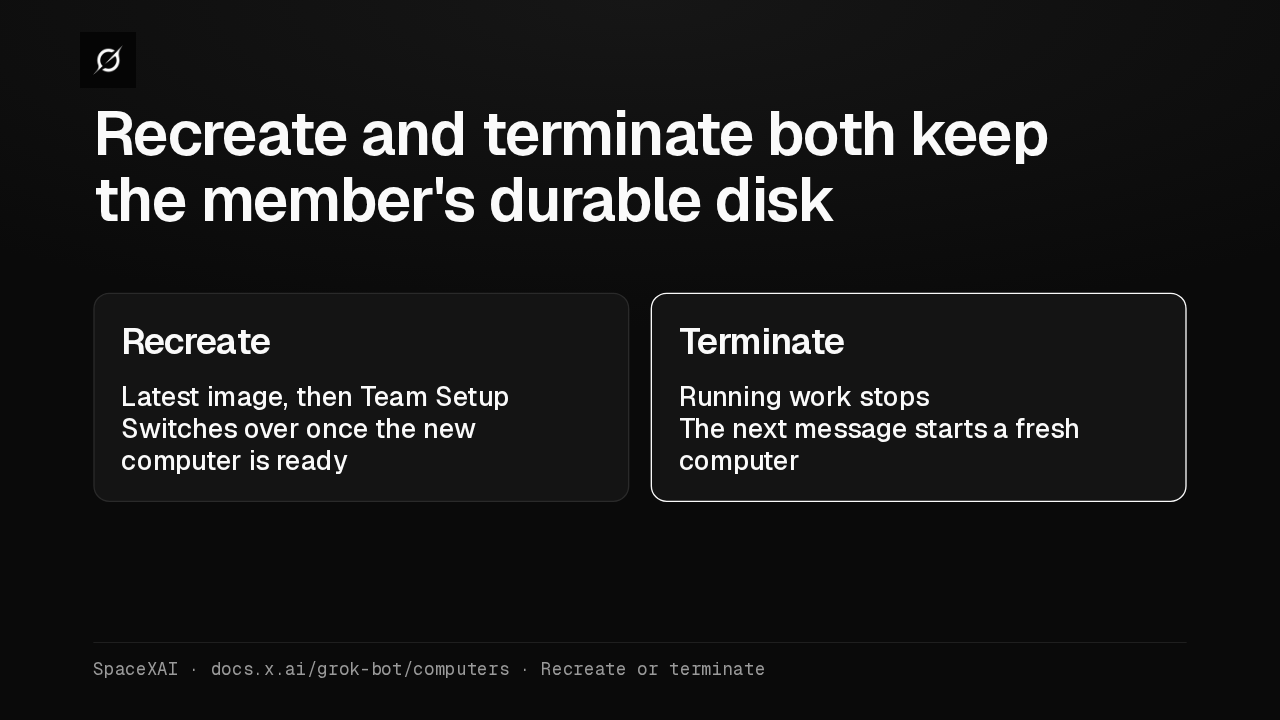
Recreate and terminate both keep the member's durable disk

Recreate
Latest image, then Team Setup
Switches over once the new computer is ready
Terminate
Running work stops
The next message starts a fresh computer
SpaceXAI · docs.x.ai/grok-bot/computers · Recreate or terminate

Both actions keep each member's durable disk, so their Bots, files and logins come back. Recreate moves them to the latest image and runs Team Setup again. Terminate stops the work, and their next message starts a fresh computer.

What members lose

Grok

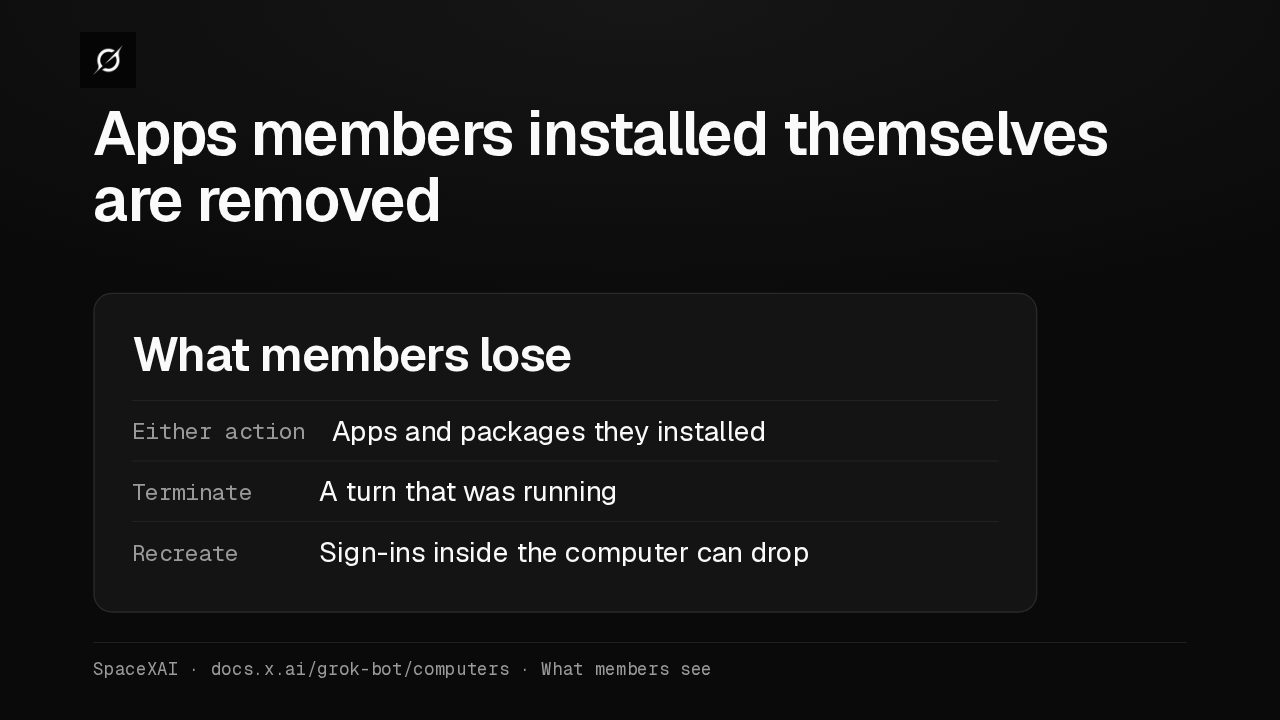
Apps members installed themselves are removed

What members lose
Either actionApps and packages they installed
TerminateA turn that was running
RecreateSign-ins inside the computer can drop
SpaceXAI · docs.x.ai/grok-bot/computers · What members see

Either action removes apps and packages members installed themselves. Anything Team Setup installs comes back. A terminate loses the turn that was running, and a recreate can drop sign-ins to company tools.

Restart after a settings change

Grok

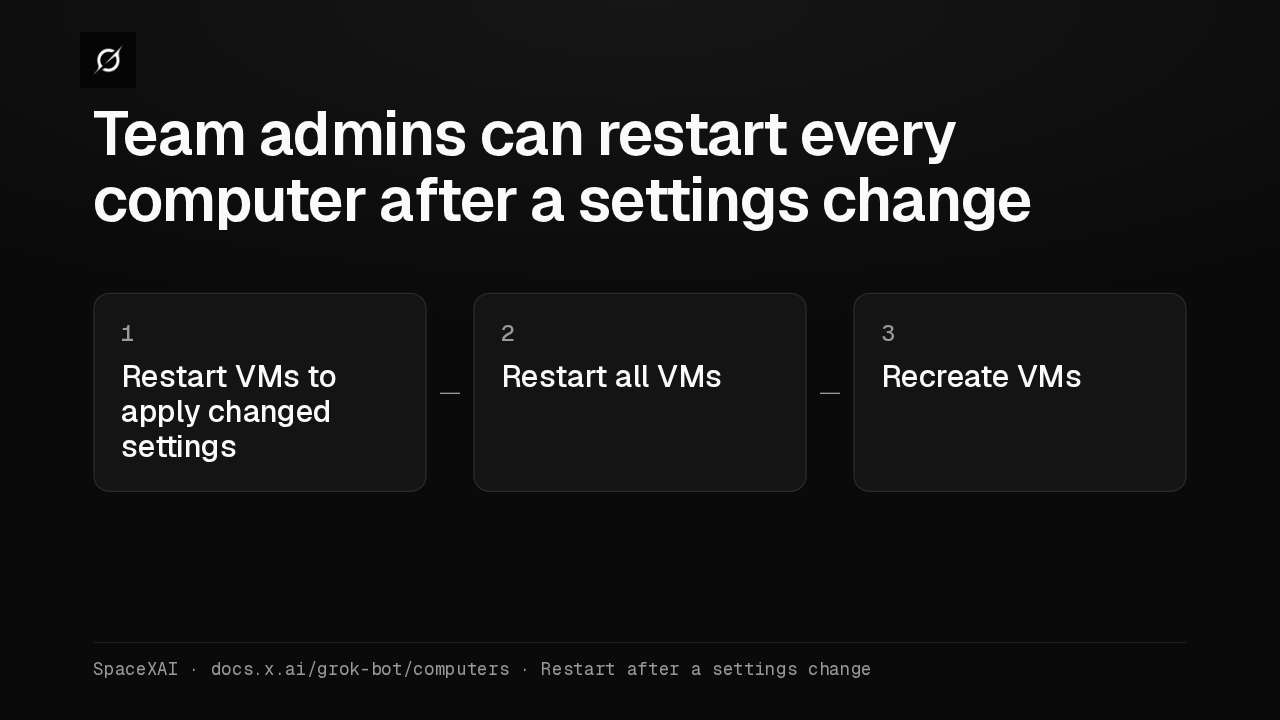
Team admins can restart every computer after a settings change

1Restart VMs to apply changed settings
2Restart all VMs
3Recreate VMs
SpaceXAI · docs.x.ai/grok-bot/computers · Restart after a settings change

After some team settings change, the Grok Bot page shows a restart notice. Enterprise team admins can run that restart themselves. It recreates every member's computer with the current settings. Terminate and delete stay under Manage Bot Computers.

Terminate inactive computers

Grok

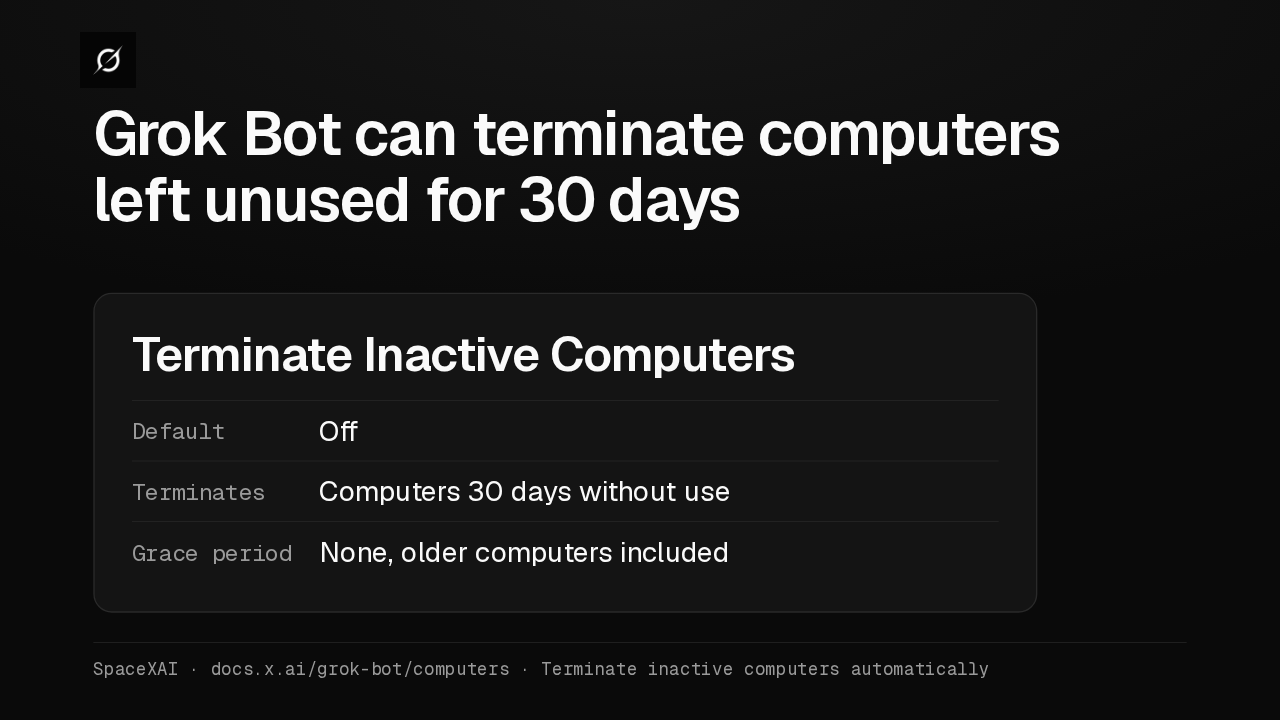
Grok Bot can terminate computers left unused for 30 days

Terminate Inactive Computers
DefaultOff
TerminatesComputers 30 days without use
Grace periodNone, older computers included
SpaceXAI · docs.x.ai/grok-bot/computers · Terminate inactive computers automatically

Terminate Inactive Computers cleans up idle computers, and it's off by default. Turned on, it terminates any computer unused for 30 days, including ones already past that mark. A computer with a Bot at work is left alone.

Access stays

Grok

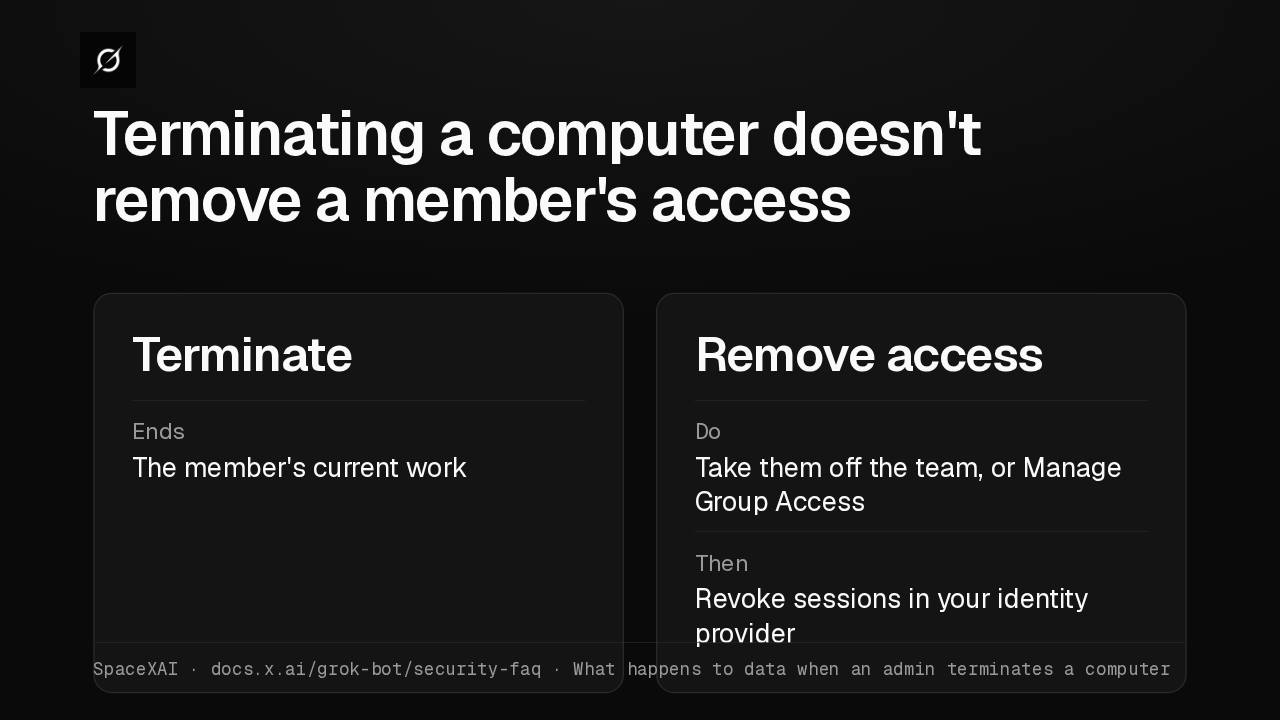
Terminating a computer doesn't remove a member's access

Terminate
EndsThe member's current work
Remove access
DoTake them off the team, or Manage Group Access
ThenRevoke sessions in your identity provider
SpaceXAI · docs.x.ai/grok-bot/security-faq · What happens to data when an admin terminates a computer

Terminating a computer, by hand or automatically, only ends the member's current work. To remove access, take the member off the team or turn off their access with Manage Group Access, then revoke their sessions in your identity provider.

Messaging Between Bots

Grok

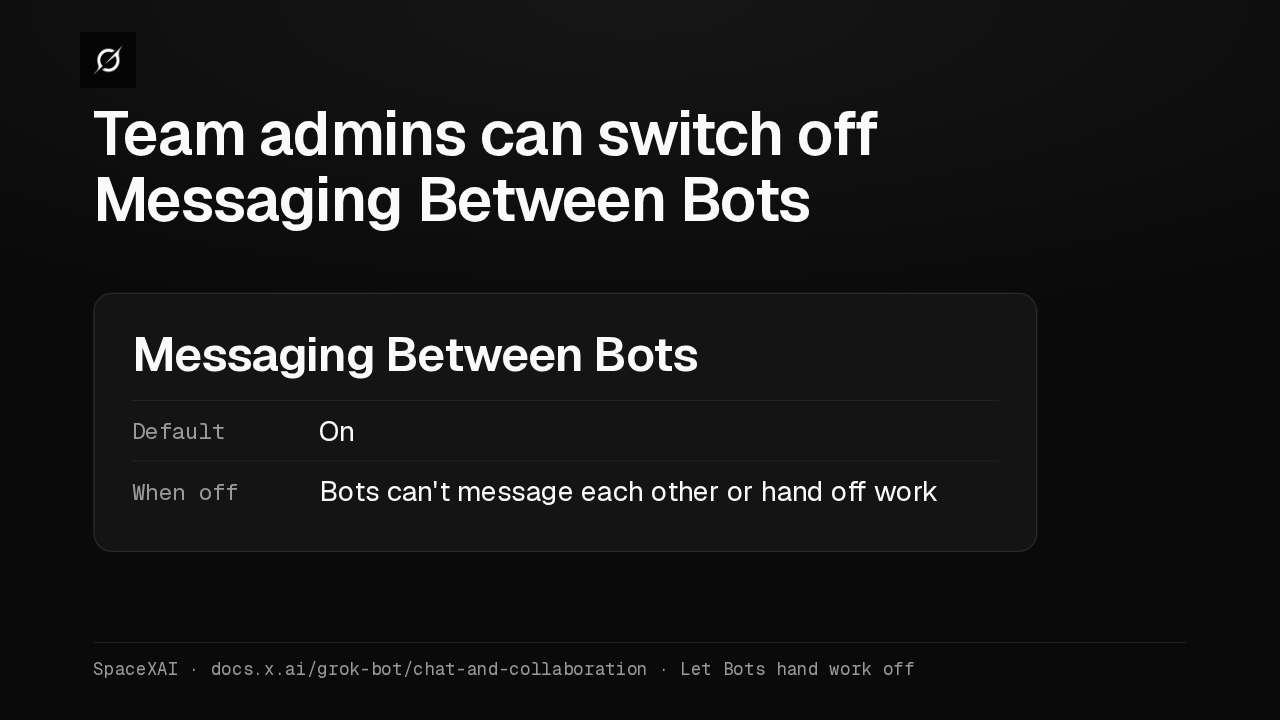
Team admins can switch off Messaging Between Bots

Messaging Between Bots
DefaultOn
When offBots can't message each other or hand off work
SpaceXAI · docs.x.ai/grok-bot/chat-and-collaboration · Let Bots hand work off

A team admin can also turn off Messaging Between Bots, which is on by default. While it's off, members' Bots can't message other Bots or hand them work, and other Bots can't message them.