Grok Bot plugins now install from Connect apps

1 day ago

Grok Bot plugins now install from Connect apps in the sidebar, where the X plugin adds your DMs and bookmarks. Connect apps also has its own desktop shortcut. https://docs.x.ai/grok-bot/computer-and-apps https://docs.x.ai/grok-bot/get-started https://docs.x.ai/grok-bot/chat-and-collaboration https://docs.x.ai/developers/release-notes.md

Ask

Ask about this presentation

Answers are generated from this presentation.

Chapters

  1. 0:00Connect apps
  2. 0:11Attach in chat
  3. 0:24Signing in to tools
  4. 0:38The X plugin
  5. 0:53Connect apps shortcut
  6. 1:03Desktop shortcuts
Show transcript

Connect apps

Grok

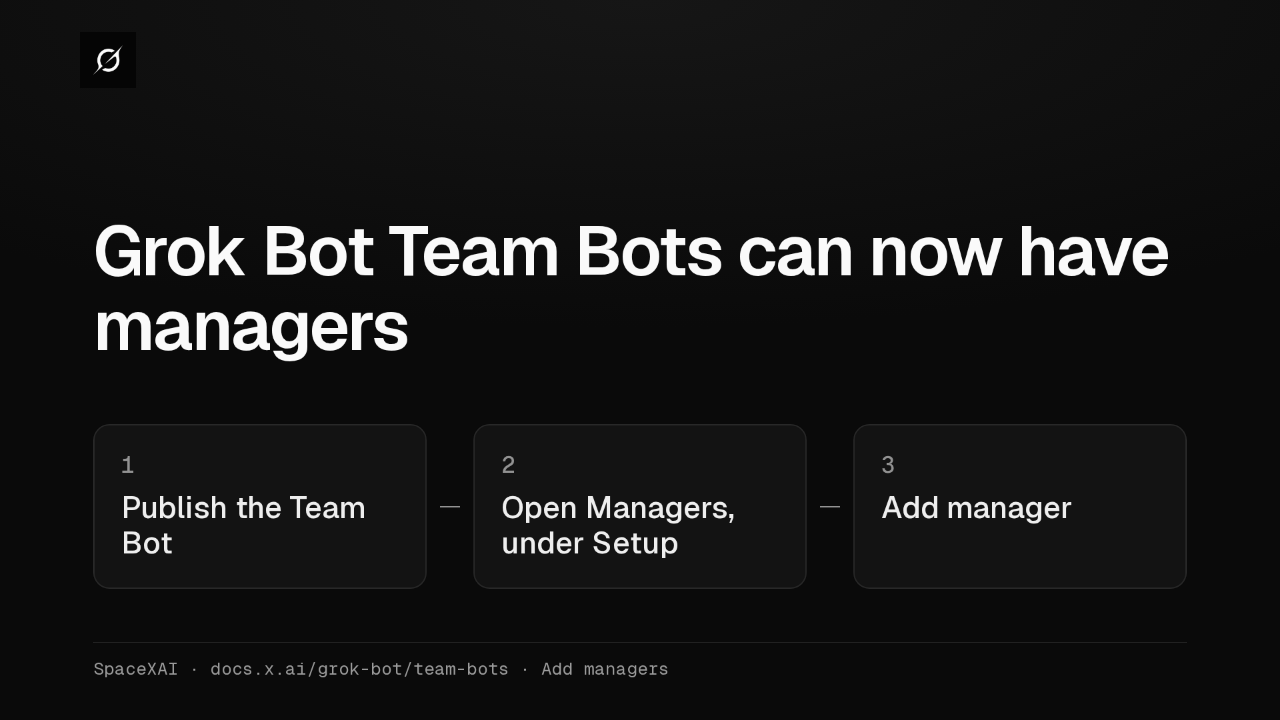
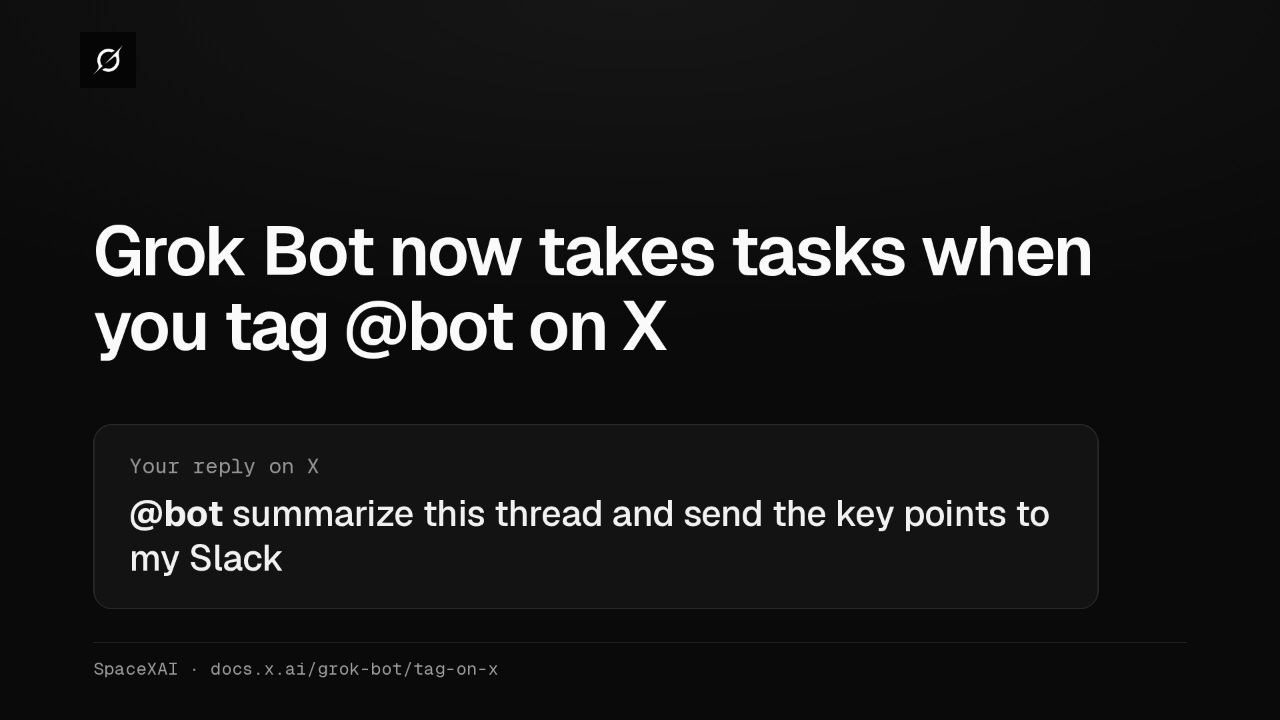
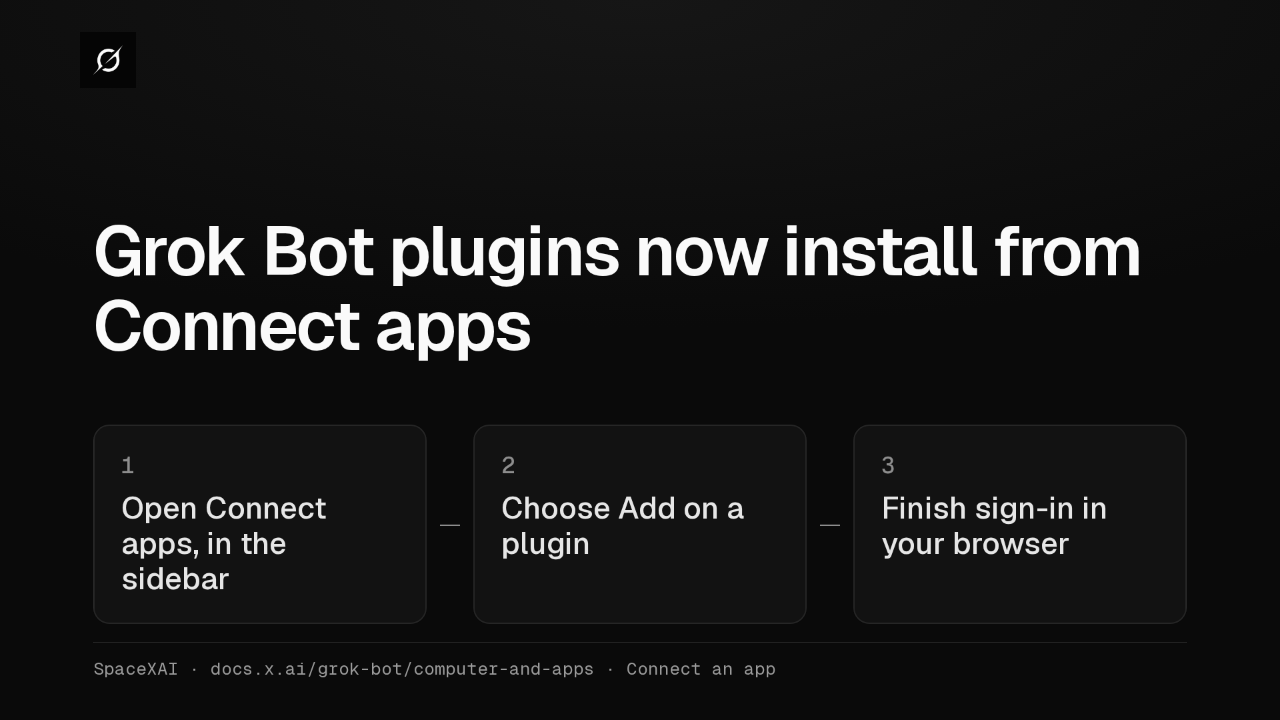
Grok Bot plugins now install from Connect apps

1Open Connect apps, in the sidebar
2Choose Add on a plugin
3Finish sign-in in your browser
SpaceXAI · docs.x.ai/grok-bot/computer-and-apps · Connect an app

Grok Bot's plugins now live in Connect apps, in the sidebar. Choose Add on a plugin and finish signing in through your browser. The connector then works for every Bot on your account.

Attach in chat

Grok

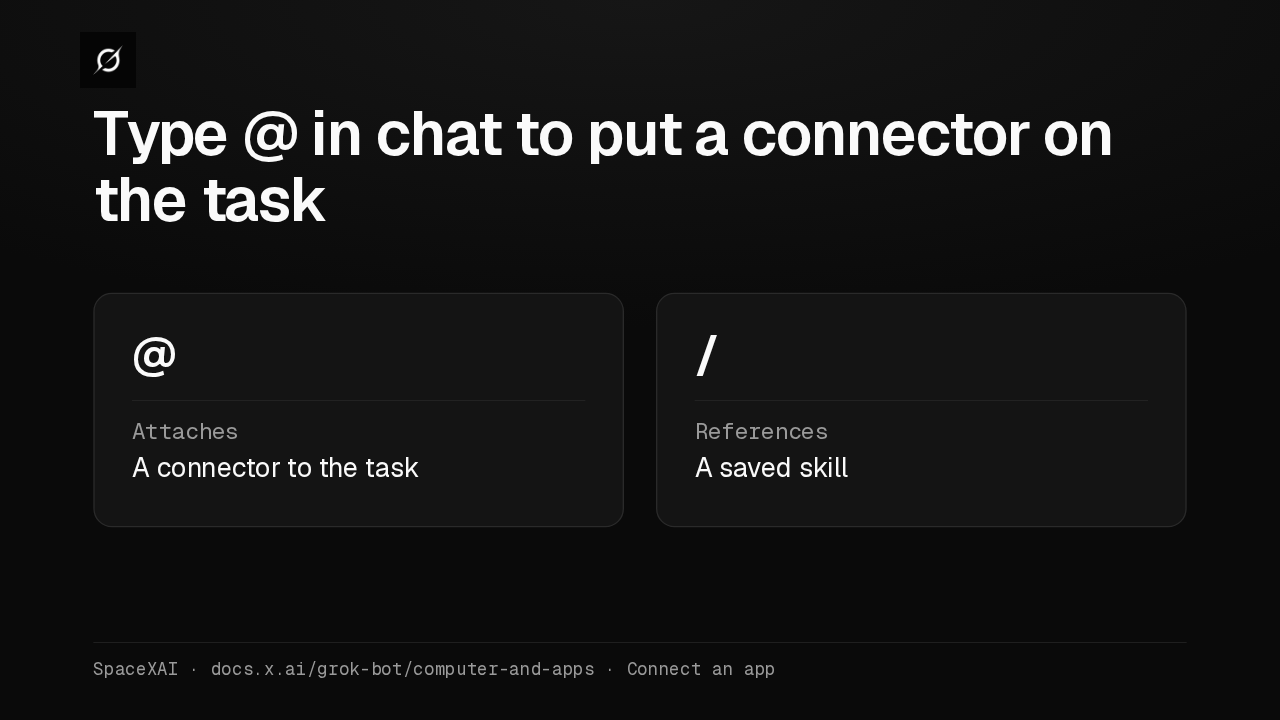
Type @ in chat to put a connector on the task

@
AttachesA connector to the task
/
ReferencesA saved skill
SpaceXAI · docs.x.ai/grok-bot/computer-and-apps · Connect an app

Connectors attach from the chat. Type the at sign to put one on a task, or a slash to call up a saved skill. A connector is often more reliable than clicking through a website.

Signing in to tools

Grok

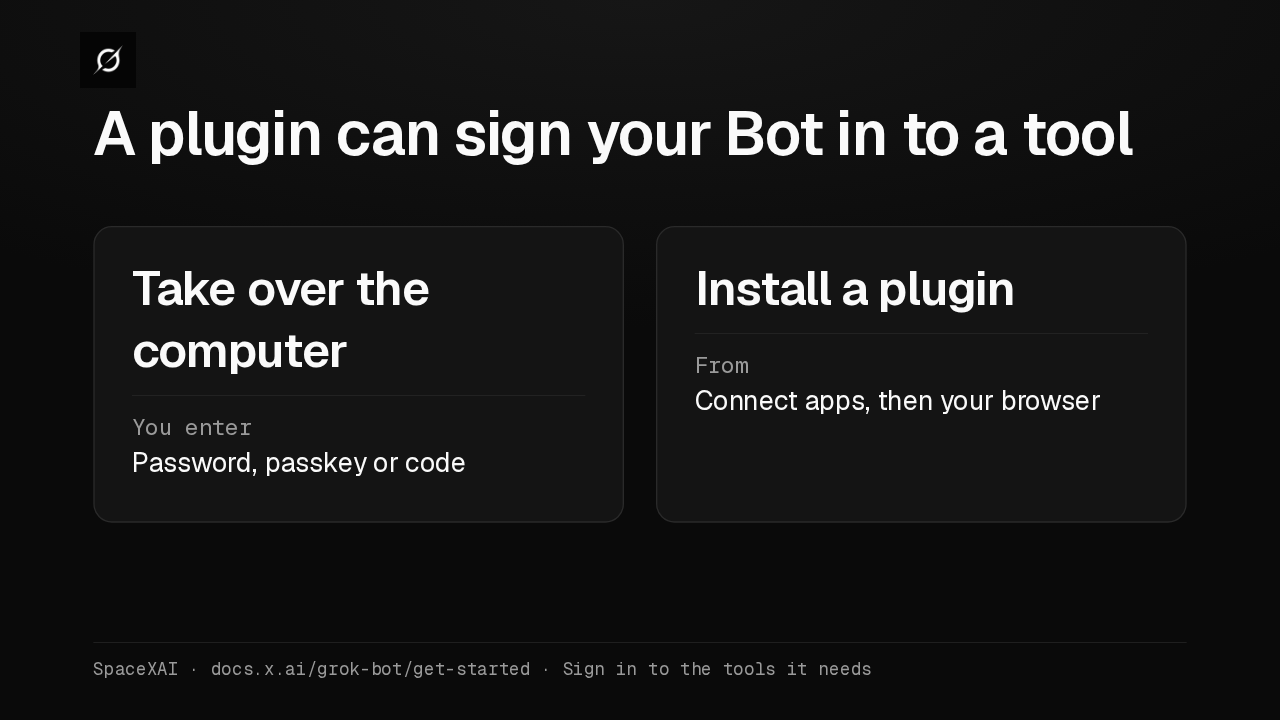
A plugin can sign your Bot in to a tool

Take over the computer
You enterPassword, passkey or code
Install a plugin
FromConnect apps, then your browser
SpaceXAI · docs.x.ai/grok-bot/get-started · Sign in to the tools it needs

When a Bot hits a login, it can ask you to take over its computer and type the password. For supported services, install the plugin from Connect apps and sign in through your browser instead.

The X plugin

Grok

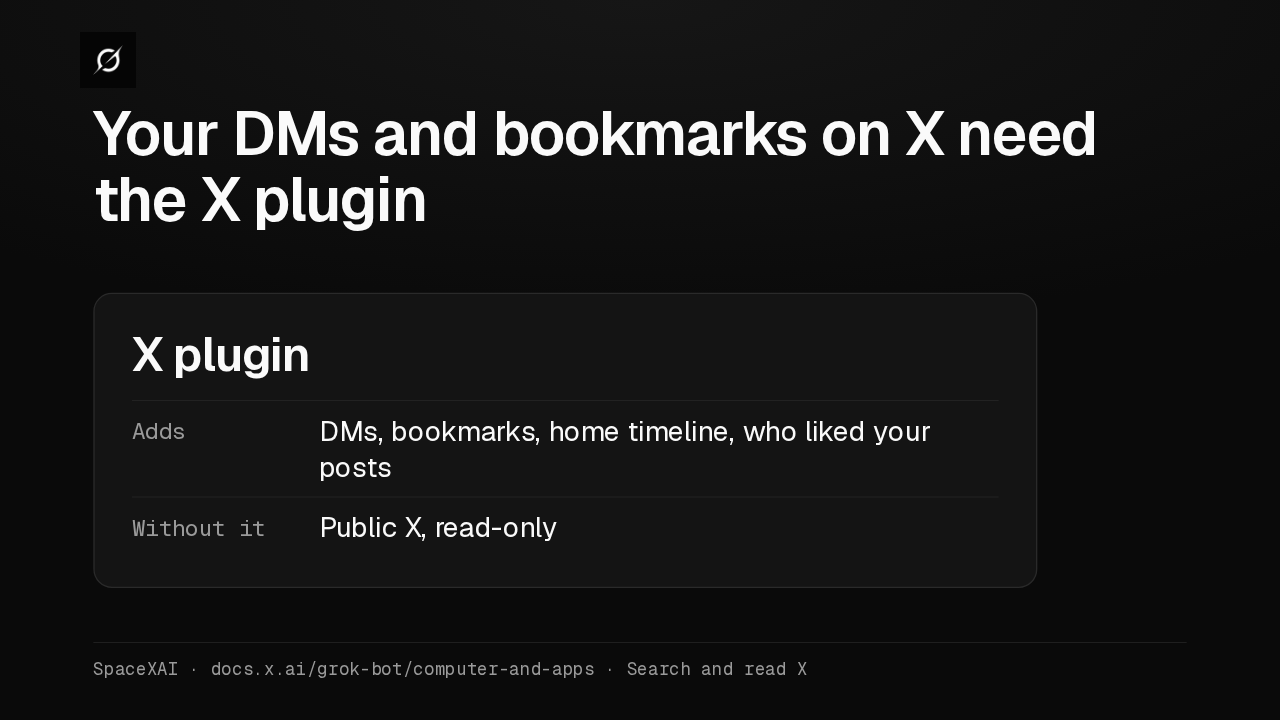
Your DMs and bookmarks on X need the X plugin

X plugin
AddsDMs, bookmarks, home timeline, who liked your posts
Without itPublic X, read-only
SpaceXAI · docs.x.ai/grok-bot/computer-and-apps · Search and read X

Bots already search and read public X, read-only, with no account connected. For your DMs, bookmarks, home timeline, or who liked your posts, add the X plugin from Connect apps and sign in with X.

Connect apps shortcut

Grok

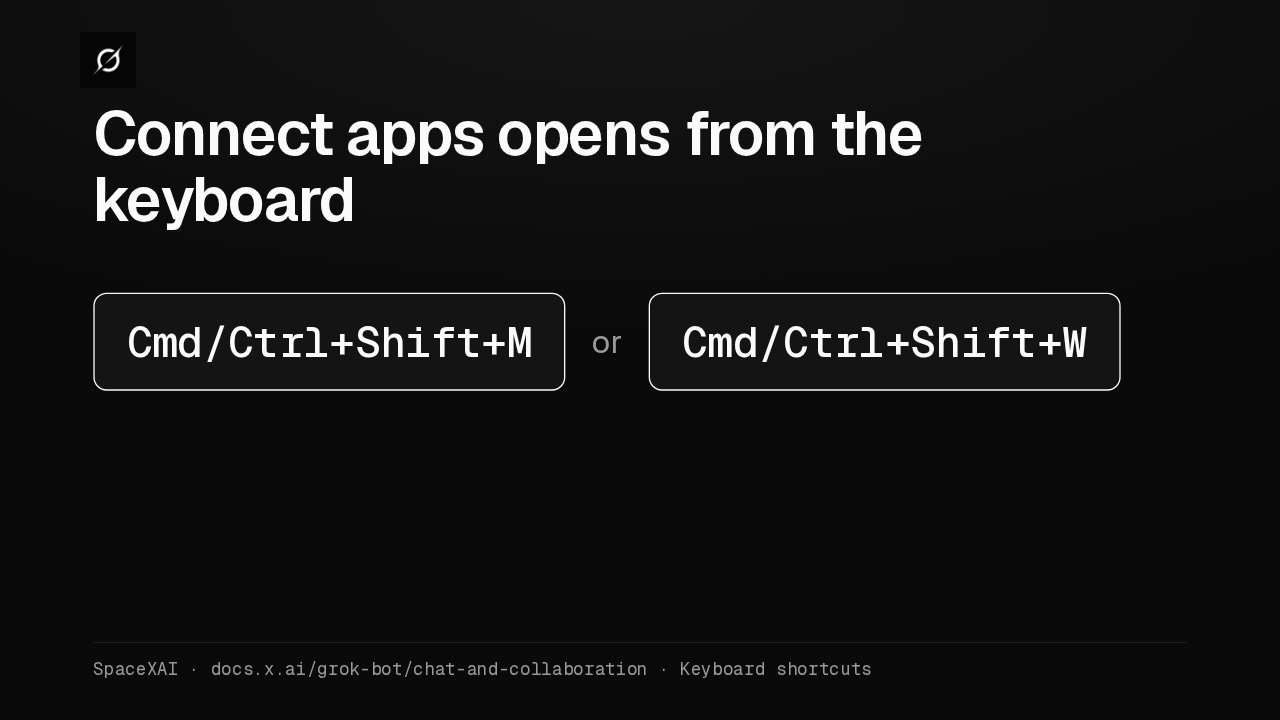
Connect apps opens from the keyboard

Cmd/Ctrl+Shift+M
or
Cmd/Ctrl+Shift+W
SpaceXAI · docs.x.ai/grok-bot/chat-and-collaboration · Keyboard shortcuts

Connect apps has its own shortcut in the desktop app. Press Command or Control, Shift, M. Command or Control, Shift, W opens it too.

Desktop shortcuts

Grok

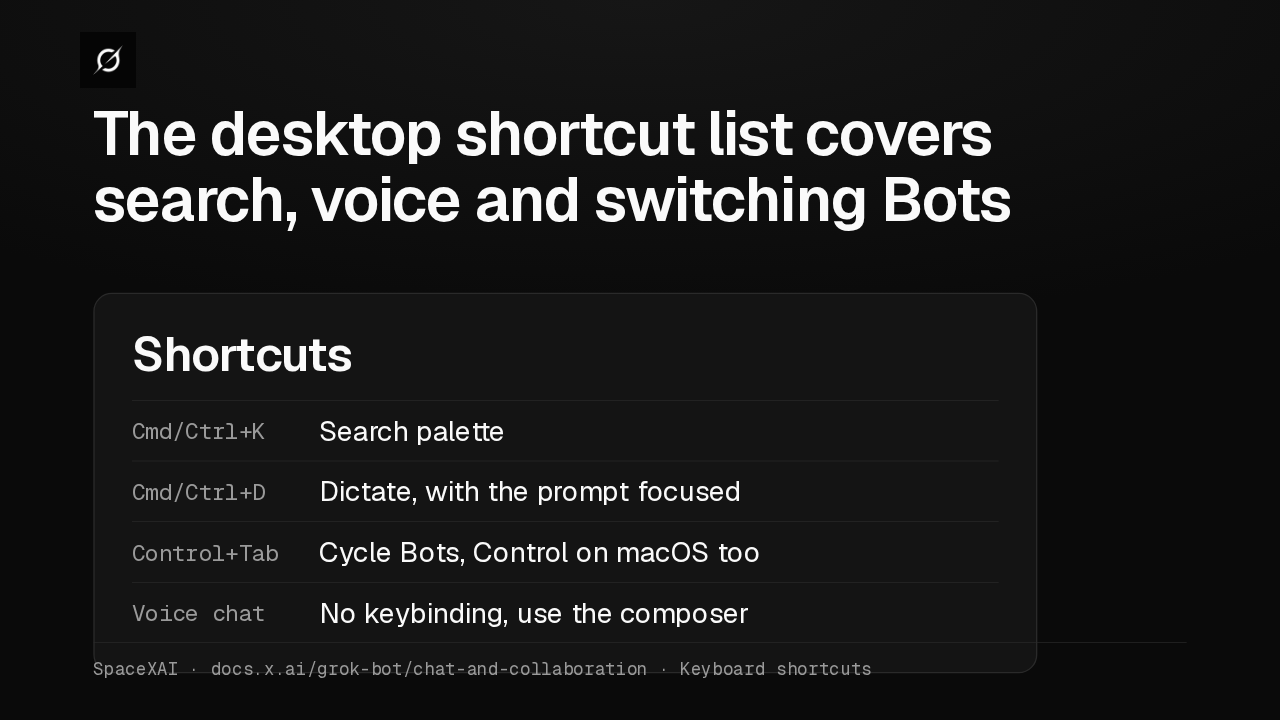
The desktop shortcut list covers search, voice and switching Bots

Shortcuts
Cmd/Ctrl+KSearch palette
Cmd/Ctrl+DDictate, with the prompt focused
Control+TabCycle Bots, Control on macOS too
Voice chatNo keybinding, use the composer
SpaceXAI · docs.x.ai/grok-bot/chat-and-collaboration · Keyboard shortcuts

The same list covers the rest of the desktop app. Command or Control K opens search. Control Tab cycles your Bots, even on a Mac. Voice chat has no shortcut. The full list is on the Message and collaborate page.