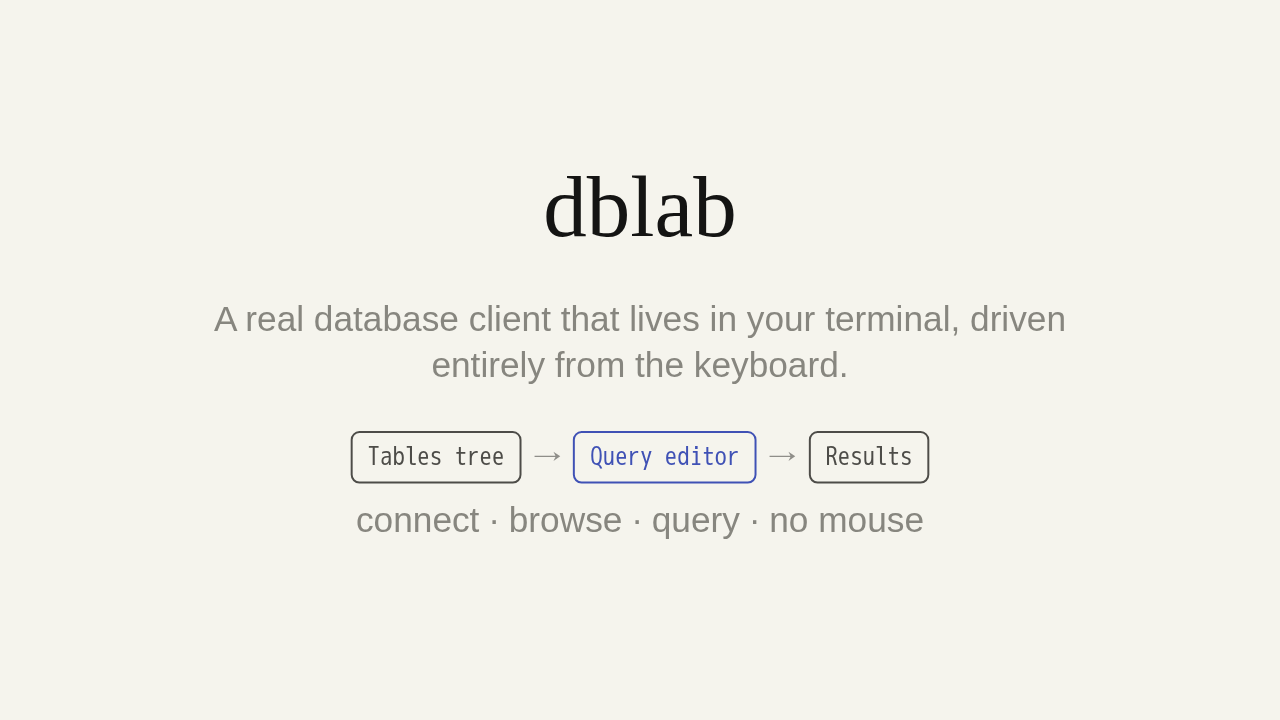
dblab
A real database client that lives in your terminal, driven entirely from the keyboard.
connect · browse · query · no mouse
A real database client that lives right in your terminal. Connect, browse your tables, and run SQL without ever reaching for a mouse. Meet dblab.
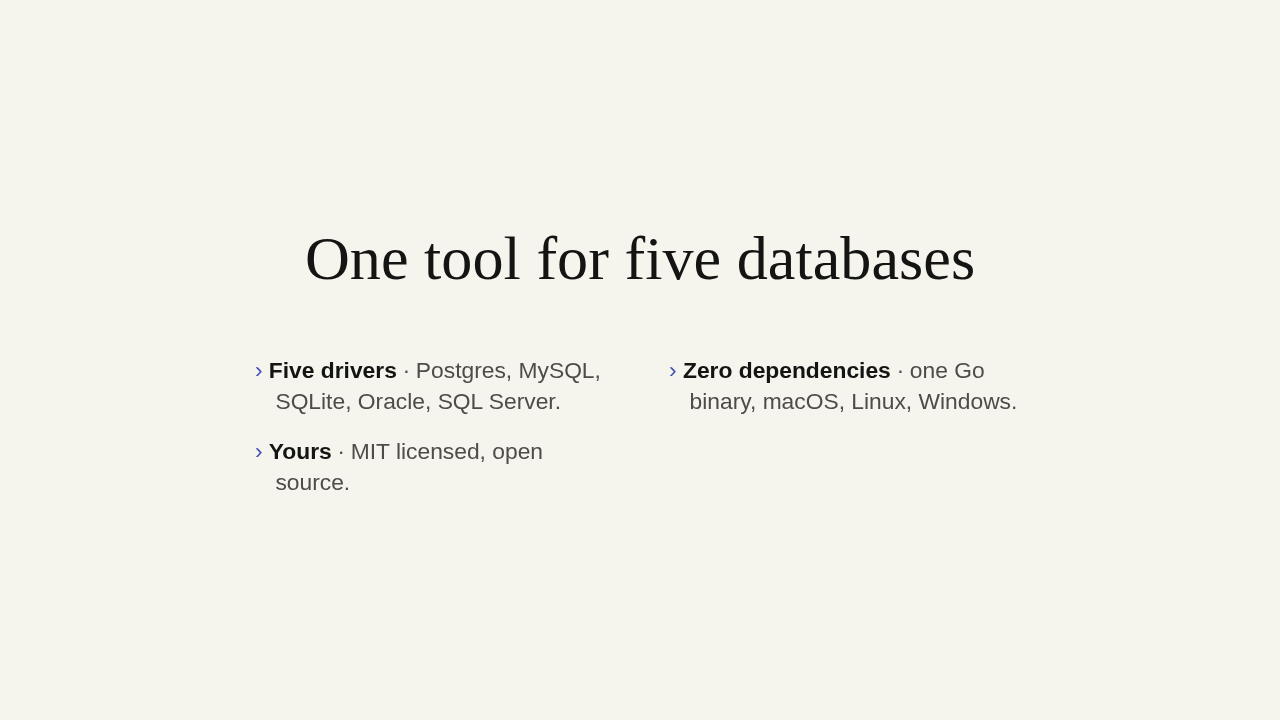
One tool for five databases
- Five drivers · Postgres, MySQL, SQLite, Oracle, SQL Server.
- Zero dependencies · one Go binary, macOS, Linux, Windows.
- Yours · MIT licensed, open source.
dblab is a fast, lightweight terminal UI for your databases. One tool covers five of them: Postgres, MySQL, SQLite, Oracle, and SQL Server. It's a single Go binary with zero dependencies, on macOS, Linux, and Windows. And it's MIT licensed and open source.
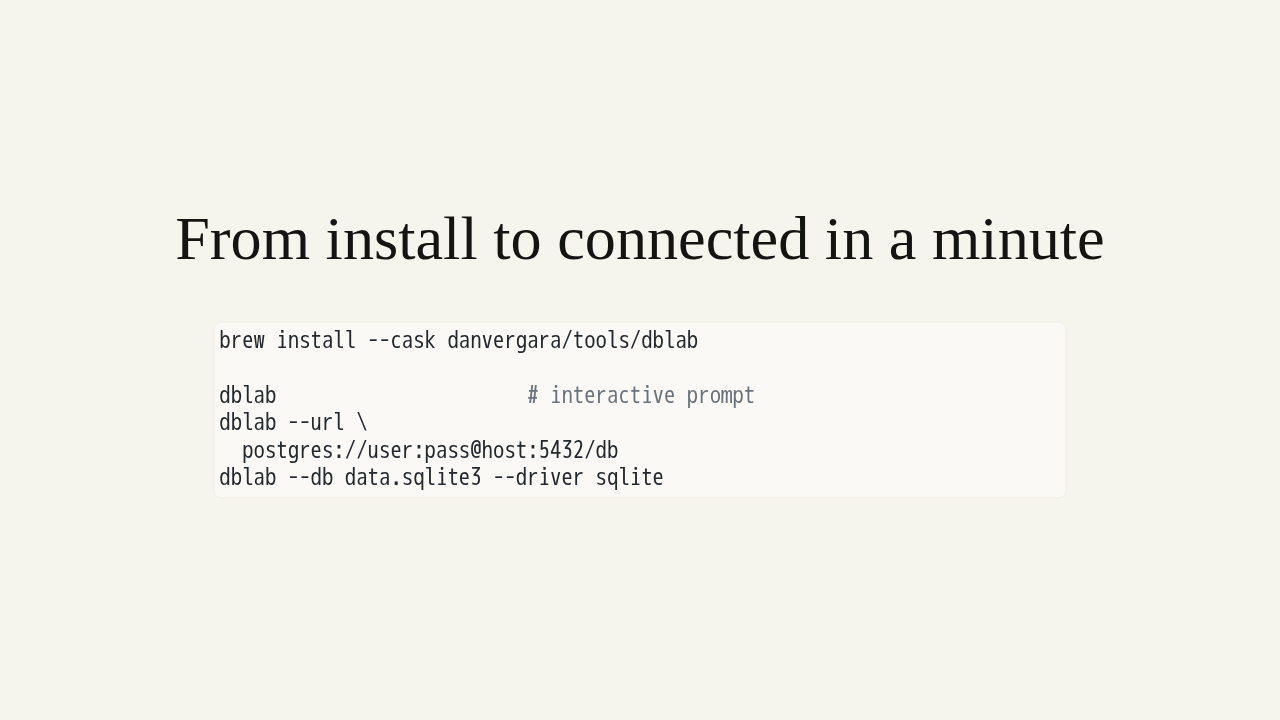
From install to connected in a minute
brew install --cask danvergara/tools/dblab

dblab                      # interactive prompt
dblab --url \
  postgres://user:pass@host:5432/db
dblab --db data.sqlite3 --driver sqlite
Getting started takes a minute. Install the cask with Homebrew, or grab the single binary from releases. Then connect three ways: run dblab for an interactive prompt, pass a connection URL, or point it at a SQLite file with the driver flag.
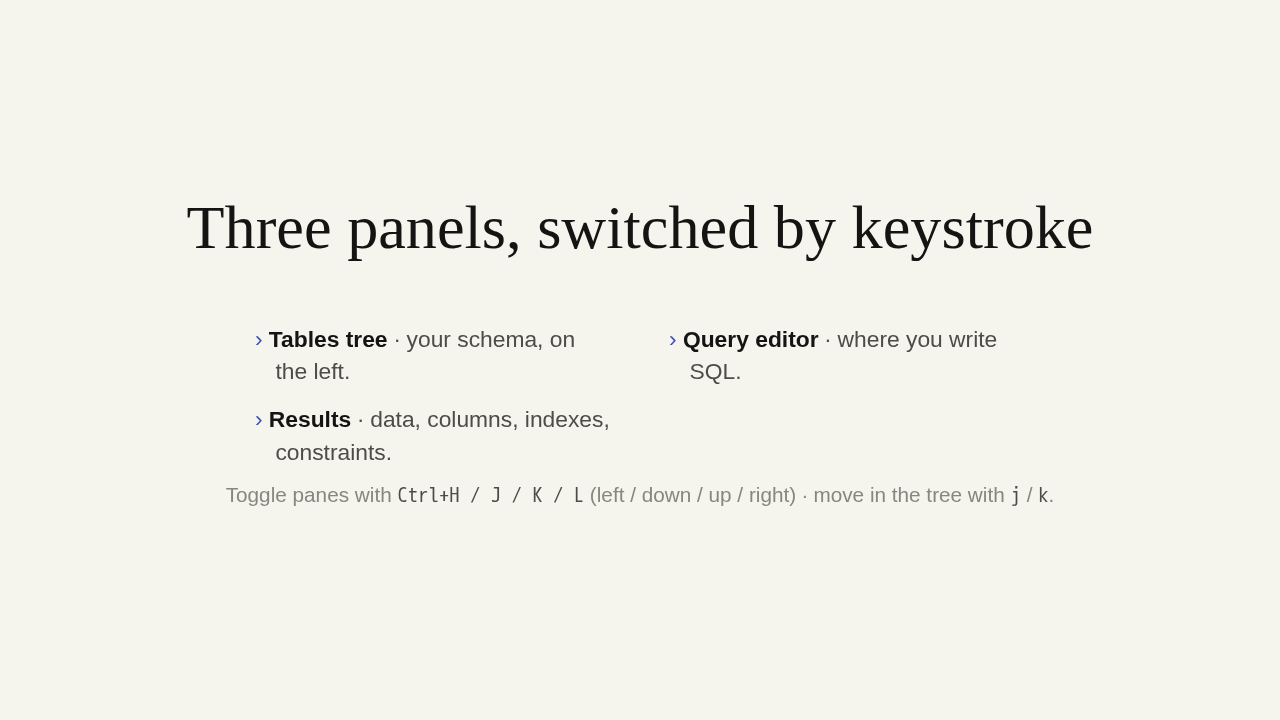
Three panels, switched by keystroke
- Tables tree · your schema, on the left.
- Query editor · where you write SQL.
- Results · data, columns, indexes, constraints.
Toggle panes with Ctrl+H / J / K / L
(left / down / up / right) · move in the tree with
j / k.
The screen is three panels: the tables tree, the query editor, and the results panel. Toggle between them with Control plus H, J, K, or L, and move through the tree with the same j and k that vim users already know.
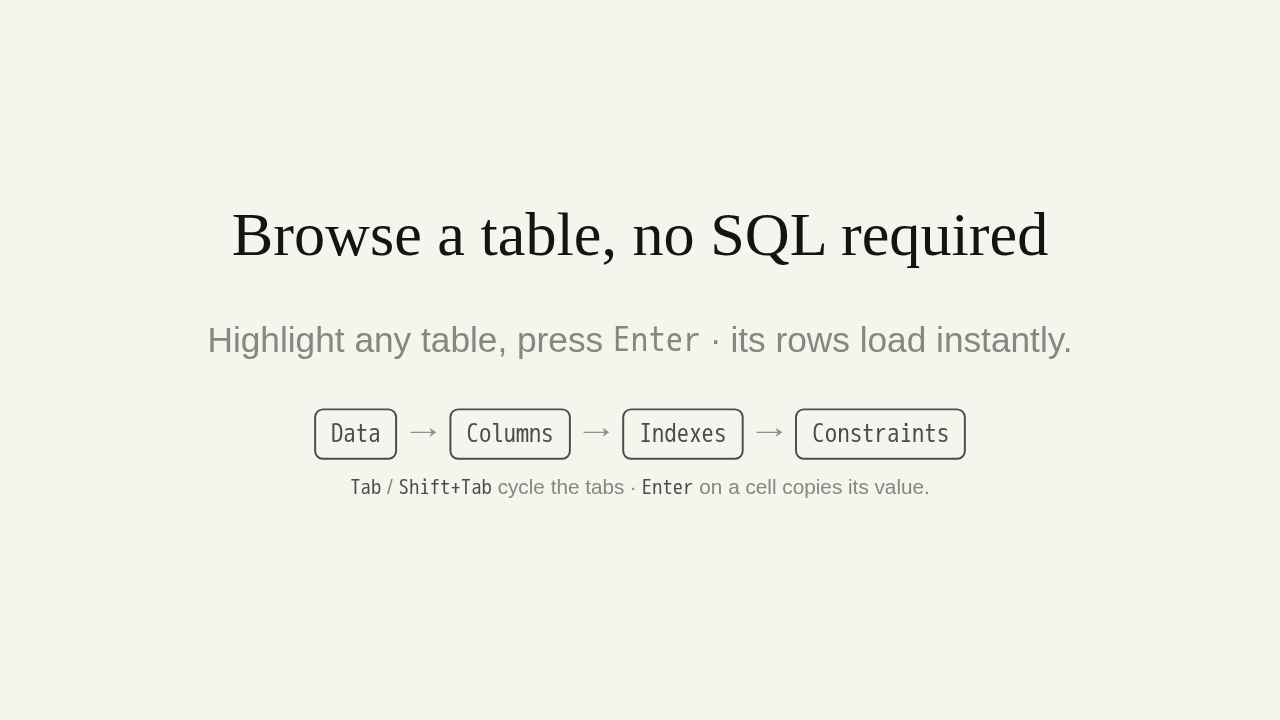
Browse a table, no SQL required
Highlight any table, press Enter · its rows load
instantly.
Tab / Shift+Tab cycle the tabs ·
Enter on a cell copies its value.
Here's the part that hooks people: you don't have to write SQL to start. Highlight any table and press Enter, and dblab loads its rows right away. Then cycle the results tabs · Data, Columns, Indexes, Constraints. Tab and Shift-Tab move between them, and Enter on any cell copies its value.
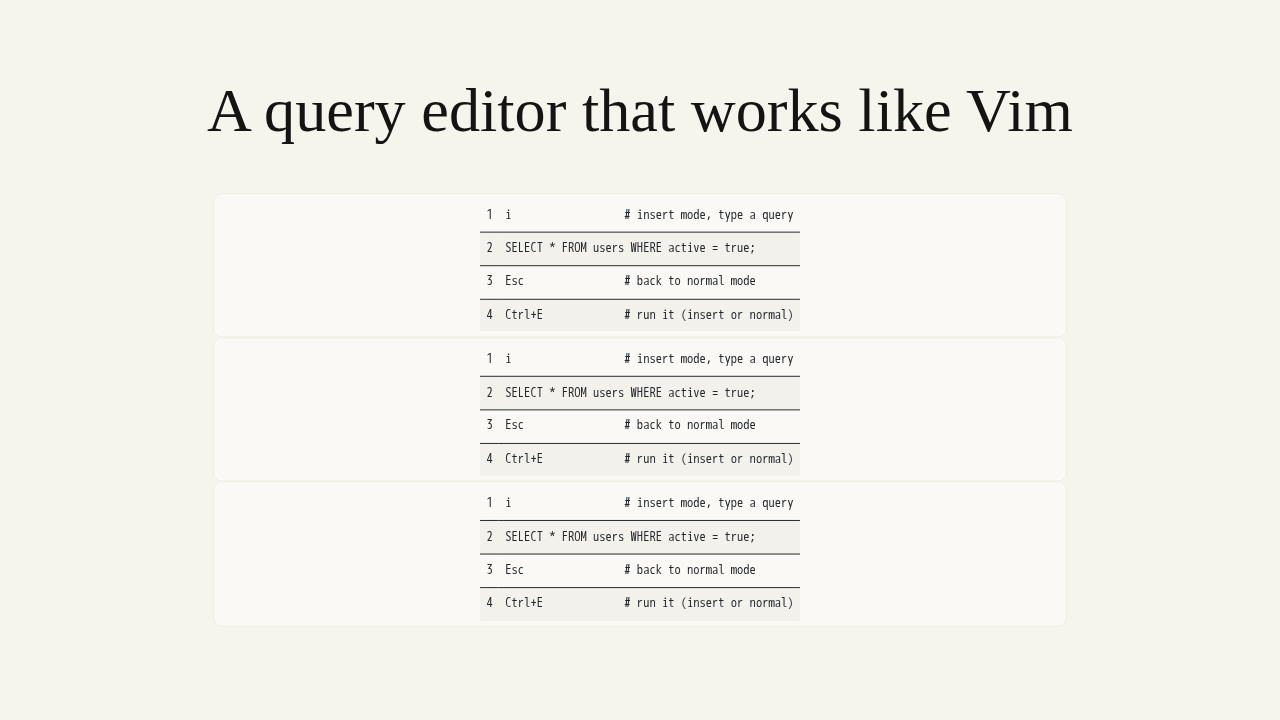
A query editor that works like Vim
i                  # insert mode, type a query
SELECT * FROM users WHERE active = true;
Esc                # back to normal mode
Ctrl+E             # run it (insert or normal)
When you want SQL, the editor works like Vim. Press i to enter insert mode and type your query. Escape drops you back to normal mode · hjkl, dd, yy, and p. Then Control plus E runs it, and the results land in the Data tab.
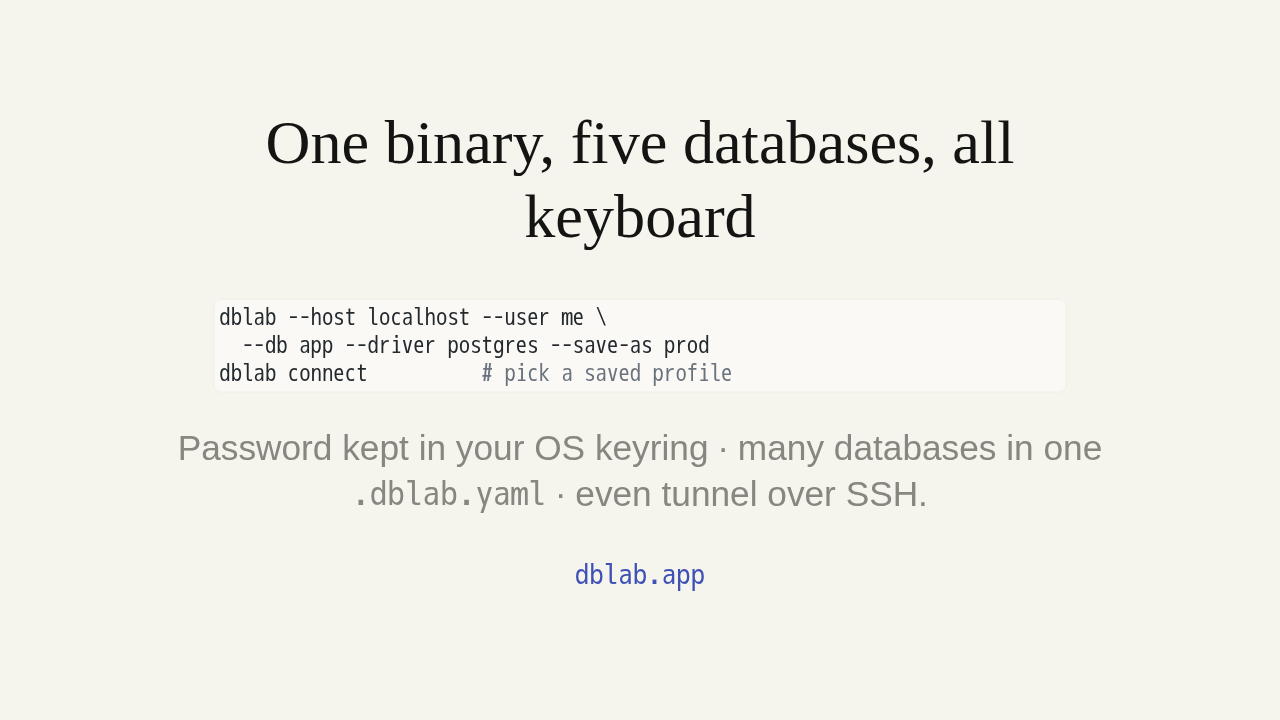
One binary, five databases, all keyboard
dblab --host localhost --user me \
  --db app --driver postgres --save-as prod
dblab connect          # pick a saved profile
Password kept in your OS keyring · many databases in one
.dblab.yaml · even tunnel over SSH.
dblab.app
There's more once you're comfortable. Save any connection as a profile with save-as · the password lives in your OS keyring · and reconnect later with dblab connect. Keep every database in one dot dblab dot yaml, even tunnel over SSH. One binary, five databases, never leaving the terminal. The full guide is at dblab dot app.