Lap · the offline photo manager that searches by what’s in the picture

Lap
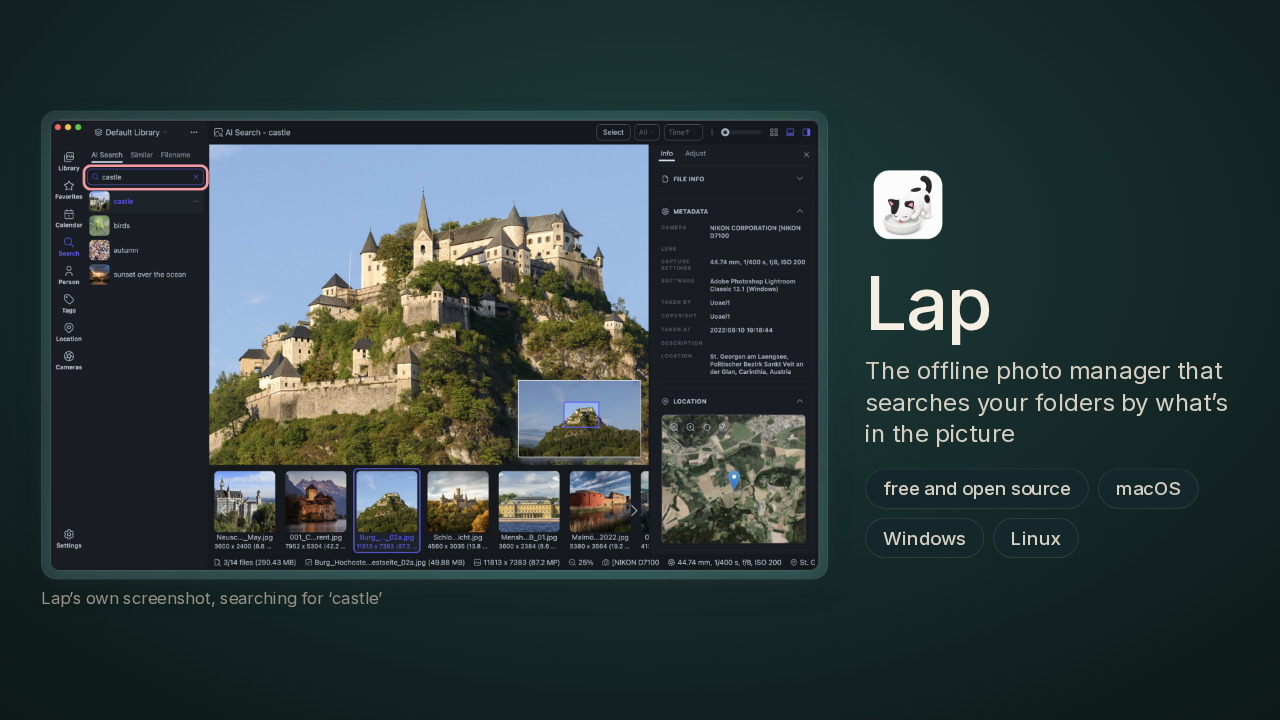
Type the word castle into this photo app, and it pulls the castle pictures out of a folder on your own computer. The app is Lap, a free photo manager, and it never sends your photos anywhere to find them.
What Lap is
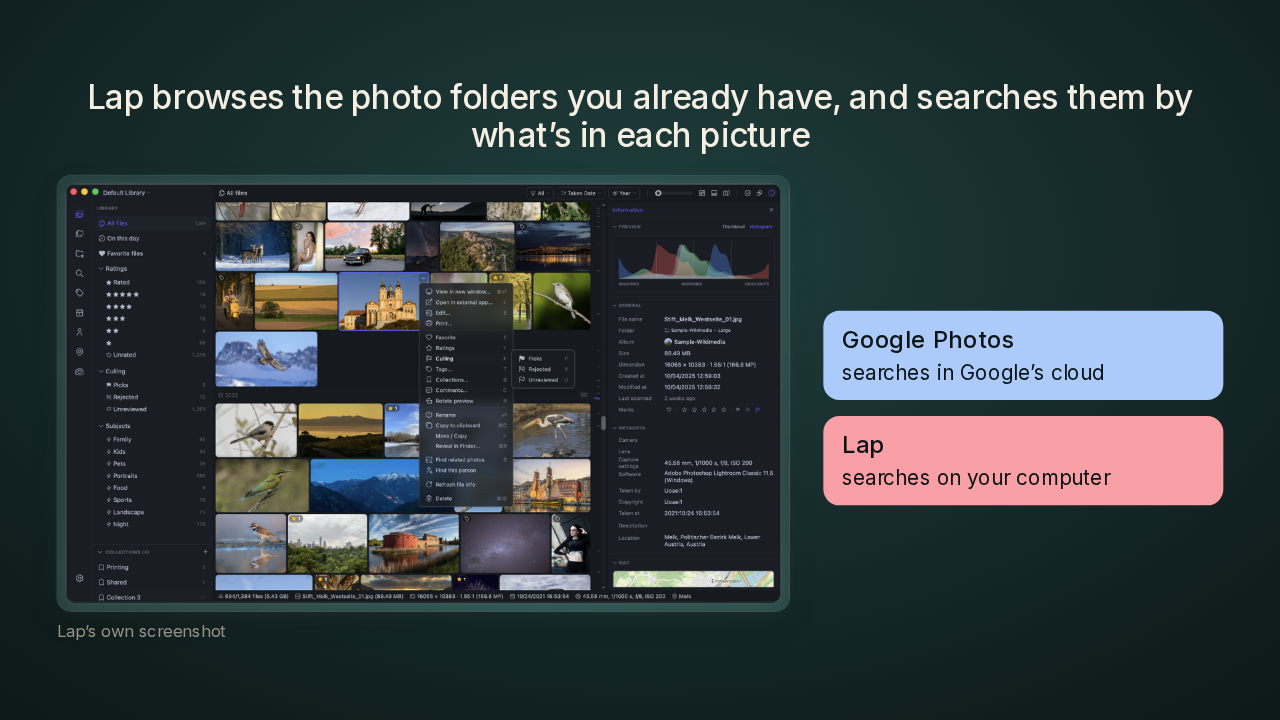
Lap browses the photo folders you already have, and searches them by what’s in each picture
Lap is a desktop app for Mac, Windows and Linux, from one developer who goes by July X ten on GitHub. You point Lap at the photo folders you already have, and it browses them right where they sit. Then you type what you remember, like dog on a beach, and Lap goes looking for that scene. Google Photos, Google's cloud photo app, does that kind of search on Google's computers. Lap does it on yours, and I wanted to know how.
What you’ll learn, and the catch

By the end, you'll know how Lap finds a photo you never labelled. You'll know why it checks every photo you own on every single search. You'll also know the catch. Your tags and star ratings live in Lap's database, one file on your disk where Lap keeps what it knows about your photos. They stay out of the photo files themselves. And I'll tell you whether I'd pick Lap over Immich.
Where smart photo search usually lives
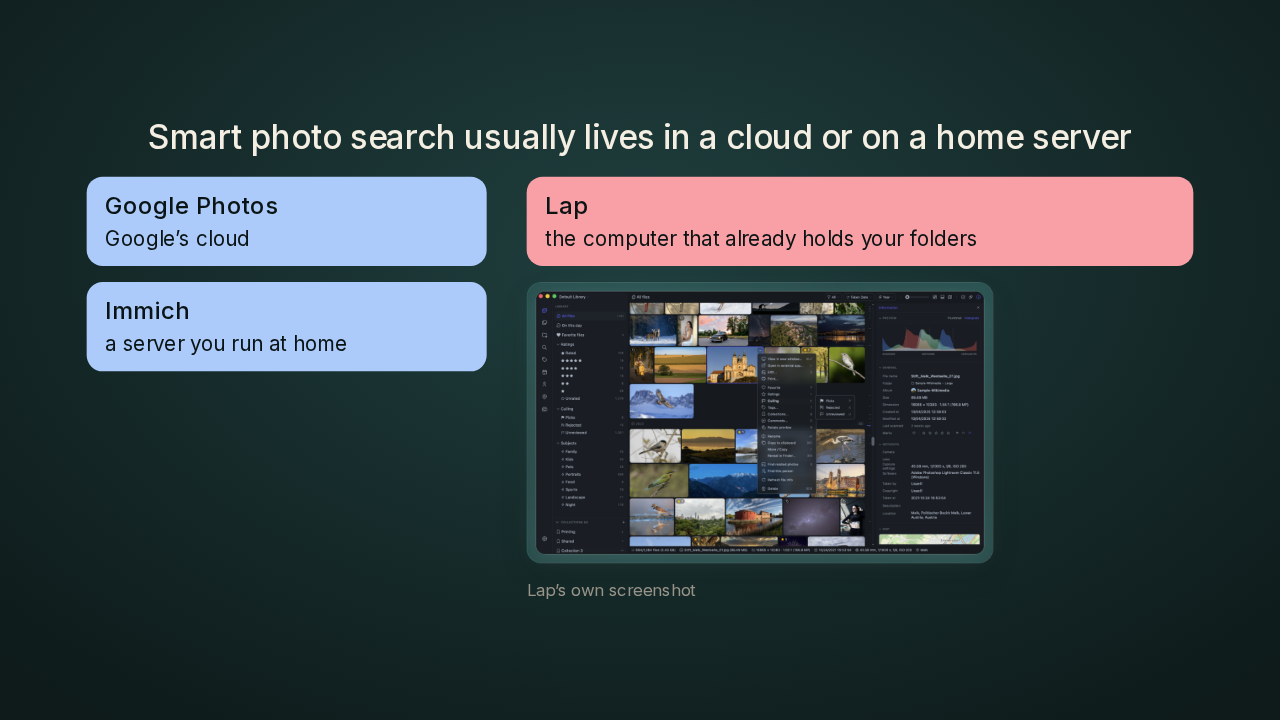
Smart photo search usually lives in a cloud or on a home server
Today, that kind of search usually means Google Photos, and your pictures living on Google's side. The other route is Immich, a photo app you run on your own home server. Immich backs up your phone and gives you the same kind of search, but you keep a server running for it. Lap takes a third route. You point it at your folders, and the search runs on the computer that already holds them.
Each photo becomes 512 numbers
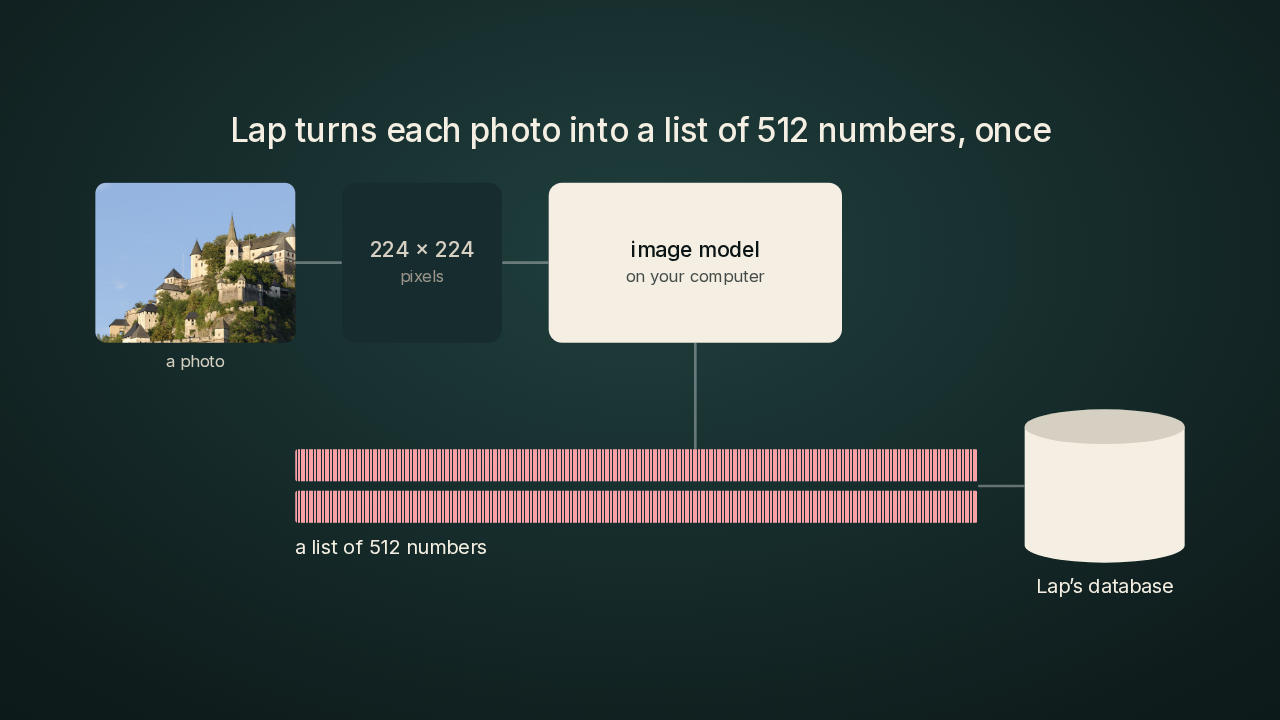
Lap turns each photo into a list of 512 numbers, once
The search starts before you type anything. Lap takes each photo and shrinks a copy down to a small square, two hundred and twenty-four pixels on a side. It runs that little square through an image model, right on your own computer. Out comes a list of five hundred and twelve numbers. You can't read any one of those numbers on its own. Together, the list captures what's in the picture. Lap saves that list in its database, next to the photo's record. It does this once for each photo.
Your words become 512 numbers too
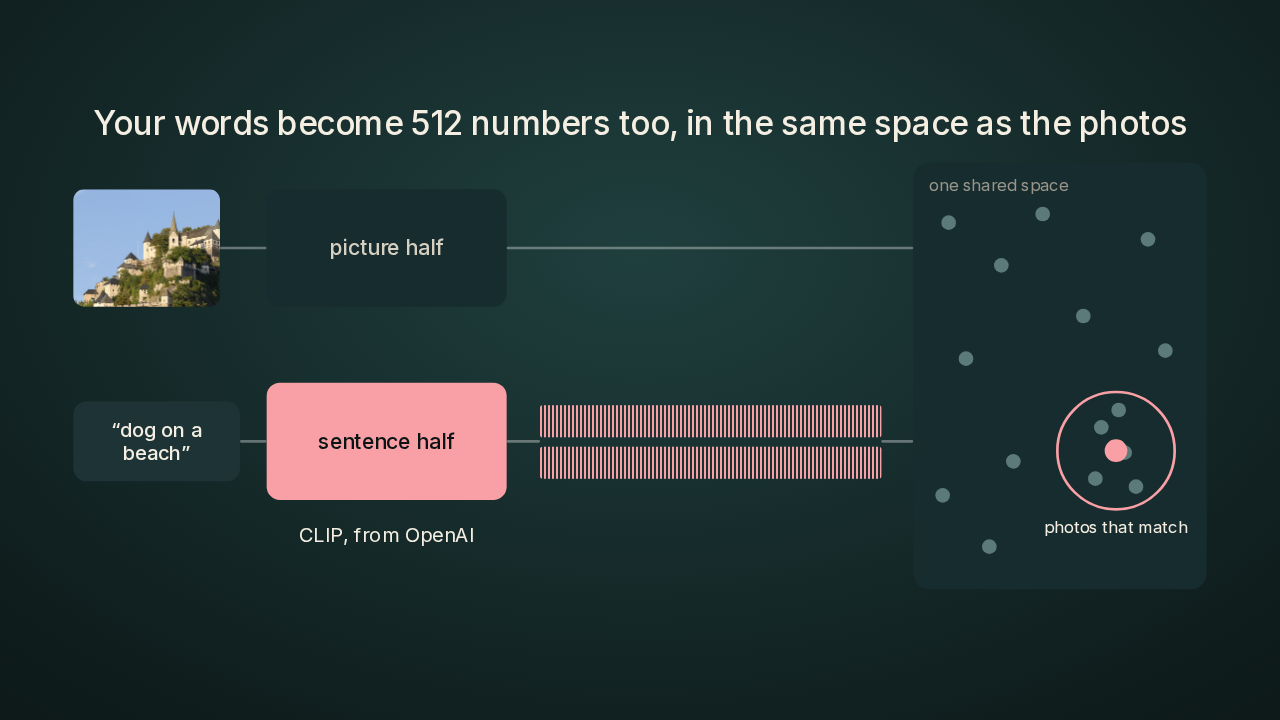
Your words become 512 numbers too, in the same space as the photos
And this part's clever. The image model is called CLIP. OpenAI released it, and it learned from pictures paired with their captions. CLIP comes in two halves that were trained together, one half for pictures and one half for sentences. When you type dog on a beach, the sentence half turns your words into five hundred and twelve numbers too. During training, CLIP pulled each picture and its caption toward the same numbers. So the list for your sentence lands close to the lists for the photos that match it, and you never had to tag a single one.
Every search scores every photo
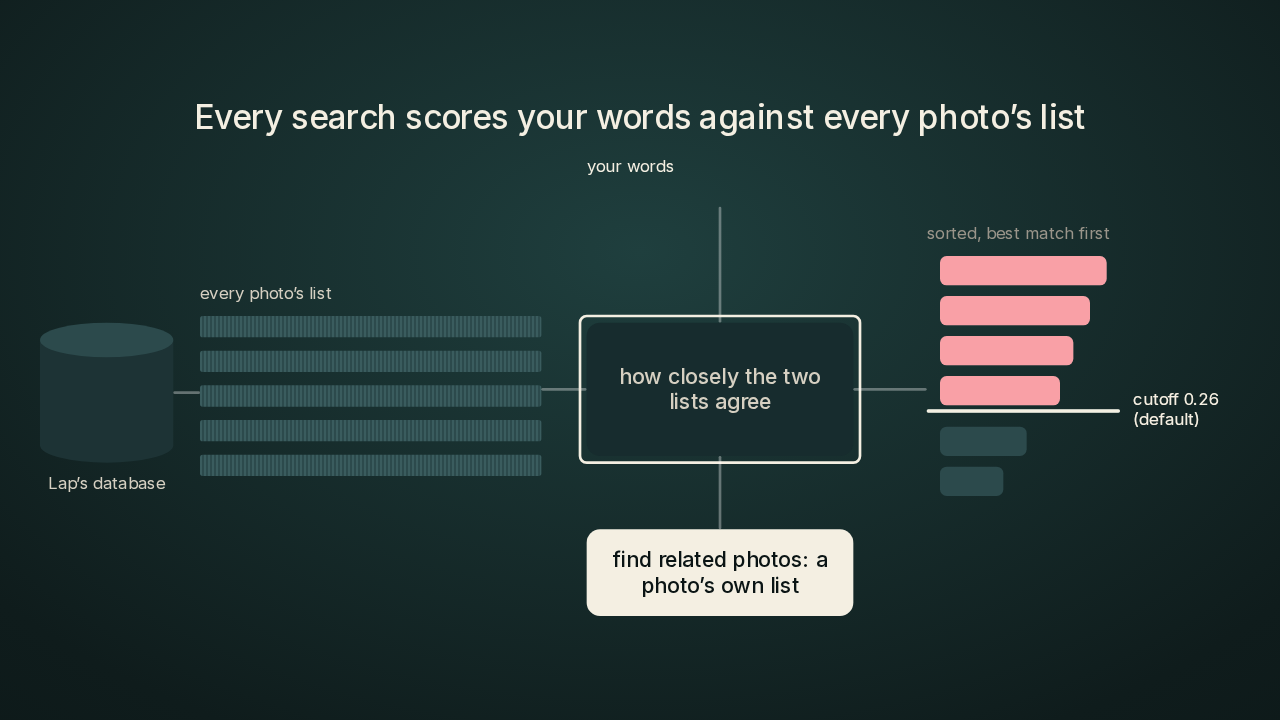
Every search scores your words against every photo’s list
(default)
(default)
Now Lap holds one list for your words and one list for every photo. The search reads every photo's list out of the database, one after another. For each photo, Lap scores how closely the two lists agree. It keeps the photos that score above a cutoff, and the default cutoff is point two six. Then Lap sorts those photos best match first. That's every photo, on every search. Lap's find related photos feature runs the same loop. A photo's own list stands in for your words.
The scan is a choice, and what it costs
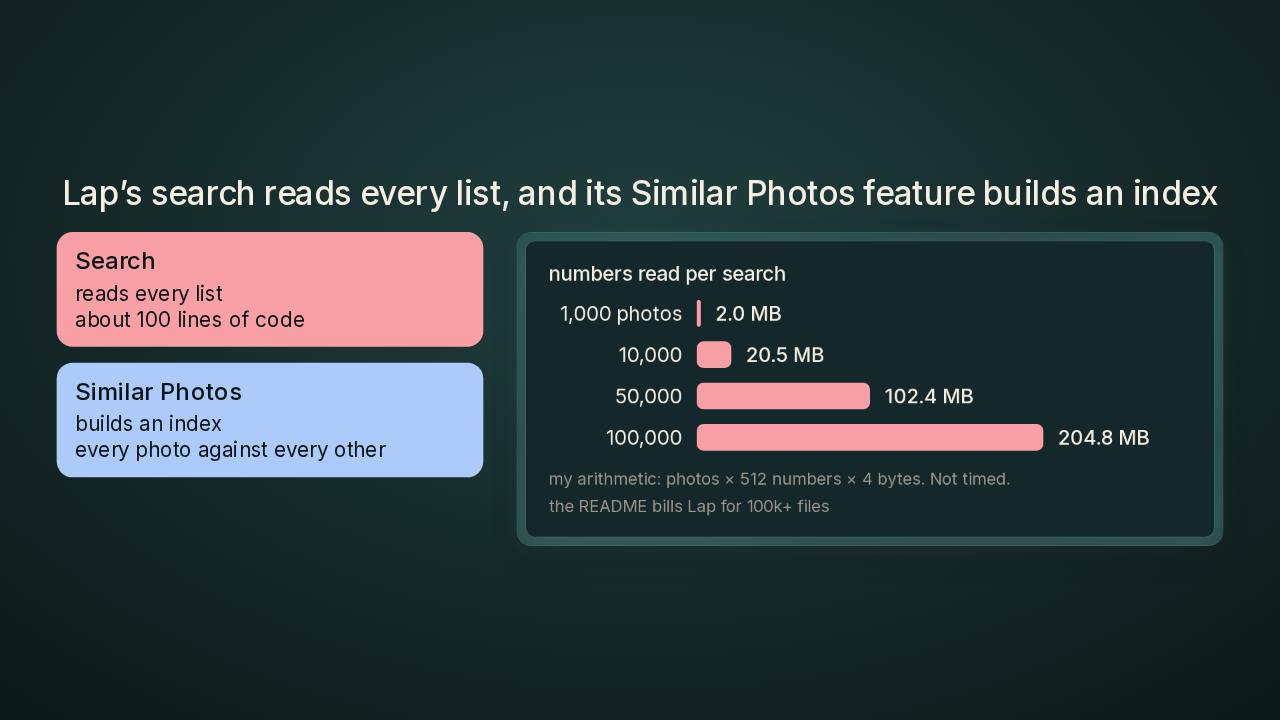
Lap’s search reads every list, and its Similar Photos feature builds an index
Big search engines build an index, a shortcut map that sends each search to a few likely candidates first. Lap's search skips that step and reads the whole table. I like the trade. The search fits in about a hundred lines of code you can read, and every photo that clears the cutoff comes back. The scan is a choice, too, because Lap does build an index for another job. Its Similar Photos feature compares every photo against every other photo to group look-alike shots, and that job gets the shortcut map. One search is one pass. Every photo against every photo is where a shortcut pays off. The pass does grow with your library. The README bills Lap for libraries of a hundred thousand files and more. At a hundred thousand photos, each search reads about two hundred megabytes of numbers. That's my own arithmetic, five hundred and twelve numbers at four bytes each for every photo, and I haven't timed it. At a thousand photos, the same pass reads two megabytes.
The map view and the manager around the search
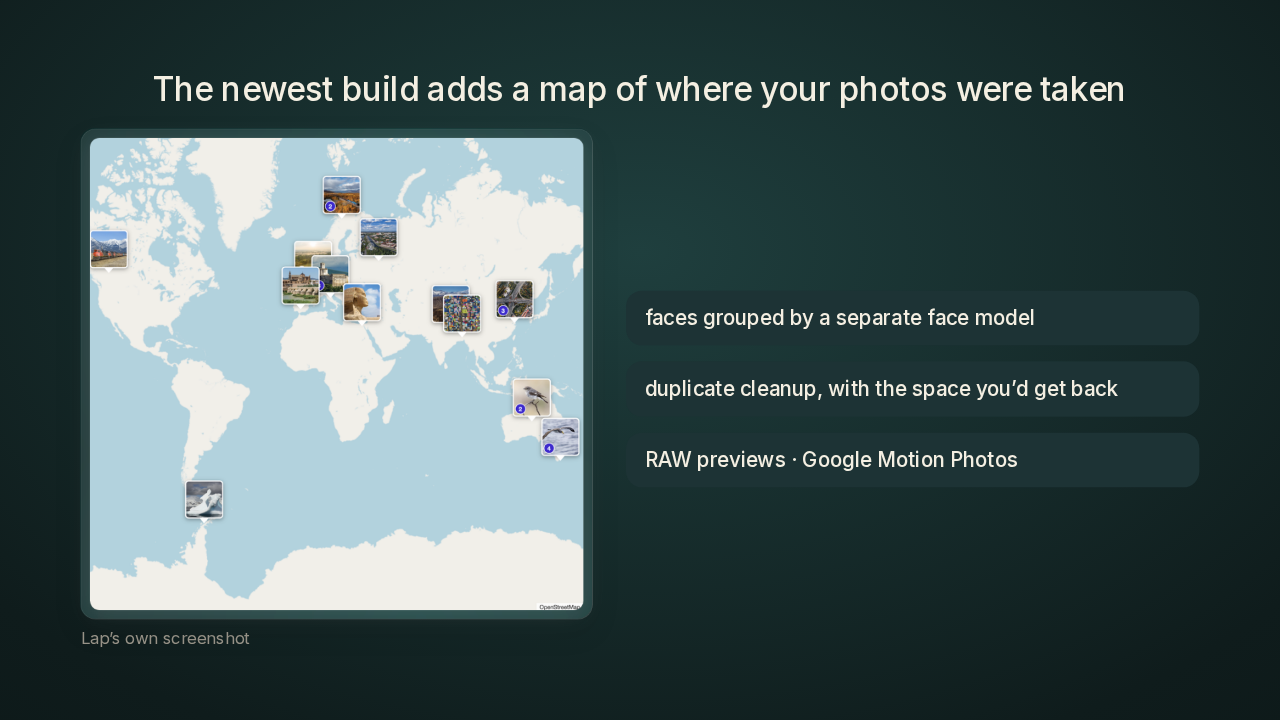
The newest build adds a map of where your photos were taken
Around that search sits a full photo manager. The newest build, from September twelfth, added the view I'd open first, a map. It clusters your geotagged photos, the ones that carry the place they were taken, right where you took them. A separate face model groups photos of the same face. A duplicate finder shows how much space you'd get back before you delete anything. Lap also previews RAW files, the unprocessed files a good camera can save, and it plays Google Motion Photos, the photos that carry a few seconds of video.
Culling in the compare view
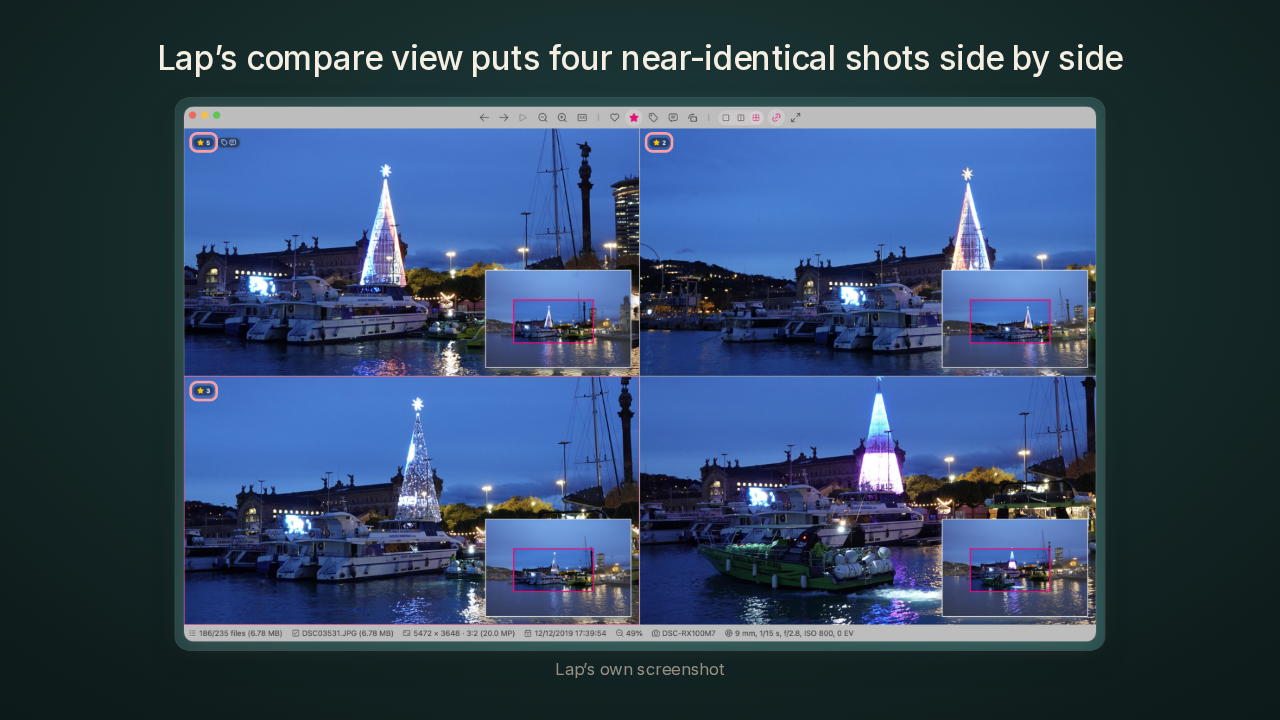
Lap’s compare view puts four near-identical shots side by side
If you shoot bursts, the everyday job is culling, picking the keeper out of a run of near-identical shots. Lap's compare view puts four frames side by side. You give each frame its stars and mark it a pick or a reject. The four harbour shots here carry five stars, two, three, and none yet.
Where your ratings and tags live
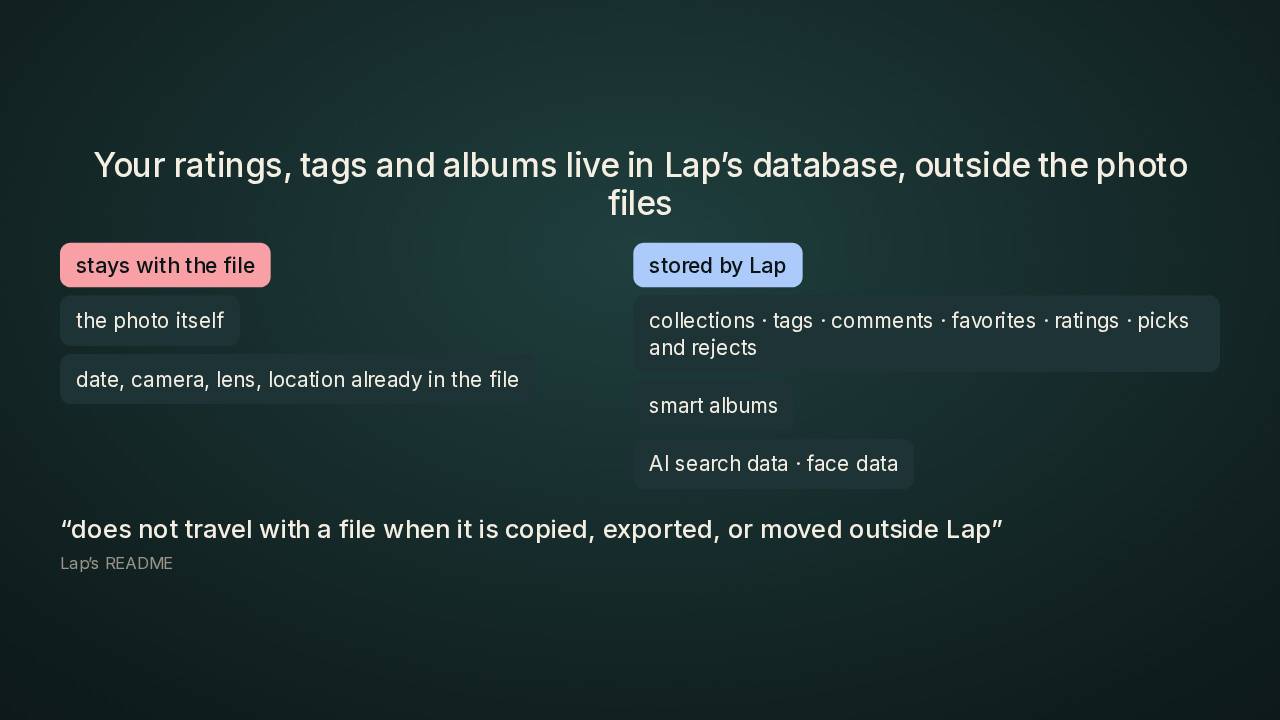
Your ratings, tags and albums live in Lap’s database, outside the photo files
Those star ratings live in Lap's database. So do your tags, collections, favourites, comments, picks and rejects, smart albums, and the face and search data. Lap's README lists all of it, and it says none of it gets written into the info fields inside the photo file, where the date and the camera live. The README also says that this data does not travel with a file when it is copied, exported or moved outside Lap. Your photos stay plain files in plain folders, so you can walk away with every one of them. The stars and tags you added stay behind in Lap.
What offline-first still sends
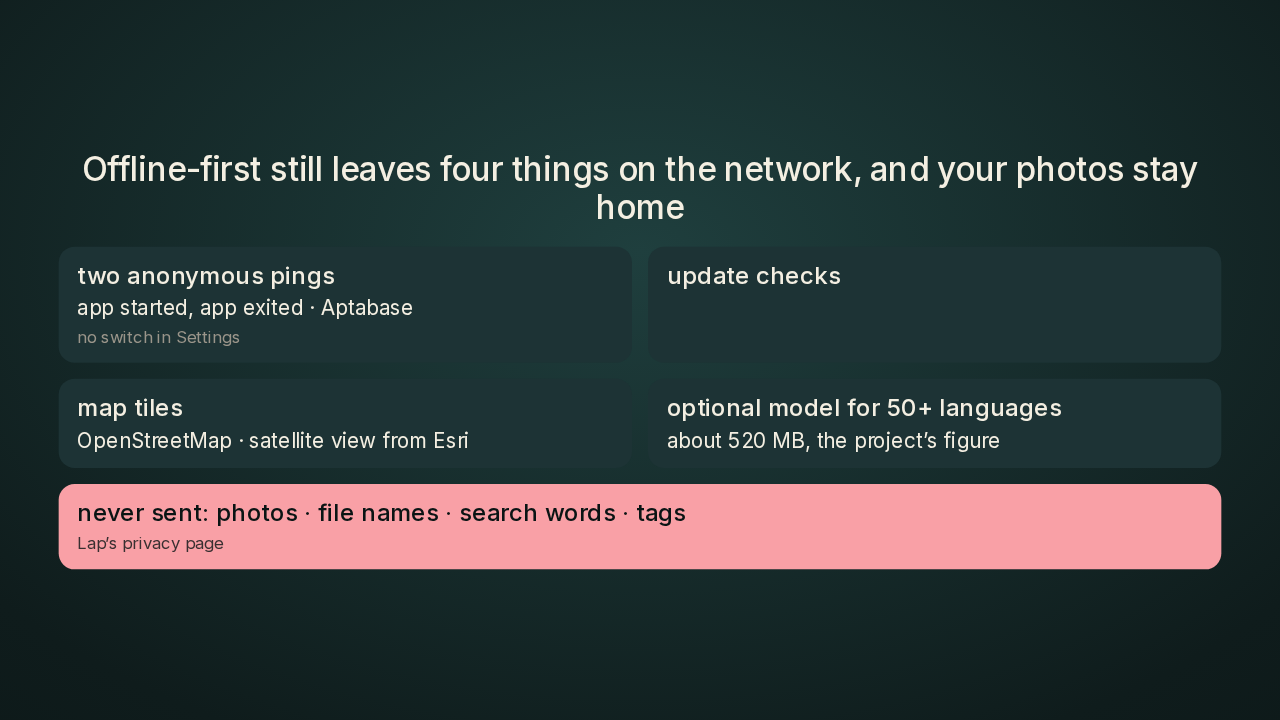
Offline-first still leaves four things on the network, and your photos stay home
Lap calls itself offline-first, and its privacy page lists what still goes over the network. Release builds send two anonymous pings, app started and app exited, with the version and the operating system. They go to Aptabase, an analytics service that counts app launches. Settings has no switch for them. The developer turns them on when building the release. Lap also checks for updates. The map pulls its tiles from OpenStreetMap, the free map that volunteers draw, and its satellite view comes from Esri, a mapping company. The privacy page leaves Esri out. The optional model for searching in more than fifty languages is a download of about five hundred and twenty megabytes, by the project's count. The privacy page also says Lap never sends your photos, your file names, your search words or your tags.
How I’d use Lap
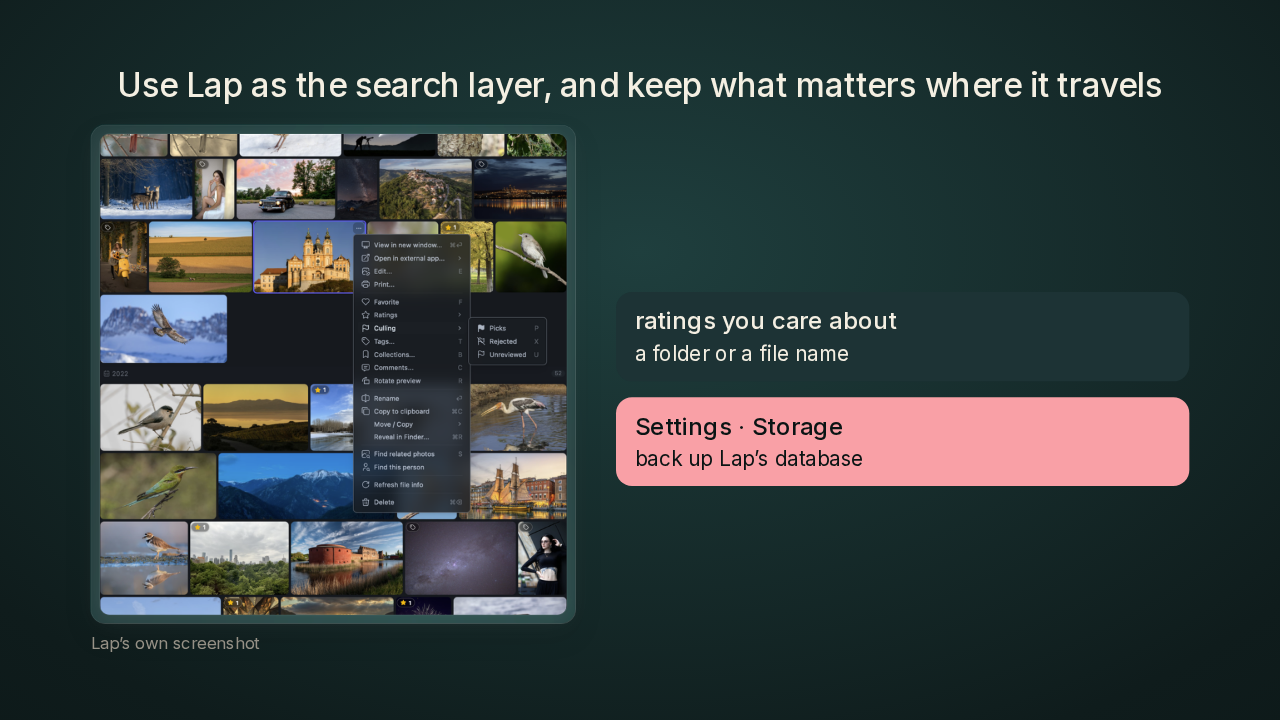
Use Lap as the search layer, and keep what matters where it travels
I'd run Lap as the search and browsing layer over folders I already back up somewhere else. If a rating really matters to you, keep it somewhere that travels with the photo, like a picks folder or the file name. And the README points to a backup for Lap's own database, under Settings, then Storage. I'd back that file up together with the photos.
Immich and digiKam
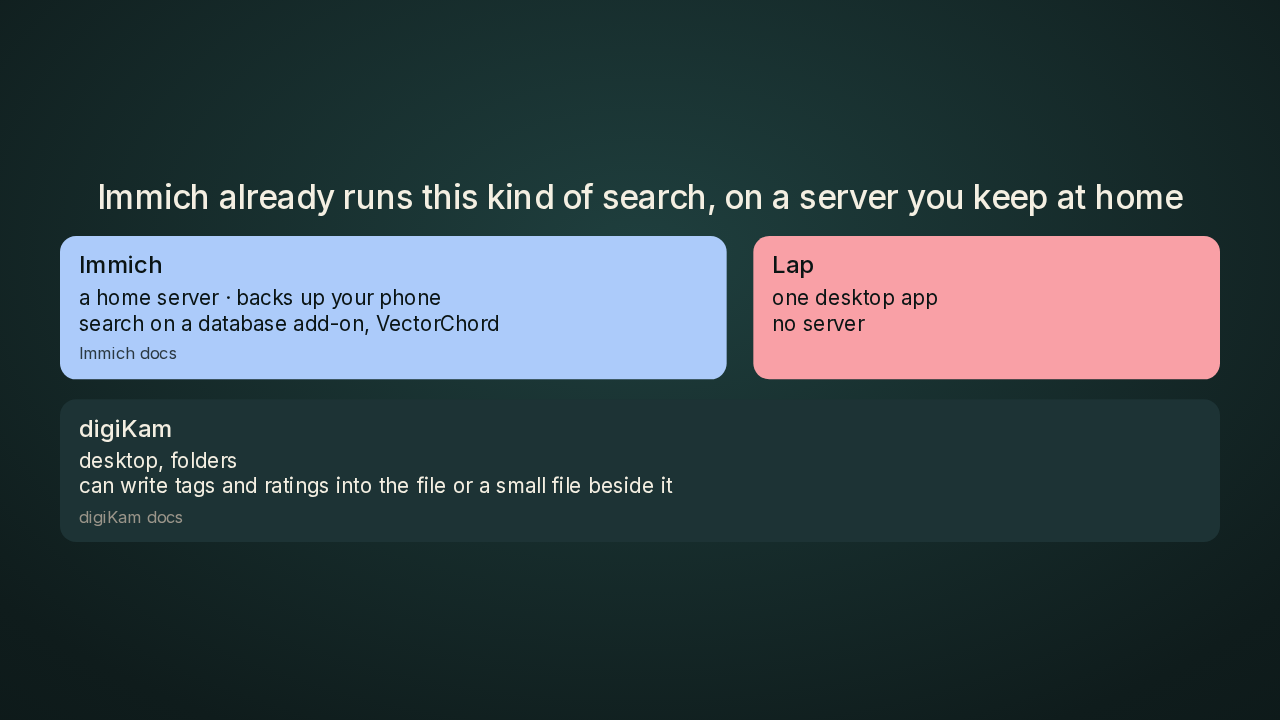
Immich already runs this kind of search, on a server you keep at home
Immich already does this kind of search, away from Google. Immich runs on a server you keep at home. It backs up your phone whenever you open its app. And it hands its search to a database add-on called VectorChord, built for this kind of lookup. Lap needs no server at all. It's one desktop app, on the computer that already holds the folders. digiKam, a free desktop photo manager, also works on your folders. digiKam can write your tags and ratings into the photo file itself, or into a small file beside it. What Lap adds on top of plain folders is the sentence search, on your own machine.
Four photo apps side by side
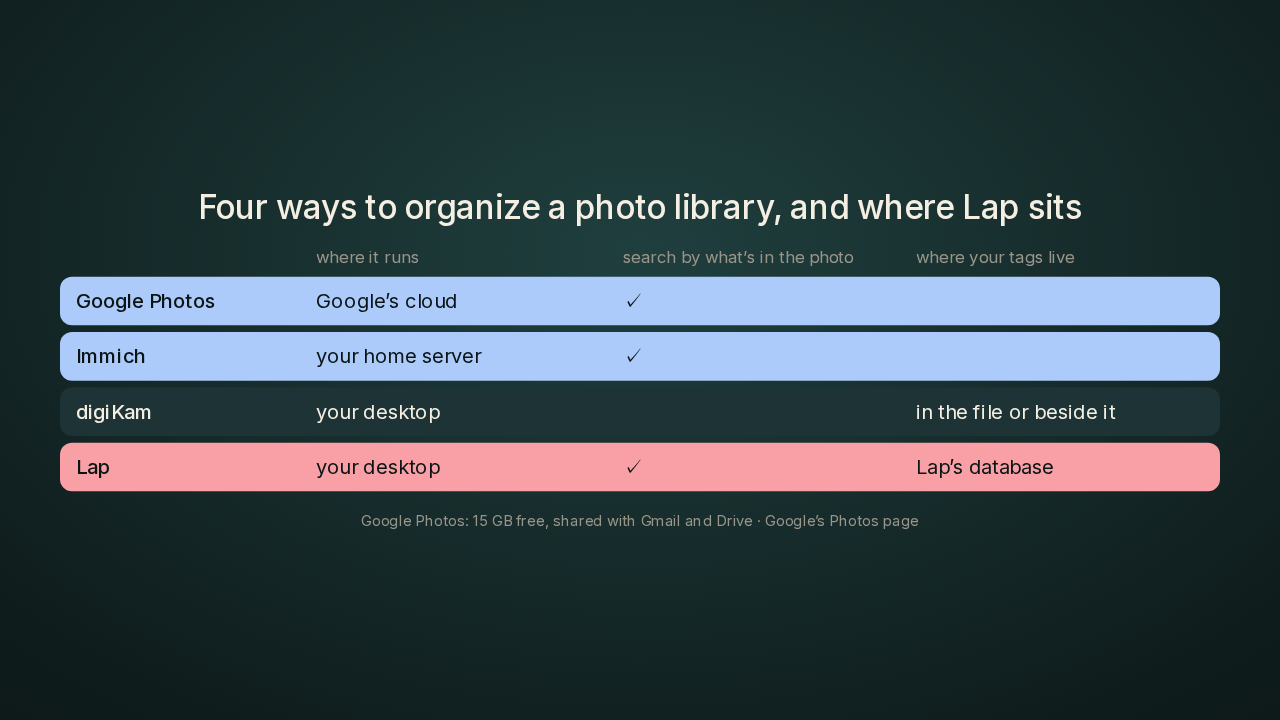
Four ways to organize a photo library, and where Lap sits
Put the four side by side. Google Photos backs up to Google's cloud, with fifteen gigabytes free, shared with Gmail and Drive, and it searches your photos for anything. Immich is your own server, with phone backup and the same kind of search. digiKam is desktop and folders, and it can keep your tags inside the files. Lap is desktop and folders with the sentence search, and Lap keeps your tags in its own database.
Who should install Lap
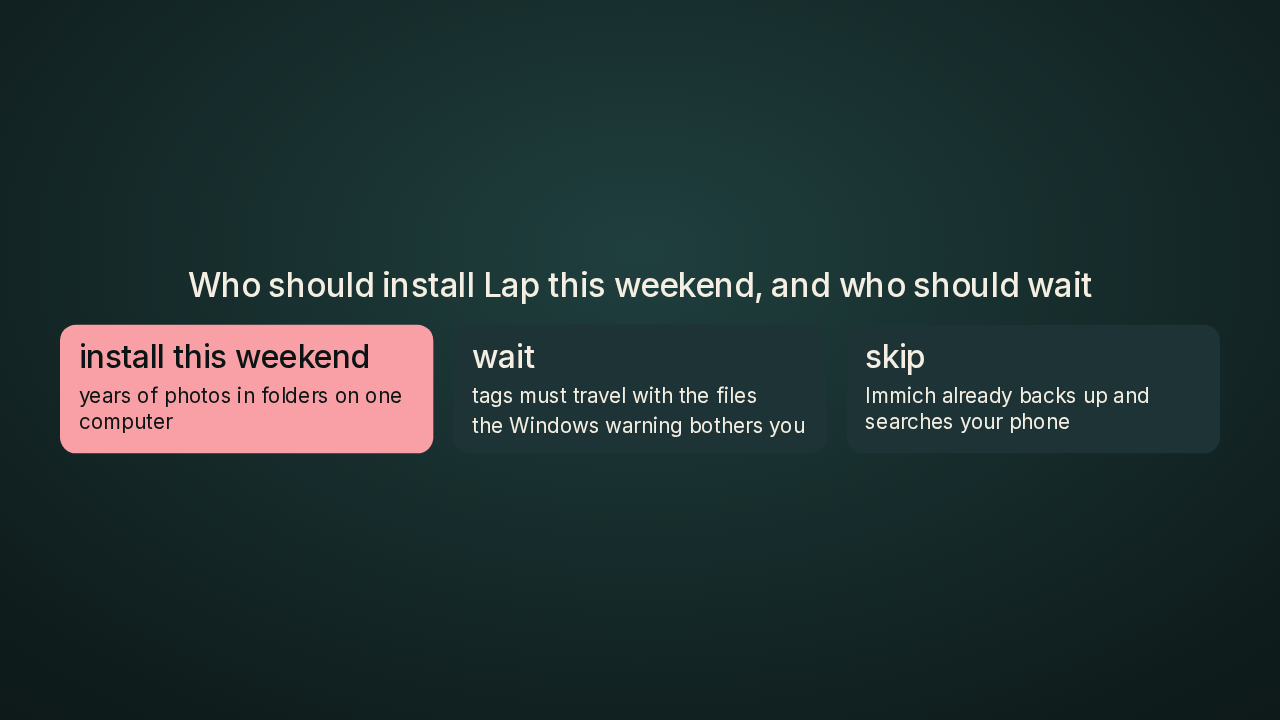
Who should install Lap this weekend, and who should wait
Should you install it? If you have years of photos in folders on one computer, and you've wished you could search them by what's in them, I'd install Lap this weekend. I'd wait if your tags and ratings must travel with the files. I'd also wait if the Windows warning bothers you. Lap's Windows installer is unsigned, so Windows will warn you it can't confirm who made it. Lap is an early build from one developer, so I'd keep my own backups either way. And if Immich already backs up your phone and searches it, you don't need Lap.
Get Lap
Lap, the offline photo manager with search by what’s in the picture
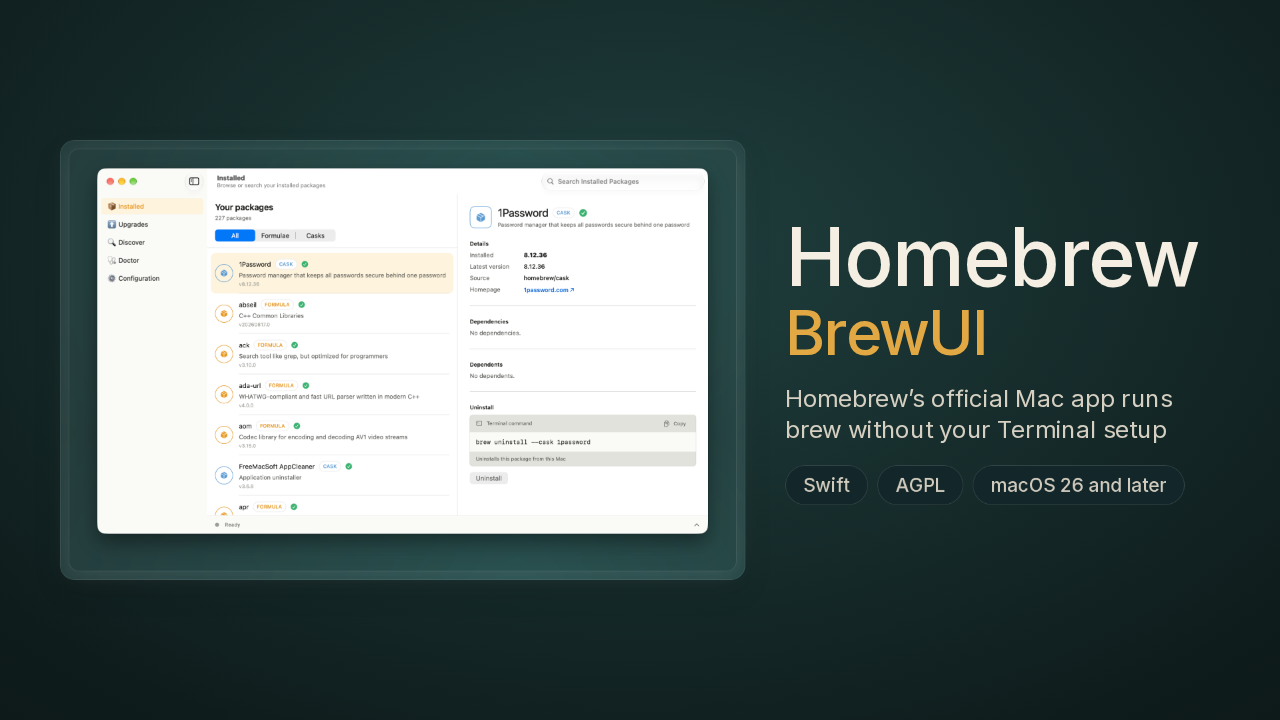
Lap has downloads for Mac, Windows and Linux. The Mac build is notarized, which means Apple has checked it. On a Mac you can also install Lap with Homebrew, the command-line installer a lot of developers use. Lap is free under the GPL version three licence, so anyone who ships a changed version has to share their code too. How many photos are sitting in your folders right now, and what would you search for first? Tell me in the comments. It's July X ten, slash lap, on GitHub. New repo tomorrow.