Sign in to Azure Service Bus with Entra ID in Service Bus Explorer 6.3.1

2 hours ago

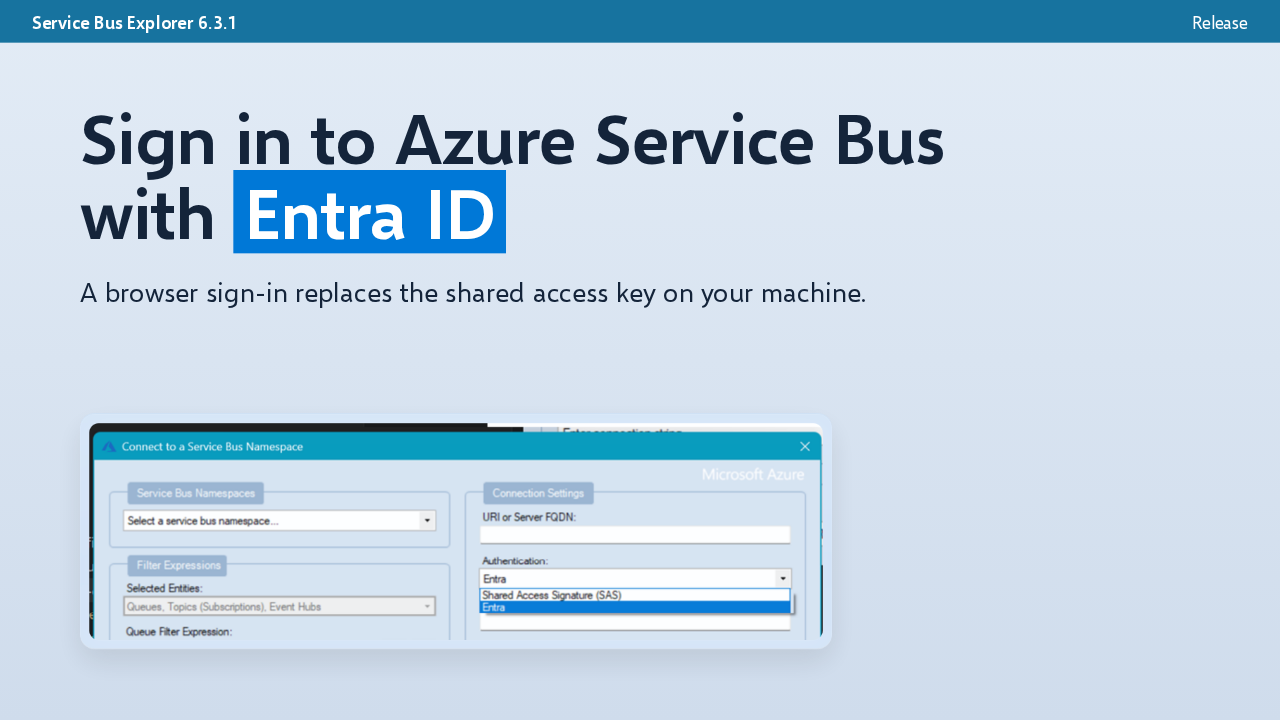
Service Bus Explorer 6.3.1 lets you sign in to Azure Service Bus with your Microsoft Entra ID account. The sign-in happens in your browser, and no shared access key is stored on your machine. Entra now sits in the connect dialog's Authentication list, next to shared access signature.

Ask about this presentation

Chapters
  1. 0:00Entra ID sign-in
  2. 0:20How to connect
  3. 0:37Tenant ID
  4. 1:00What gets saved
  5. 1:18Event Hubs
  6. 1:37Limits of Entra mode
  7. 1:59Subscription menus
  8. 2:17Ctrl+F and the File menu
  9. 2:35Upgrade
Show transcript
  1. Service Bus Explorer 6.3.1 lets you sign in to Azure Service Bus with your Microsoft Entra ID account. The sign-in happens in your browser, and no shared access key is stored on your machine. Entra now sits in the connect dialog's Authentication list, next to shared access signature.

    Slide text
    Service Bus Explorer 6.3.1 Release

    Sign in to Azure Service Bus with Entra ID

    A browser sign-in replaces the shared access key on your machine.

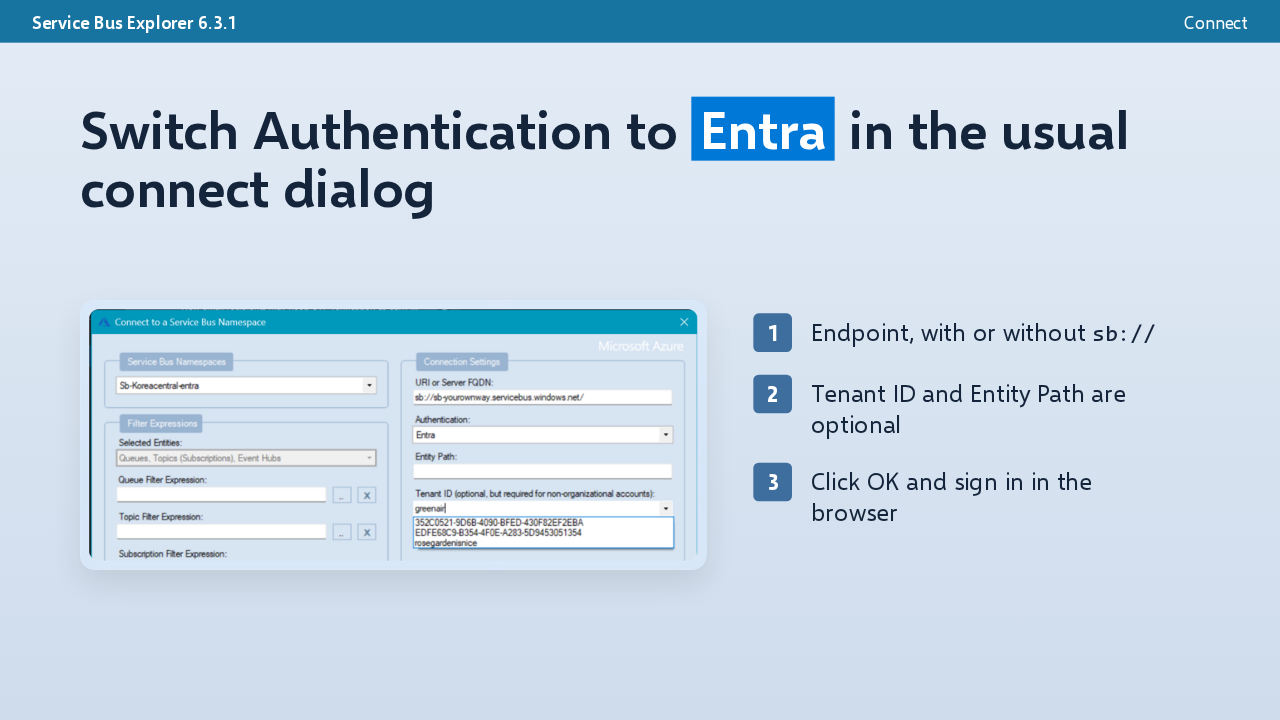
  2. Open File, then Connect, which now also answers to Control N. Set Authentication to Entra and type the namespace endpoint, with or without the sb:// prefix. The tenant ID and the entity path are optional. Click OK and finish signing in in your browser.

    Slide text
    Service Bus Explorer 6.3.1 Connect

    Switch Authentication to Entra in the usual connect dialog

    1. 1 Endpoint, with or without sb://
    2. 2 Tenant ID and Entity Path are optional
    3. 3 Click OK and sign in in the browser
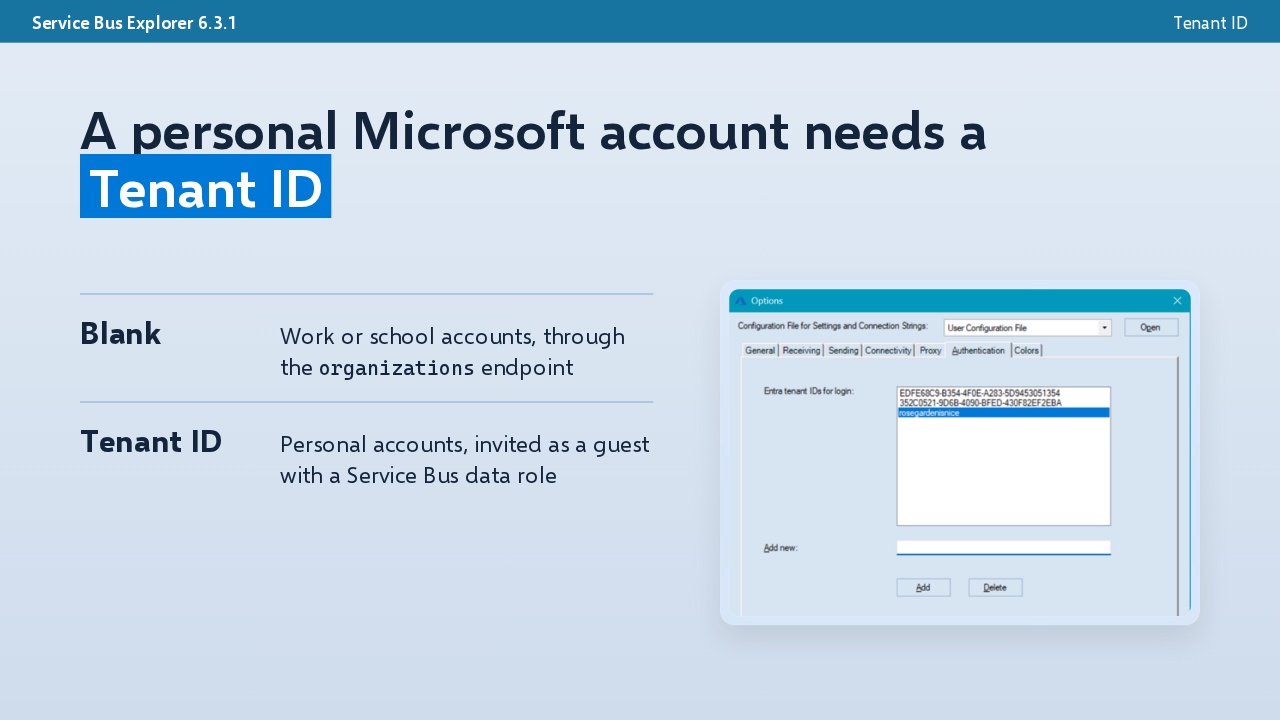
  3. Leave the tenant ID blank and the app uses the organizations endpoint, which accepts work or school accounts only. A personal Microsoft account needs the tenant ID, and it must already be a guest in that tenant with a Service Bus data role. Tenants you use often can be listed under Options, Authentication, and the connect dialog offers them.

    Slide text
    Service Bus Explorer 6.3.1 Tenant ID

    A personal Microsoft account needs a Tenant ID

    Blank
    Work or school accounts, through the organizations endpoint
    Tenant ID
    Personal accounts, invited as a guest with a Service Bus data role
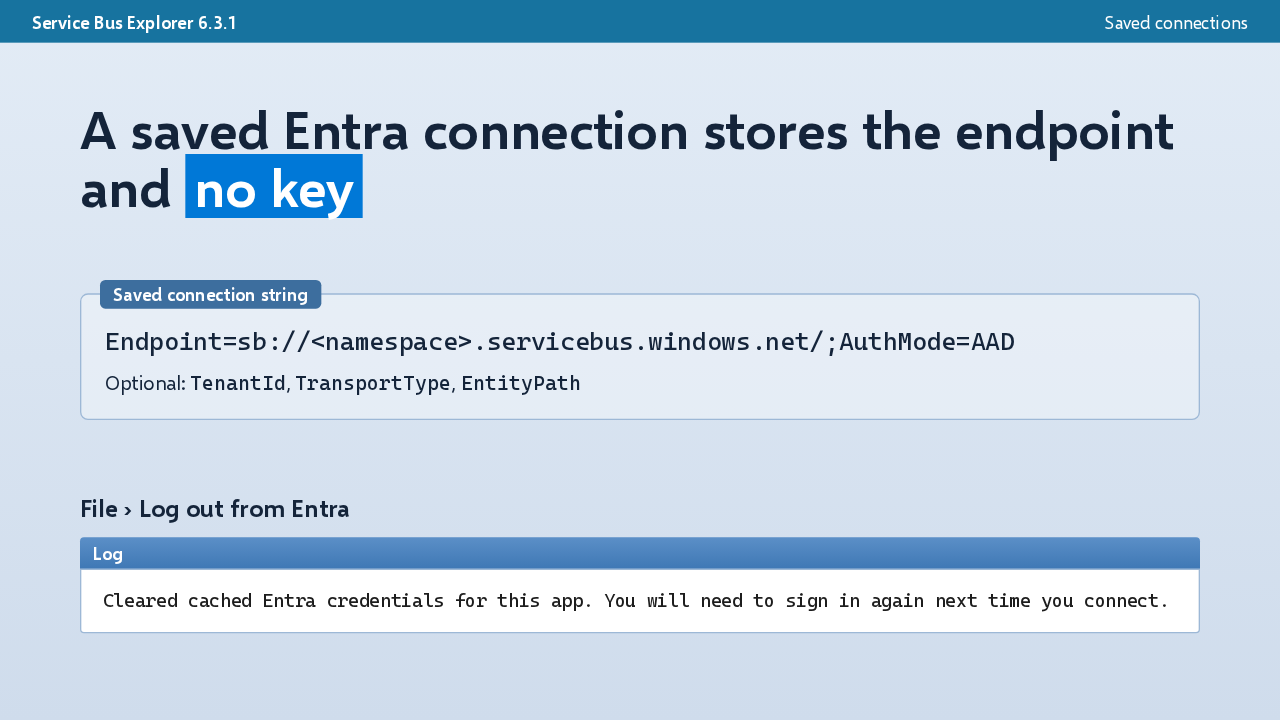
  4. A saved Entra connection holds metadata only: the endpoint, Auth Mode equals AAD, and optionally the tenant, the transport type and the entity path. To switch users, choose File, Log out from Entra. It clears the app's cached sign-in, though your browser may still pick the same account.

    Slide text
    Service Bus Explorer 6.3.1 Saved connections

    A saved Entra connection stores the endpoint and no key

    Saved connection string

    Endpoint=sb://<namespace>.servicebus.windows.net/;AuthMode=AAD

    Optional: TenantId, TransportType, EntityPath

    File › Log out from Entra

    Log
    Cleared cached Entra credentials for this app. You will need to sign in again next time you connect.
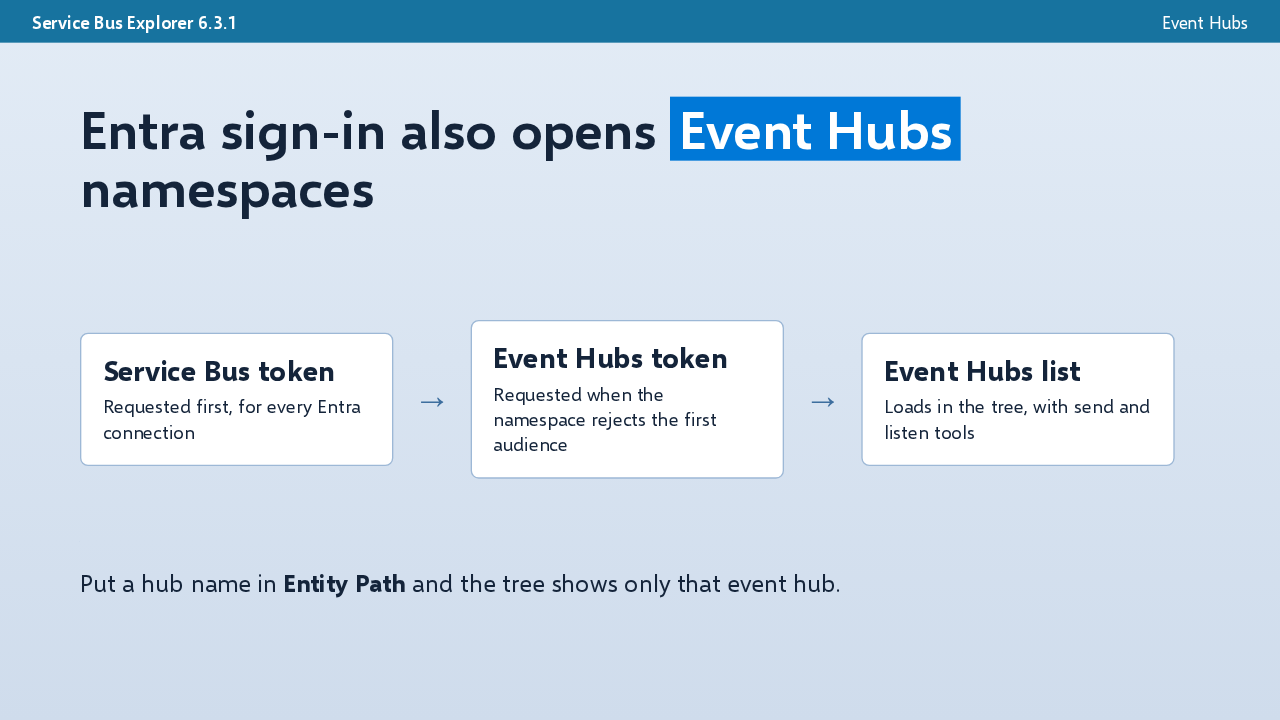
  5. Event Hubs namespaces work too. The app asks for a Service Bus token first. If the namespace rejects it, the app retries with the Event Hubs scope and loads the event hubs, for the sender test and the partition listener as well. A hub name in Entity Path narrows the tree to that one hub.

    Slide text
    Service Bus Explorer 6.3.1 Event Hubs

    Entra sign-in also opens Event Hubs namespaces

    Service Bus token
    Requested first, for every Entra connection
    →
    Event Hubs token
    Requested when the namespace rejects the first audience
    →
    Event Hubs list
    Loads in the tree, with send and listen tools

    Put a hub name in Entity Path and the tree shows only that event hub.

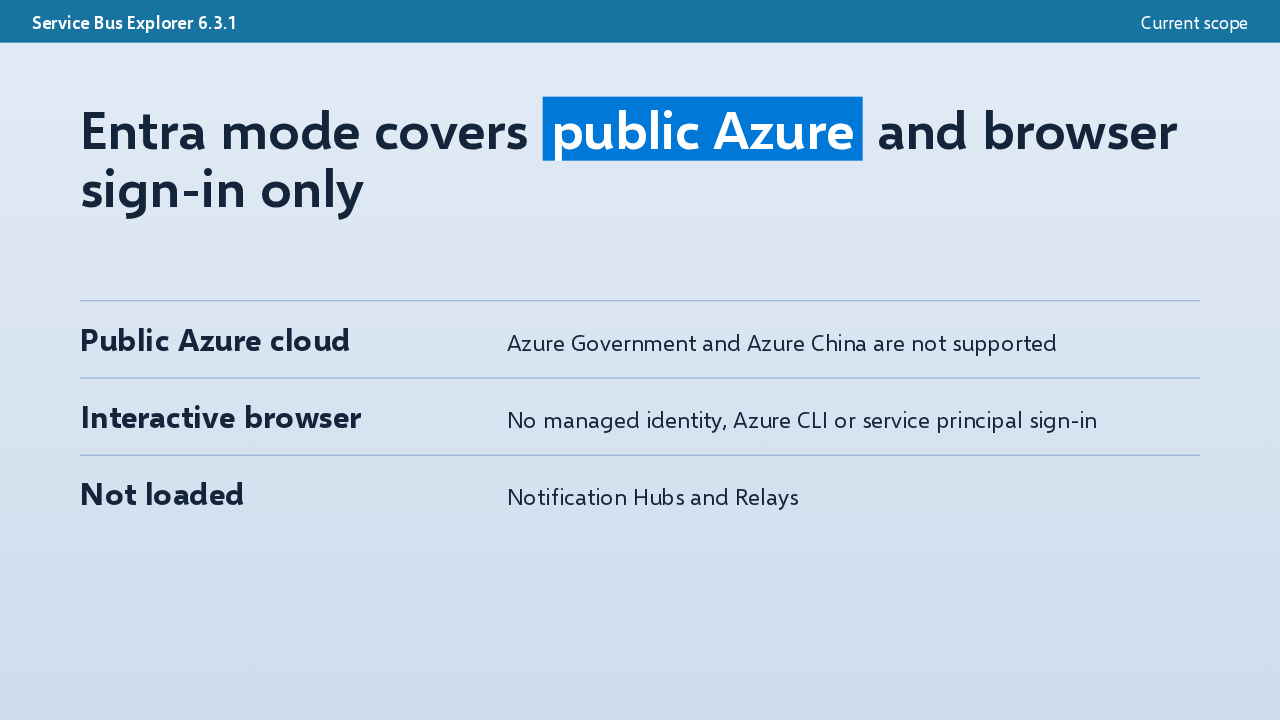
  6. Entra mode runs on the public Azure cloud only, so Azure Government and Azure China are not supported. Sign-in is interactive, and managed identity, Azure CLI and service principals are not included. Notification Hubs and Relays don't load in Entra mode. A shared access signature connection still covers them.

    Slide text
    Service Bus Explorer 6.3.1 Current scope

    Entra mode covers public Azure and browser sign-in only

    Public Azure cloud
    Azure Government and Azure China are not supported
    Interactive browser
    No managed identity, Azure CLI or service principal sign-in
    Not loaded
    Notification Hubs and Relays
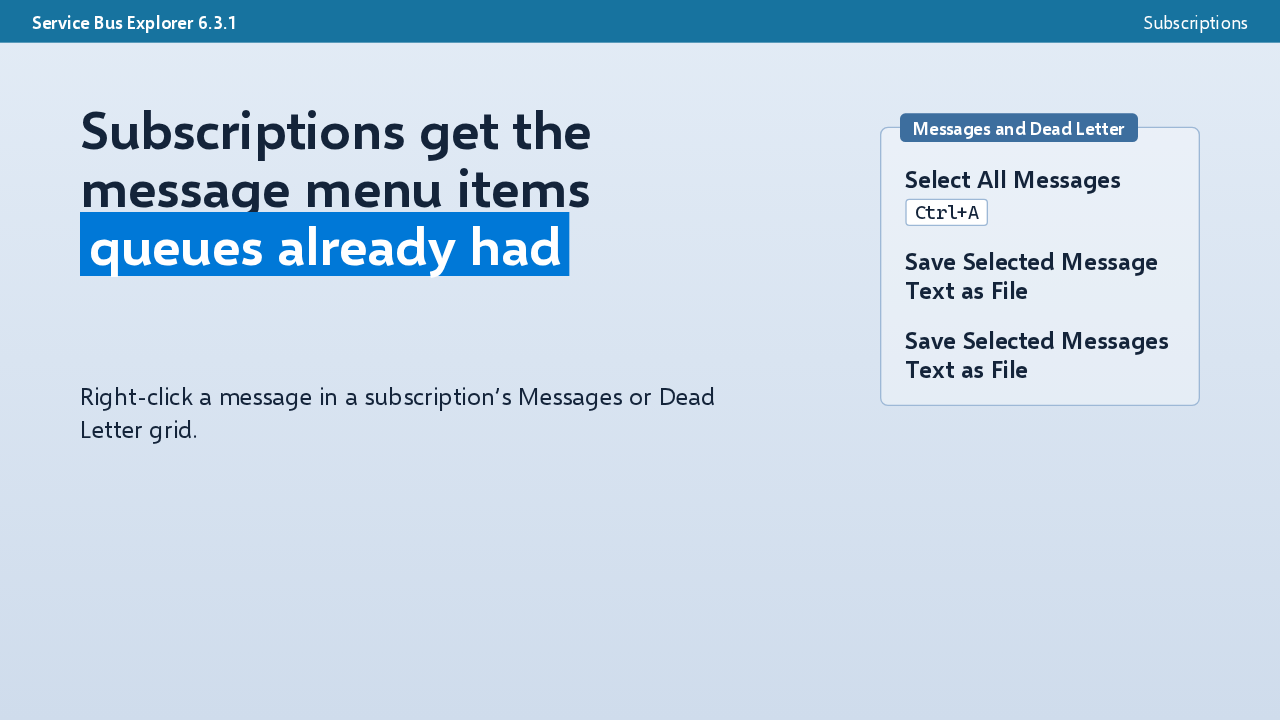
  7. Subscriptions catch up with queues. Right-click a message in a subscription's Messages or Dead Letter grid, and you get Select All Messages, on Control A, and Save Selected Message Text as File, which writes only the body. Several selected messages each get their own numbered file.

    Slide text
    Service Bus Explorer 6.3.1 Subscriptions

    Subscriptions get the message menu items queues already had

    Messages and Dead Letter

    Select All Messages

    Ctrl+A

    Save Selected Message Text as File

    Save Selected Messages Text as File

    Right-click a message in a subscription’s Messages or Dead Letter grid.

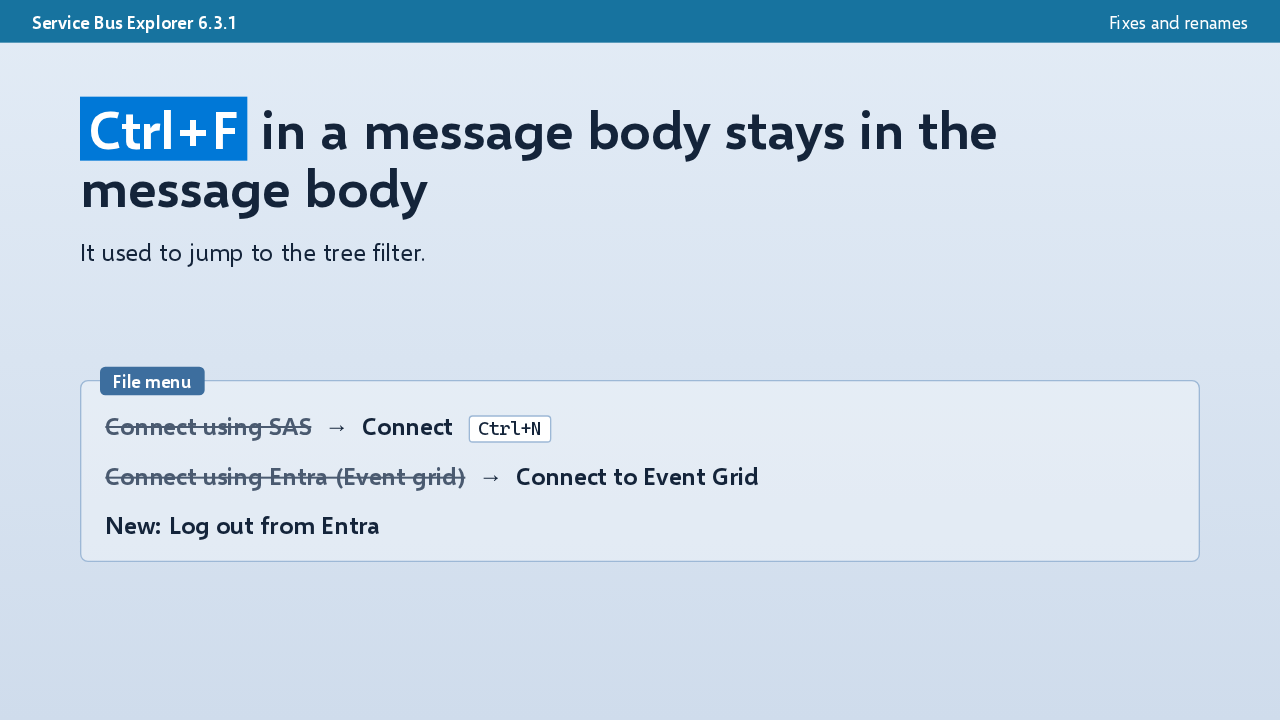
  8. A fix: Control F inside a message text box used to jump to the tree filter. Now the text box keeps it. The File menu is renamed too. Connect using SAS is now Connect, the Event Grid item is now Connect to Event Grid, and Log out from Entra is new.

    Slide text
    Service Bus Explorer 6.3.1 Fixes and renames

    Ctrl+F in a message body stays in the message body

    It used to jump to the tree filter.

    File menu

    Connect using SAS  →  Connect Ctrl+N

    Connect using Entra (Event grid)  →  Connect to Event Grid

    New: Log out from Entra

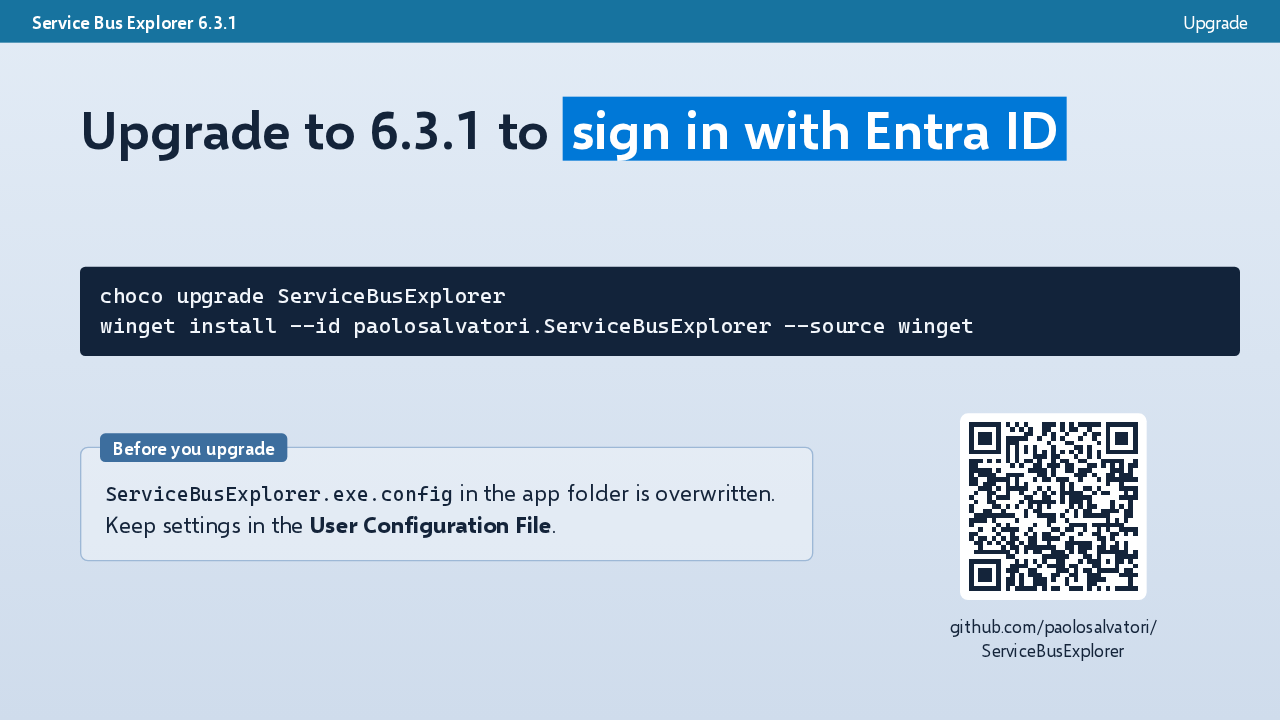
  9. Upgrade with Chocolatey, WinGet, or the download on the GitHub release. The release notes list no breaking changes. The config file in the app folder is overwritten on upgrade, so keep your settings in the User Configuration File. If you need managed identity or a sovereign cloud, keep your current connections. On public Azure, 6.3.1 lets you sign in to Service Bus with Entra ID.

    Slide text
    Service Bus Explorer 6.3.1 Upgrade

    Upgrade to 6.3.1 to sign in with Entra ID

    choco upgrade ServiceBusExplorer
    winget install --id paolosalvatori.ServiceBusExplorer --source winget
    Before you upgrade

    ServiceBusExplorer.exe.config in the app folder is overwritten. Keep settings in the User Configuration File.

    github.com/paolosalvatori/
    ServiceBusExplorer

What happened in AI today, in your inbox

One short email each evening. Read it and you’re caught up.

Built in New York with ❤️