BossTerm v1.2.183
3 hours ago
BossTerm 1.2.183 changes a default you will notice. The session daemon, the background process that keeps your terminal sessions alive after the window closes, is now something you switch on yourself. The same pull request fixes a deadlock that could leave the daemon stuck when you quit it on macOS. If you use daemon mode, both changes touch you.
Ask about this presentation
Chapters
Show transcriptHide transcript
BossTerm 1.2.183 changes a default you will notice. The session daemon, the background process that keeps your terminal sessions alive after the window closes, is now something you switch on yourself. The same pull request fixes a deadlock that could leave the daemon stuck when you quit it on macOS. If you use daemon mode, both changes touch you.
Slide text
~/bossterm $ release v1.2.183daemon quit upgradeBossTerm 1.2.183 makes the session daemon opt-in
It also fixes a deadlock when you quit the daemon on macOS.

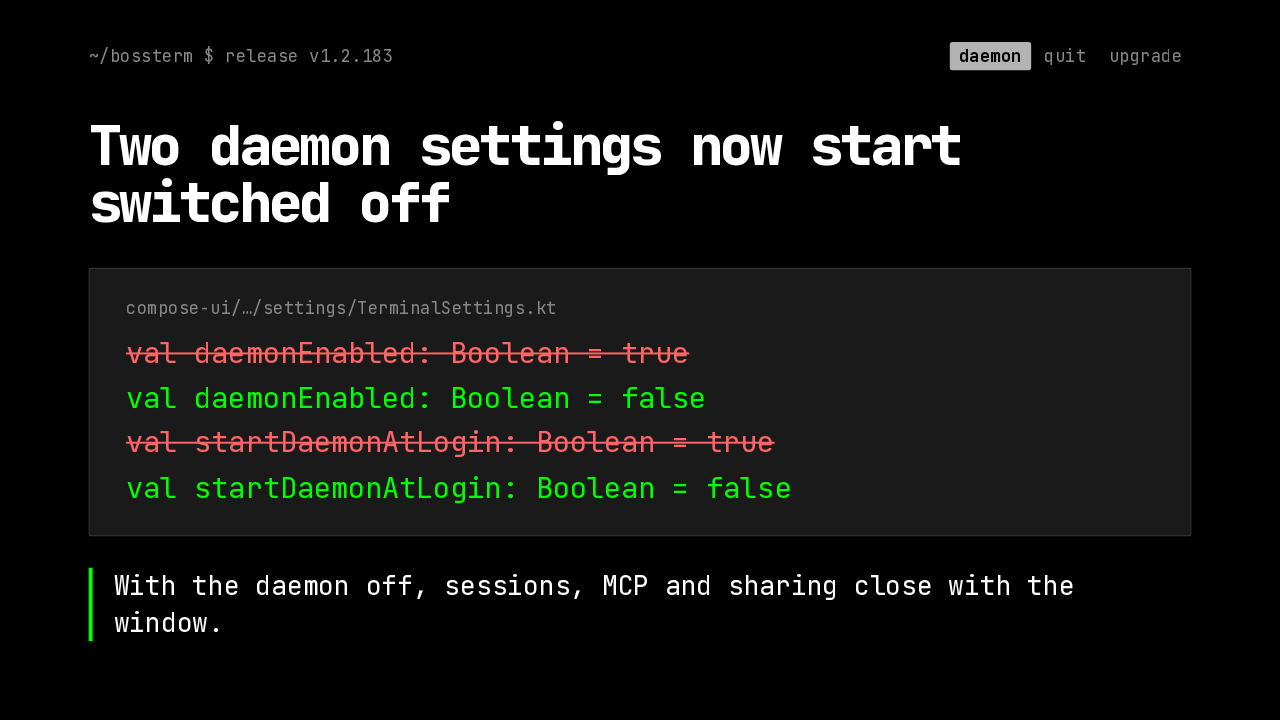
Here is the change, in the defaults themselves. Daemon enabled, and start daemon at login, both flip from true to false. With the daemon off, your sessions, the MCP server and session sharing all run inside the BossTerm window, so they close when the window closes. That is the path BossTerm took before daemon mode existed.
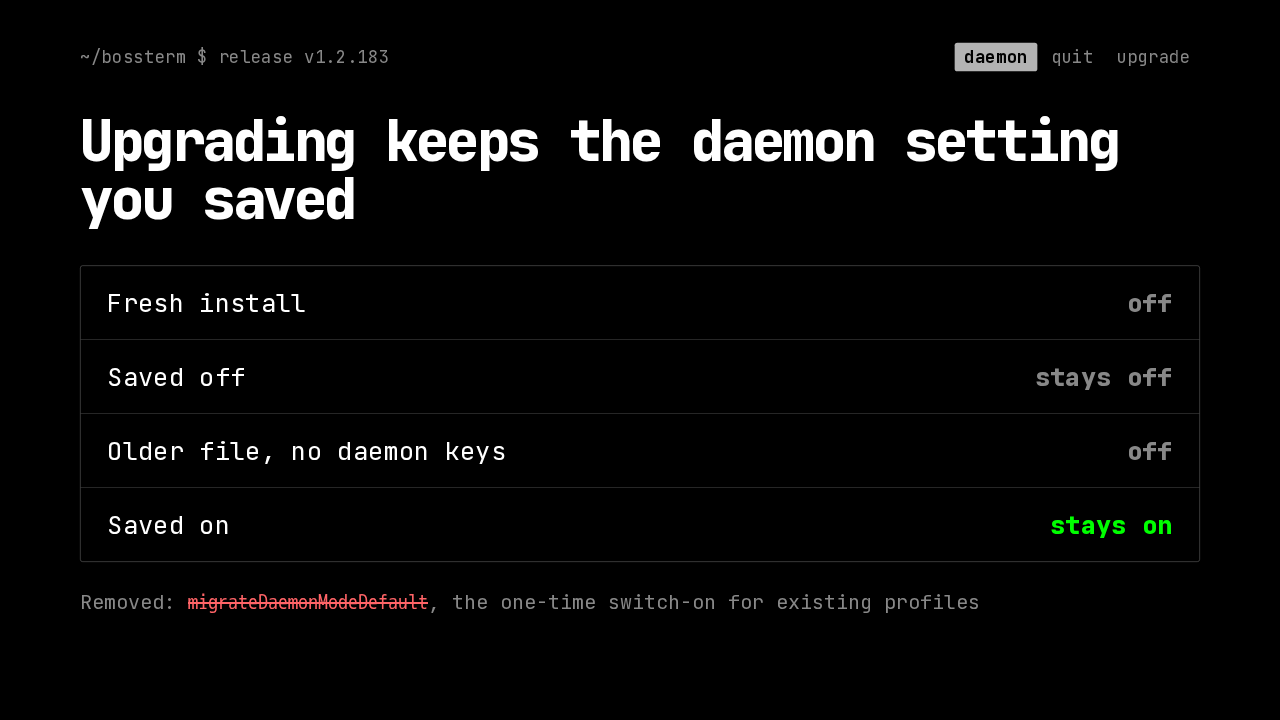
Upgrading depends on what your settings file already says. A fresh install starts with the daemon off. A saved off stays off, and so does an older settings file that never mentioned the daemon. If your file says the daemon is on, it stays on. Earlier releases switched daemon mode on once for existing profiles. That one-time migration is gone, and its leftover marker now does nothing.
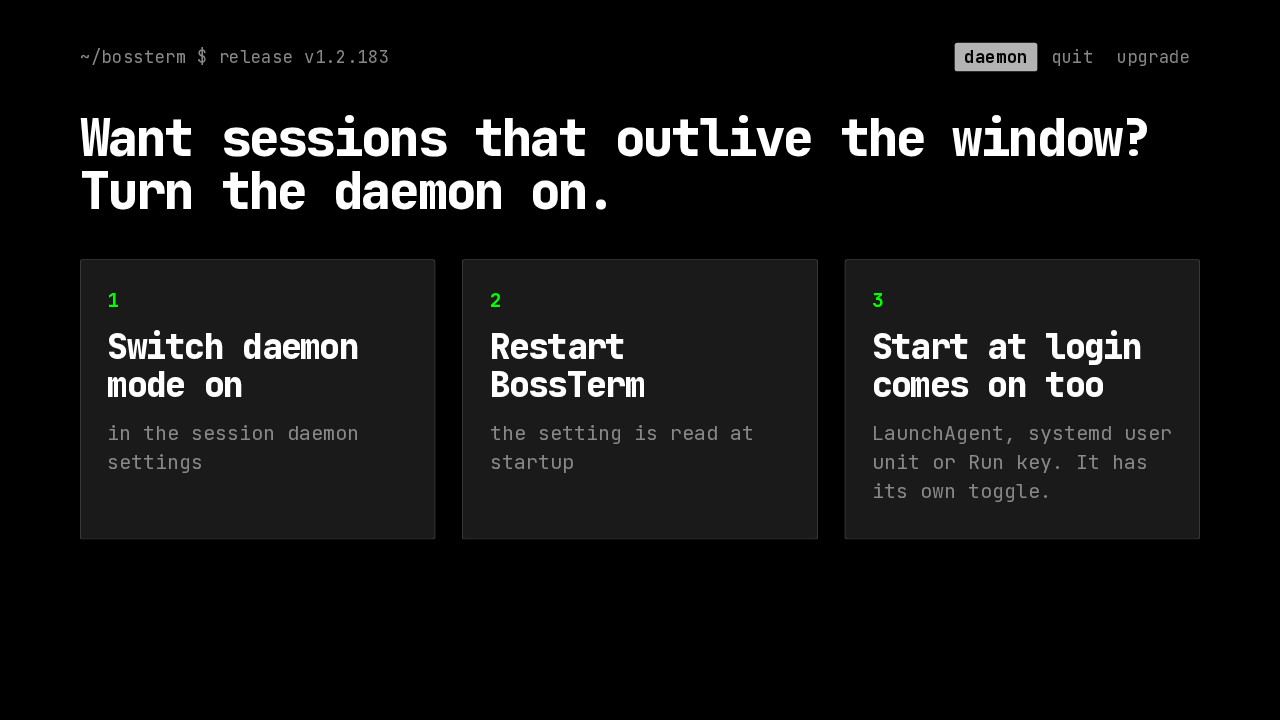
If you want the daemon, it is one setting away. Switch daemon mode on in the session daemon settings. Then restart BossTerm, because the setting is read at startup. Turning it on also turns on start at login, which installs a launch agent on macOS, a systemd user unit on Linux, or a Run key on Windows. That has its own toggle if you want the daemon without it.
Now the fix, for quitting the daemon on a Mac.
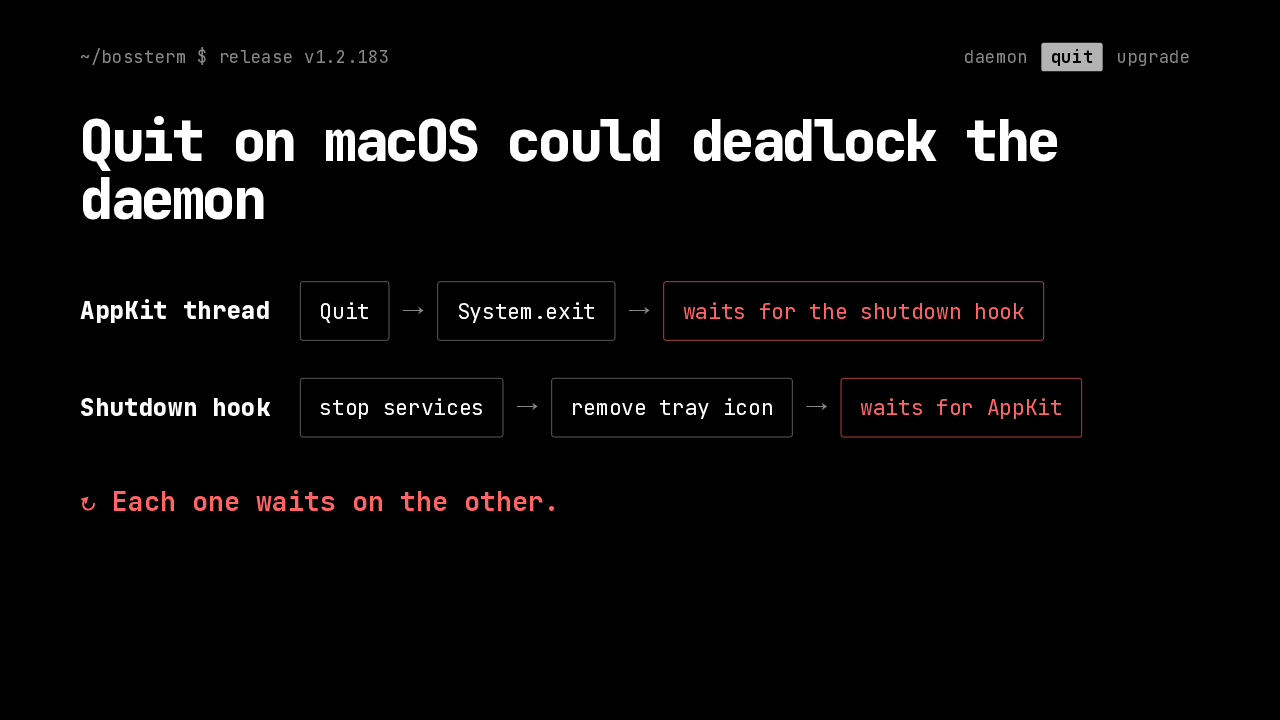
Here is how it got stuck. A native macOS Quit can run System.exit on the AppKit thread, and that thread then waits for the shutdown hooks to return. The daemon's hook stopped its services and then removed the tray icon. Removing the tray icon needs the AppKit thread, which was busy waiting for the hook. Each side waited on the other, so the daemon could hang on the way out.
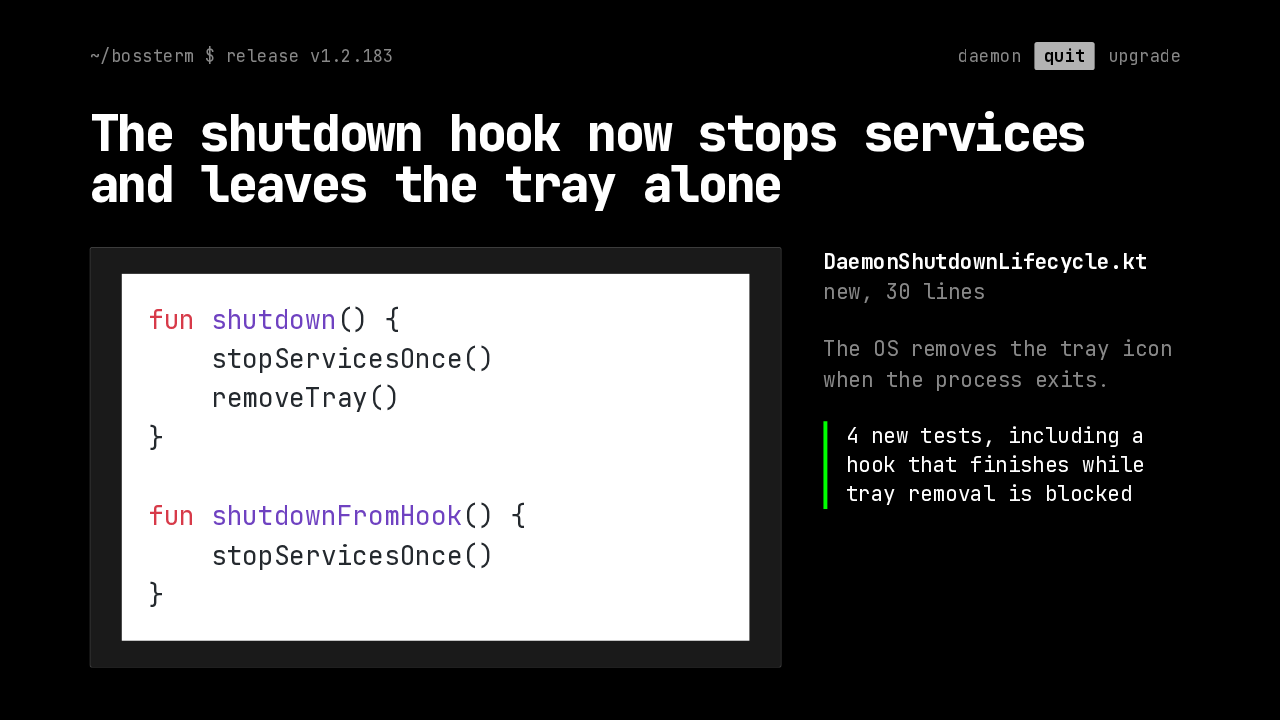
The fix moves teardown into a small new class, DaemonShutdownLifecycle. The normal stop path stops the services, then removes the tray icon outside the service lock. The hook path only stops the services, and stays away from the user interface thread. The operating system removes the icon on exit. Either way, services stop exactly once. Four new tests cover it, including a hook that finishes while tray removal is blocked.
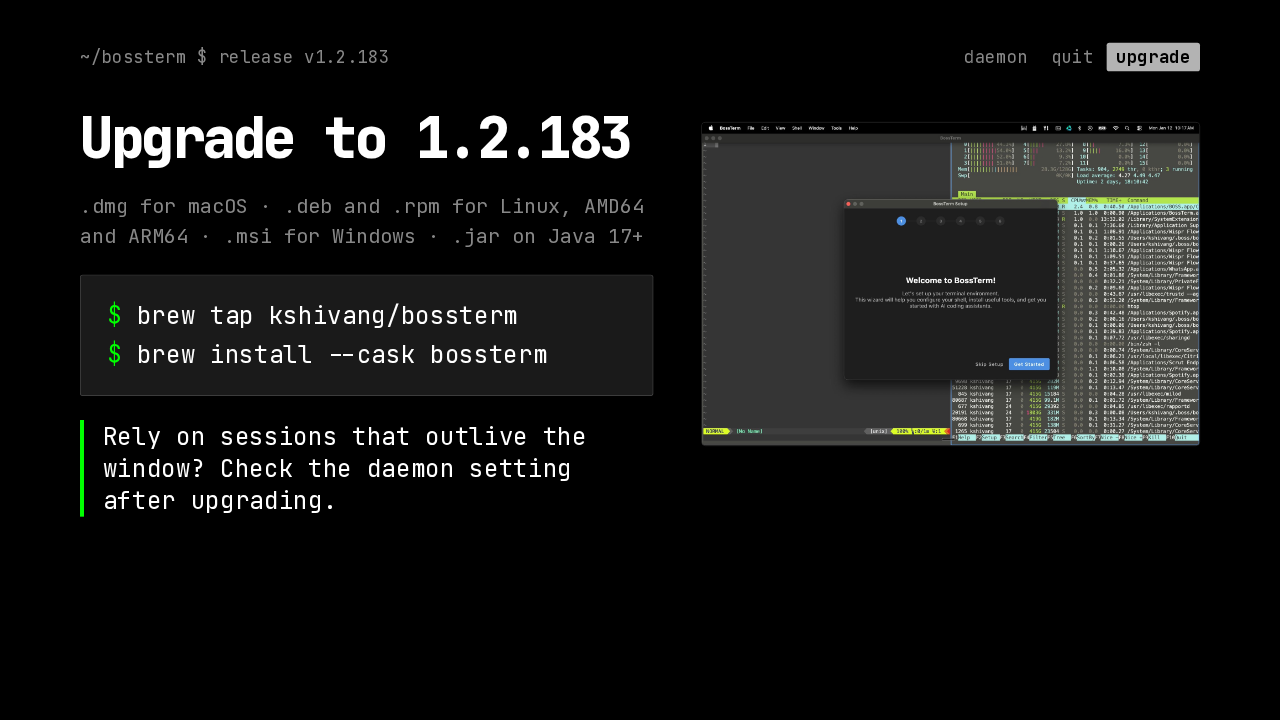
Builds are out for macOS, Debian and Ubuntu, Fedora, Windows, and a JAR that runs on Java 17 or later. On a Mac, Homebrew installs it from the project's tap. The whole release is one pull request with these two changes. If you rely on sessions that outlive the window, open the session daemon settings after upgrading and make sure it is on. BossTerm 1.2.183 makes the session daemon opt-in, and quitting it on a Mac no longer deadlocks.
Slide text
~/bossterm $ release v1.2.183daemon quit upgrade.dmg for macOS · .deb and .rpm for Linux, AMD64 and ARM64 · .msi for Windows · .jar on Java 17+
$ brew tap kshivang/bossterm
$ brew install --cask bosstermRely on sessions that outlive the window? Check the daemon setting after upgrading.
